
For organizations
In Apprentice, signed-in organizations create a profile, publish listings, review applications (including schedule fit), accept or reject, then message apprentices from Placements. This page walks through that path. Product overview: Apprentice overview. Student apply and browse: For students.
Sidebar nav: Home, Organization, Listings, Applications, Placements. There is no Settings item for organizations in the sidebar today.
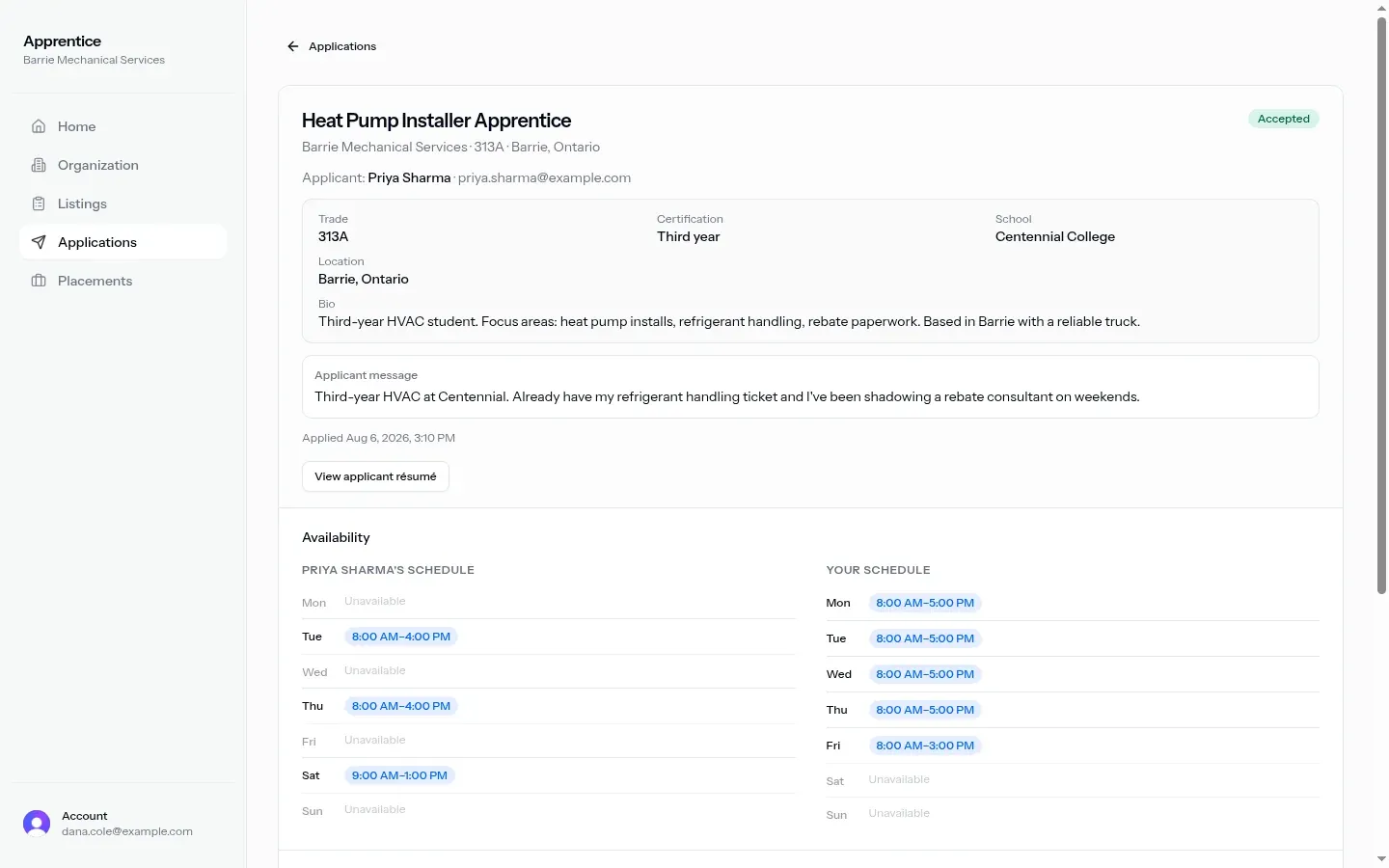
When you review an application, you’ll see the applicant’s weekly availability next to Your schedule when both sides have hours set.
End-to-end path
Section titled “End-to-end path”- Sign in, choose I represent an organization, then complete Set up your organization (or open Organization after your company exists).
- Publish openings under Listings with New listing.
- Review candidates in Applications; open detail for résumé, schedule comparison, and Conversation.
- Accept or Reject pending applications (list or detail). Accept creates a placement.
- Coordinate under Placements with Open and Message the student.
Organization onboarding
Section titled “Organization onboarding”Page title: Set up your organization. Subtitle: tell us about the organization you represent; manage listings and applications from the dashboard next.
Form card:
- Title: Create your organization
- Description: you can post apprenticeship listings and review applicants after this step
- Submit: Create organization (then you land on Home)
| Field | Notes |
|---|---|
| Organization name | Required; example e.g. Northside Mechanical |
| Organization type | Contractor, Trade agent, Both |
| Trades | Multi-select |
| Description | Hint What does your organization do? |
| Location | Canada location search; hint City or address in Canada |
| Team size | Number, minimum 1; default 1 |
If listings, applications, or profile load before you’ve set up an organization, you’ll see a link to Set up organization.
Organization profile
Section titled “Organization profile”Nav label: Organization. Page title: Organization. Subtitle: View and update your organization profile.
Only organization admin members can edit; others see an alert that only admins can change these details.
Header card shows organization name, Public URL slug, and optional Logo on file when a logo exists.
| Field | Notes |
|---|---|
| Organization name | Required |
| Organization type | Same options as onboarding |
| Trades | Multi-select |
| Description | Same hint as onboarding |
| City | Text input (not place search on edit) |
| Province / region | Text input |
| Team size | Number, minimum 1 |
Admin submit: Save changes.
Organization home: eyebrow Organization, heading with your organization name (or Your workspace). Stats: Open listings (links to Listings) and Active placements (links to Placements). Quick rows: Applications (Review pending), Listings (Manage postings), Placements (Track apprentices).
Listings
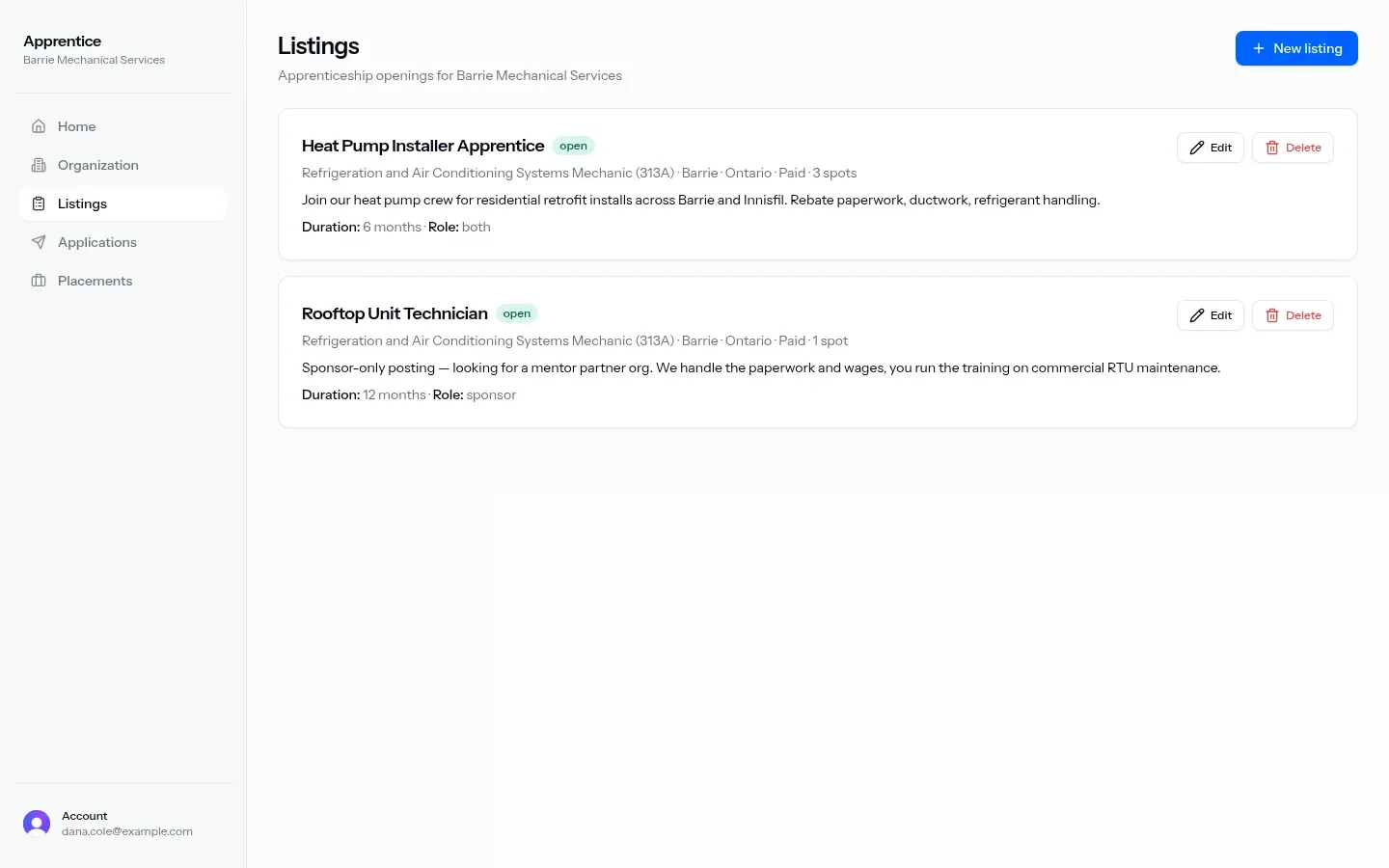
Section titled “Listings”Nav and page title: Listings. Subtitle: apprenticeship openings for your organization, or Create and manage apprenticeship listings.
Primary action: New listing. Empty state: eyebrow No listings, title Post your first apprenticeship, action New listing.
Each card can show title, status badge (Open / Filled / Closed), trade display name, city / province, Paid or Unpaid, spots, description, Duration, and Role (Mentor / Sponsor / Both). Actions: Edit, Delete (confirm: delete listing; cannot be undone).
Create / edit sheet
Section titled “Create / edit sheet”Sheet title: New listing or Edit listing.
| Control | Notes |
|---|---|
| Title | Required on create; example e.g. Plumbing apprentice |
| Trade | Required |
| Your role | Mentor (hands-on training), Sponsor (funding / hosting), Both |
| Description | Hint What will the apprentice do? |
| Duration | Example e.g. 6 months |
| Location | Location search; hint City or address in Canada |
| Spots available | Number, minimum 1; default 1 |
| Paid position | Checkbox |
| Status | Edit only: Open, Filled, Closed |
| Cancel | Closes sheet |
| Submit | Create listing or Save changes |
New listings start open. Edit can change status.
Applications
Section titled “Applications”Nav and page title: Applications. Subtitle: Applicants to your organization’s listings.
Refresh reloads. Empty: eyebrow No applications, title No applications yet, action Manage listings.
List rows open detail and show applicant name (or Applicant), status badge, listing title, optional email, and applied time. For pending rows, inline Accept / Reject (reject confirms that the student will see it as rejected).
Statuses: Pending, Accepted, Rejected.
Application detail
Section titled “Application detail”Organization detail shows:
- Back link to Applications
- Listing title, organization / trade / location, status badge
- Applicant: full name and email
- Profile summary when loaded: Trade, Certification, School, Location, Bio (certification omitted when level is none)
- Applicant message when present
- Applied time
- View applicant résumé (error copy when none on file)
- Accept / Reject when status is pending
- Availability schedule comparison (organization accounts only):
- Applicant’s schedule (labeled with their name, or Applicant’s schedule)
- Your schedule
- Days Mon through Sun; time slots in 12-hour form, or Unavailable
- Conversation with message count; Add a message / Send
Students see a different detail screen and do not get accept/reject or the schedule comparison; see For students.
Placements
Section titled “Placements”Nav and page title: Placements. Organization subtitle: Current apprentices and placements with your organization.
Cards show student name (or Student) and a subtitle built from listing title, organization, student name when present, and location. Open opens a sheet titled Placement with counterparty info, Conversation, and Message the student / Send. Refresh reloads the list.
Empty: eyebrow No placements, title No apprentices placed yet (appear when you accept a student’s application; message them from this page).