
Files and team coordination
This page covers collaboration on a project: Docs & Files, Members, Tasks, Team Chat, Updates, and Activity. For Scope Clarification, Quote Requests, or Work Orders, see Scopes, Quotes, and Work Orders.
Project files live under the project only. There is no company-wide docs library in Flow. Team members and invites live under Settings → People.
Where these sit in the project nav
Section titled “Where these sit in the project nav”Inside a project, the project nav labels are:
- Dashboard
- Team Chat
- Updates
- Tasks
- Activity
- Docs & Files
- Settings
Project tools in the same nav (covered on other pages): Scope Clarifications, Quote Requests.
At the company level (not inside a project), nav includes My Work, Projects, Activity, and Settings. Team management is the People section on Settings.
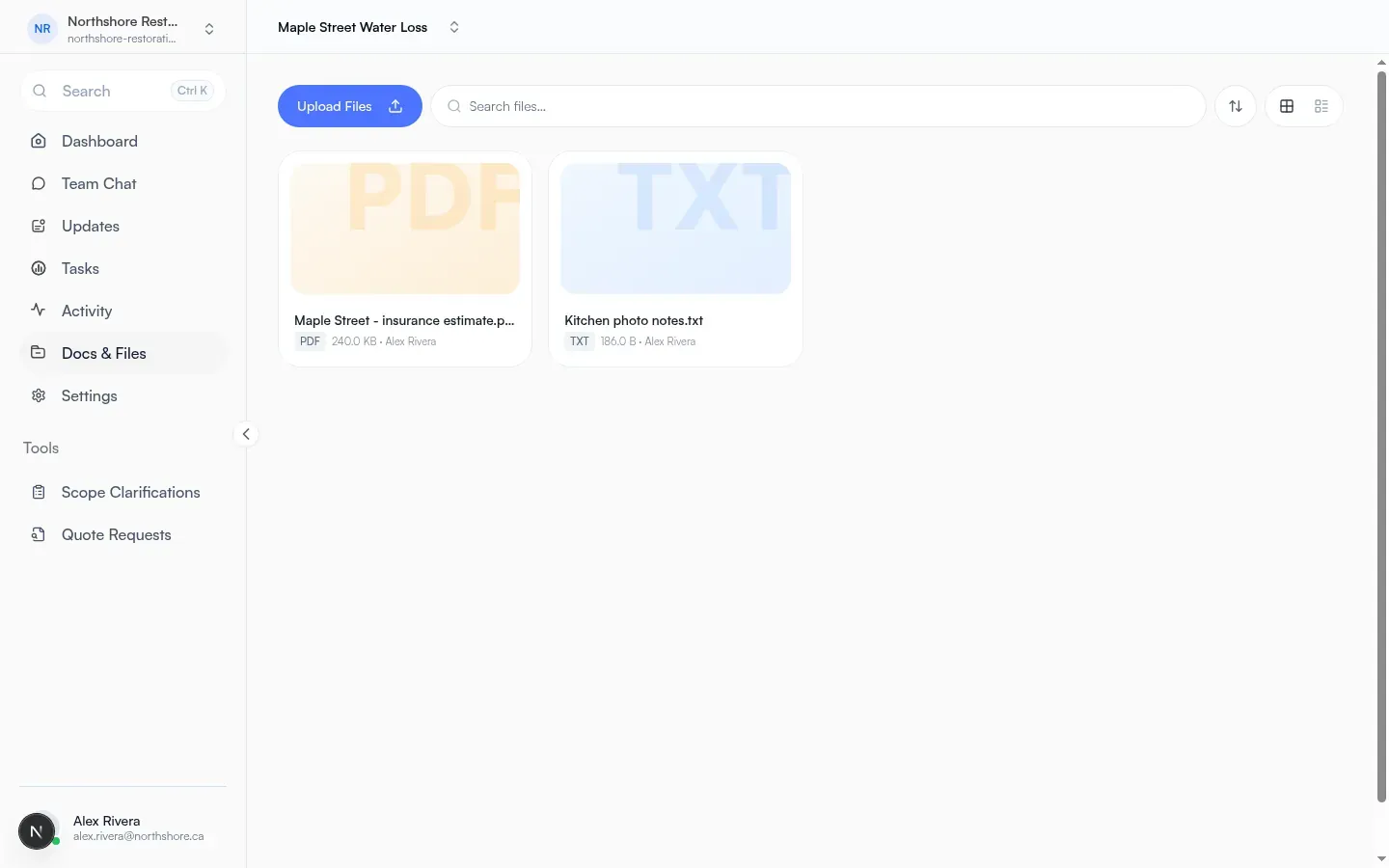
Docs & Files
Section titled “Docs & Files”Nav label: Docs & Files. This is the project file library (upload, preview, download, edit details, manage access, delete).
Library controls
Section titled “Library controls”- Primary action (desktop): Upload Files
- Mobile upload control: Upload files
- Search field hint: Search files…
- Sort menu: Newest first, Oldest first, Name A-Z
- View toggle: grid or list
- Empty (no files): No files uploaded yet / Upload your first document to populate this project library. Button: Upload your first file
- Empty (search miss): No files match these filters / No files match your search. Try a different term.
- No projects at all: Create a project to start your library with Create Project
List columns: Name, Type, Size, Uploaded by, Date.
Per-file actions menu: Download, Manage access, Delete file.
Upload sheet
Section titled “Upload sheet”Sheet title: Upload Files. Help copy: files upload immediately; name them before saving.
Dropzone labels: Drag & drop files / Drop files here, browse files, Any file type · Max 500 MB per file, Add more files. Footer confirm: Save N file(s) (or Uploading… / Saving…). Cancel closes.
Some links open the upload sheet for you as soon as the page loads.
File preview
Section titled “File preview”Opening a file shows File Preview (title uses the file name when empty). Details shown: Type, Size, Uploaded by, Date, Description (empty: No description added.).
Toolbar / menus:
- Download
- Manage access
- Edit details (fields Name, Description; hint Add a description (optional); Save / Cancel)
- Delete file → dialog Delete File / Cancel / Delete
Unsupported preview: Preview unavailable / Download to view this file.
Manage file access
Section titled “Manage file access”Dialog: Manage file access / Share this file with project members and manage their roles.
- Add people (search: Search project member by name or email…)
- Role options when granting: Viewer, Editor, Manager; action Grant
- Section: People with access
- People who manage the project show as Manager
Members and team
Section titled “Members and team”Org People
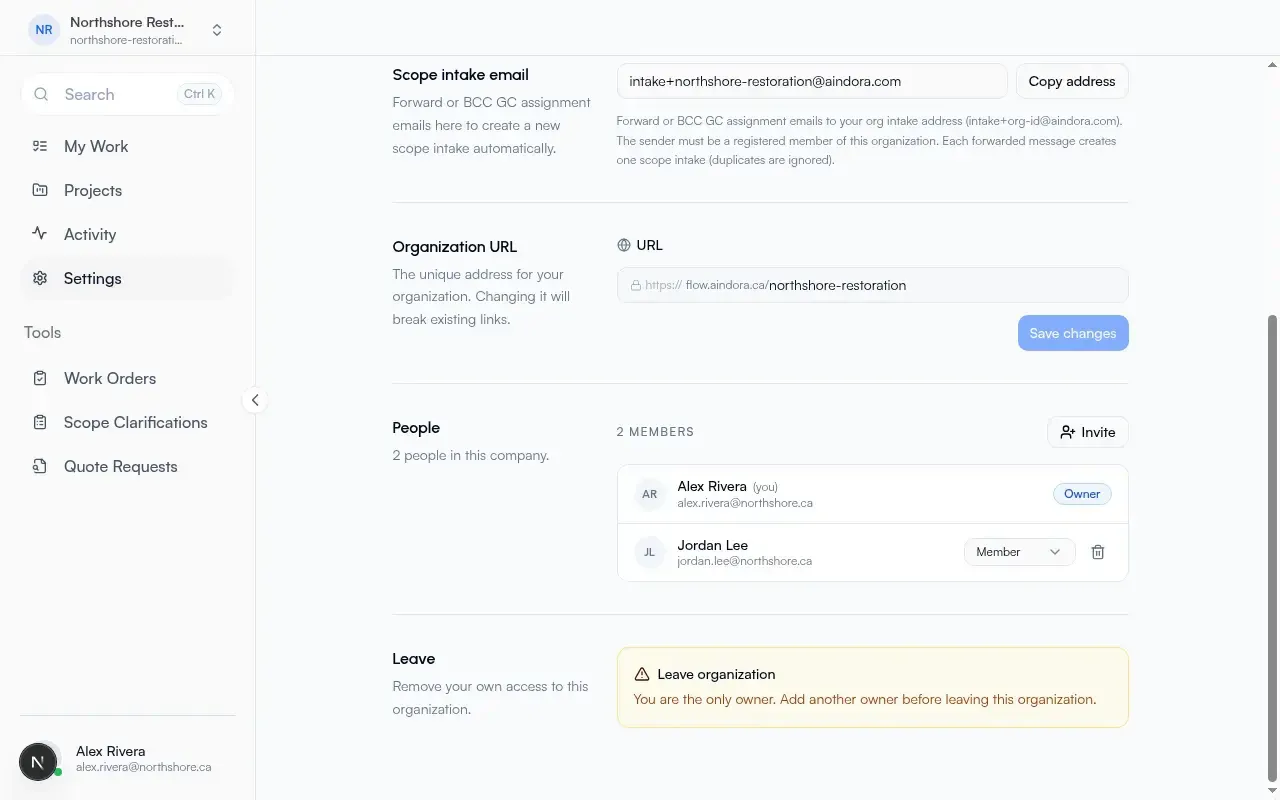
Section titled “Org People”Org Settings page eyebrow: Settings. Section People: count of people in this company.
- Header count: N members
- Admin/owner action: Invite → dialog Invite a member
- Fields: Email address, Role
- Roles: Member, Admin, External, and Owner when you are an owner
- Role help copy is shown for the selected role (owner / admin / member / external)
- Confirm: Send invitation
- Pending list label: Pending · N
- Owner can change roles and Remove member
- Leave section: Leave organization (blocked if you are the only owner)
Org role meanings from the invite UI:
- owner: Full organization control, including settings, deletion, member management, and assigning owners.
- admin: Can manage members, projects, and scopes, but cannot perform owner-only organization actions.
- member: Standard internal collaborator who can view the organization and create or view projects and scopes.
- external: Limited access for outside collaborators who can view shared project content and leave comments.
Project Members
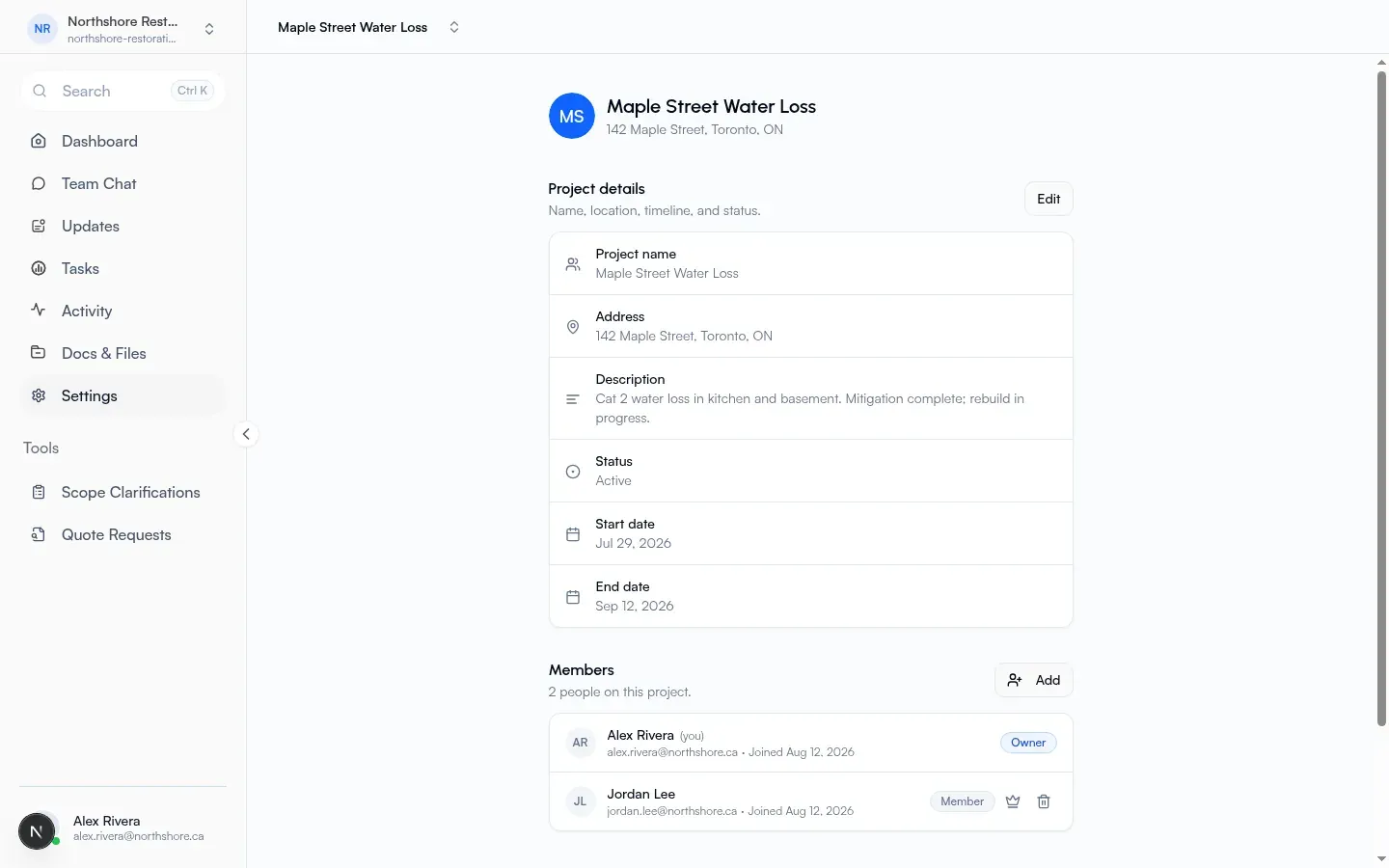
Section titled “Project Members”On project Settings, section Members: N people on this project. Owner action: Add → Invite Team Member (search company members or Invite by email).
Project roles shown as badges: owner, member, external. Owner can Transfer ownership and Remove member. Pending invitations show under Pending · N.
Also on project settings: Project details (name, address, description, status, start/end dates) and Danger zone (Delete project or Leave project).
External collaborators can be invited to Updates separately (share dialog on the message board; see below).
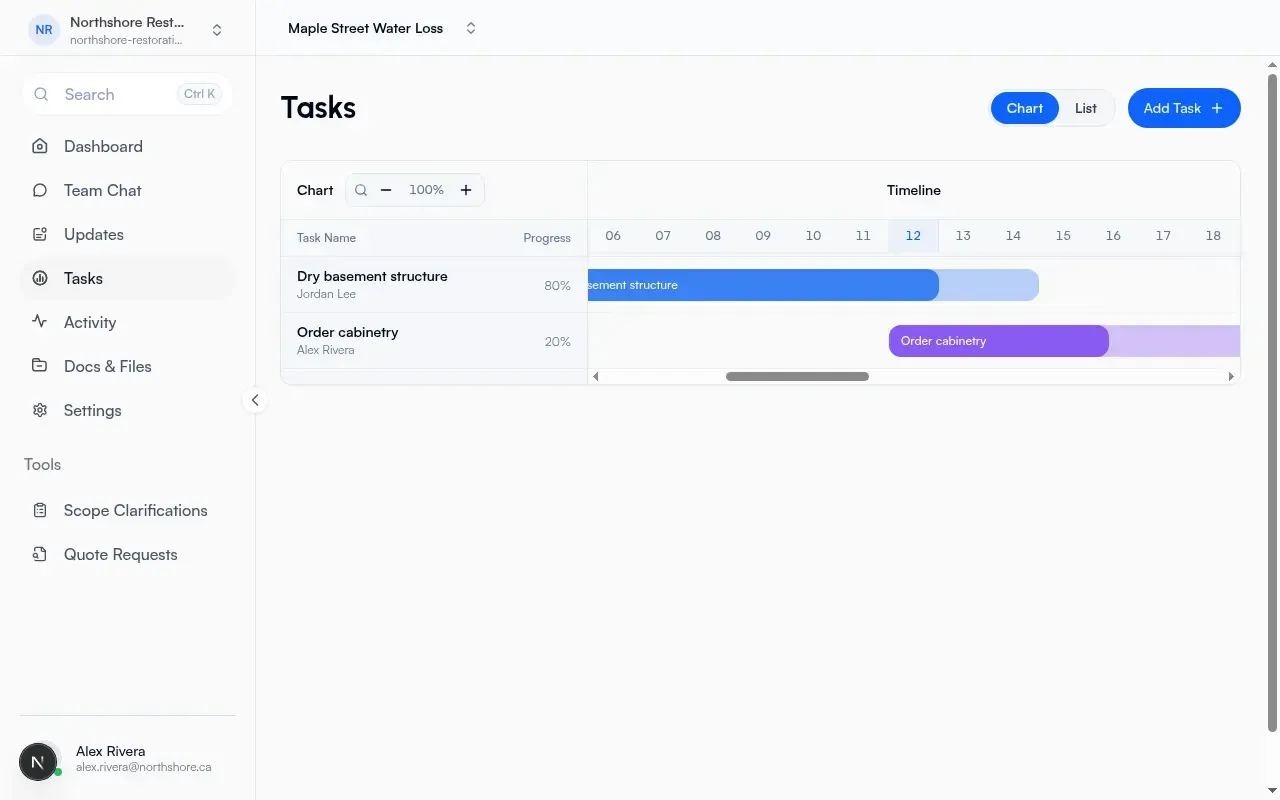
Page title: Tasks. Actions: view toggle Chart / List, and Add Task.
Empty chart/list: No tasks yet. Click “Add Task” to get started!
New task
Section titled “New task”Title: New task / Fill in the details below to create a task. Back link: Back to Tasks. Submit: Create (or Creating…). Cancel returns to the list.
Fields:
- Task name (text field)
- Description (hint Add task details…)
- Assigned to (hint Select team member; option Unassigned)
- Priority: Low, Medium, High, Urgent
- Start date, End date (picker empty: Pick a date)
- On edit/detail: Progress (%), Color
Task detail
Section titled “Task detail”Back to Tasks, Delete → Delete task?, and Save. Comments empty copy: No comments yet. Add an update for the team.
Status labels derived for list/chart: Completed, Not Started, Delayed, In Progress.
Team Chat
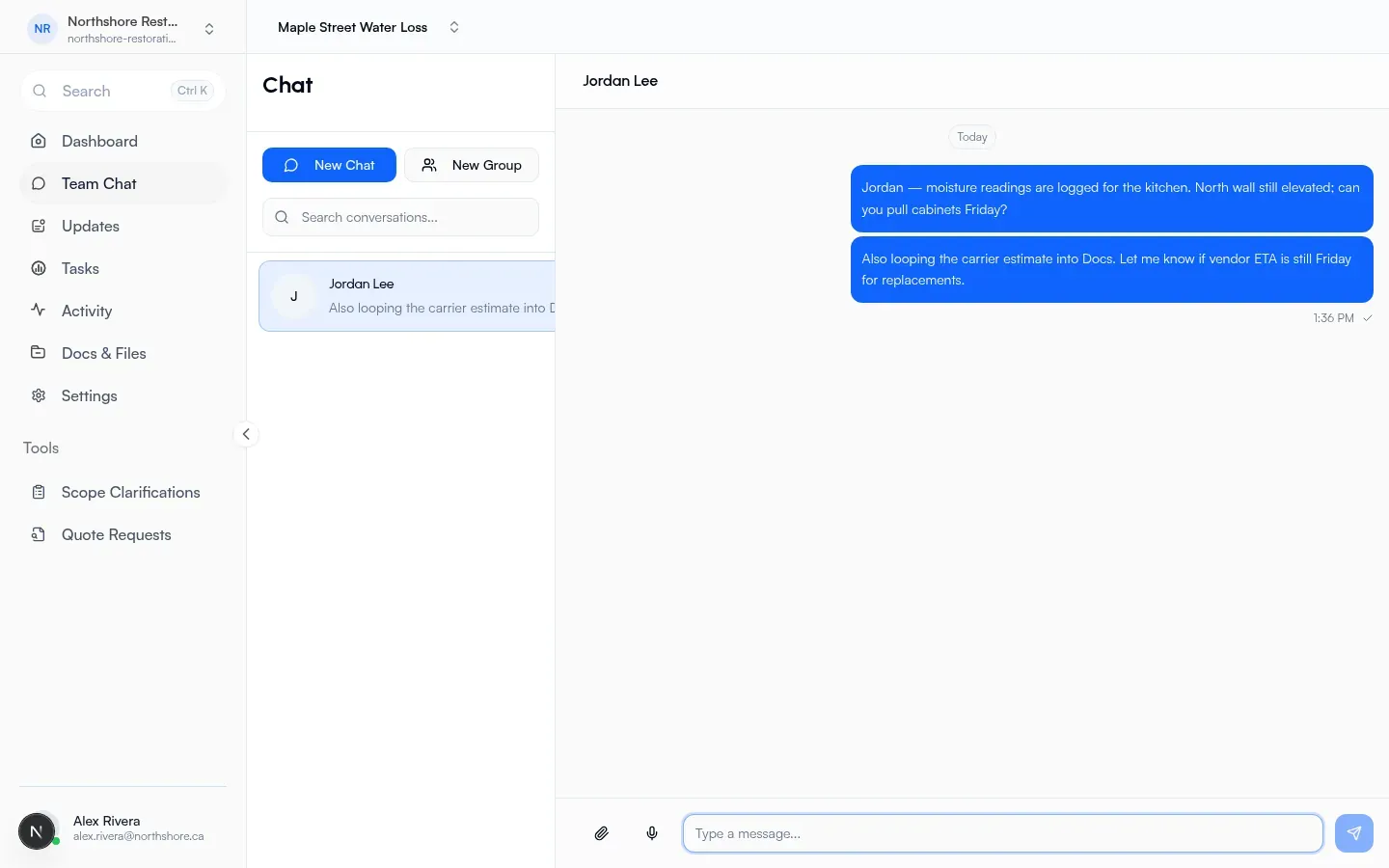
Section titled “Team Chat”Nav label: Team Chat. Conversation list heading: Chat.
- Actions: New Chat, New Group
- Search: Search conversations…
- Empty preview pane: Select a conversation / Choose a contact from the list to start chatting
- No projects: No Projects Yet / Create a project to start chatting with your team members.
- Not signed in: Please log in to access chat
New Chat dialog: Start New Chat (search Search by name or email…).
New Group dialog: Create New Group (group name, member search, Create Group).
Updates (message board)
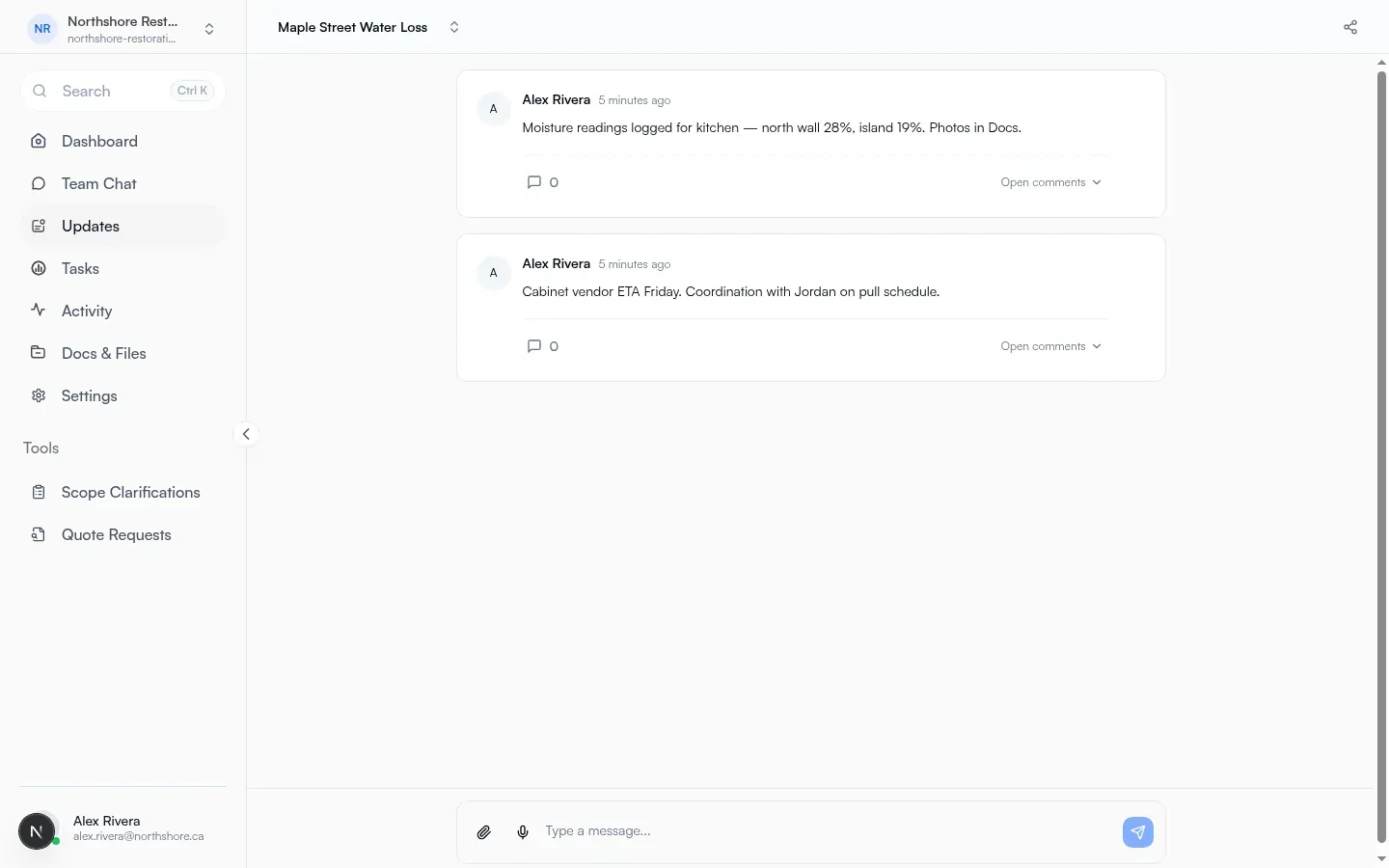
Section titled “Updates (message board)”Nav label: Updates. This is the project announcement / threaded board (not 1:1 Team Chat).
Empty board: No messages yet / Be the first to start the conversation. Message field hint: Type a message… (drag: Drop files here…). Attachments via paperclip (Add attachments); voice notes supported. Attachment size limit: 50MB.
Per post:
- Comments toggle: Open comments / Hide comments
- Comment field hint: Write a comment…
- Guest comments can show an External badge
- Delete (author or project owner): Delete message?
Header share control opens Share Updates Externally:
- Toggle: External sharing is on / External sharing is off
- Invite external guest (email example
guest@example.com, Add) - Guests can view updates and leave comments via a private link
No projects: No Projects Yet / Create a project to post announcements and keep discussions organized.
Activity
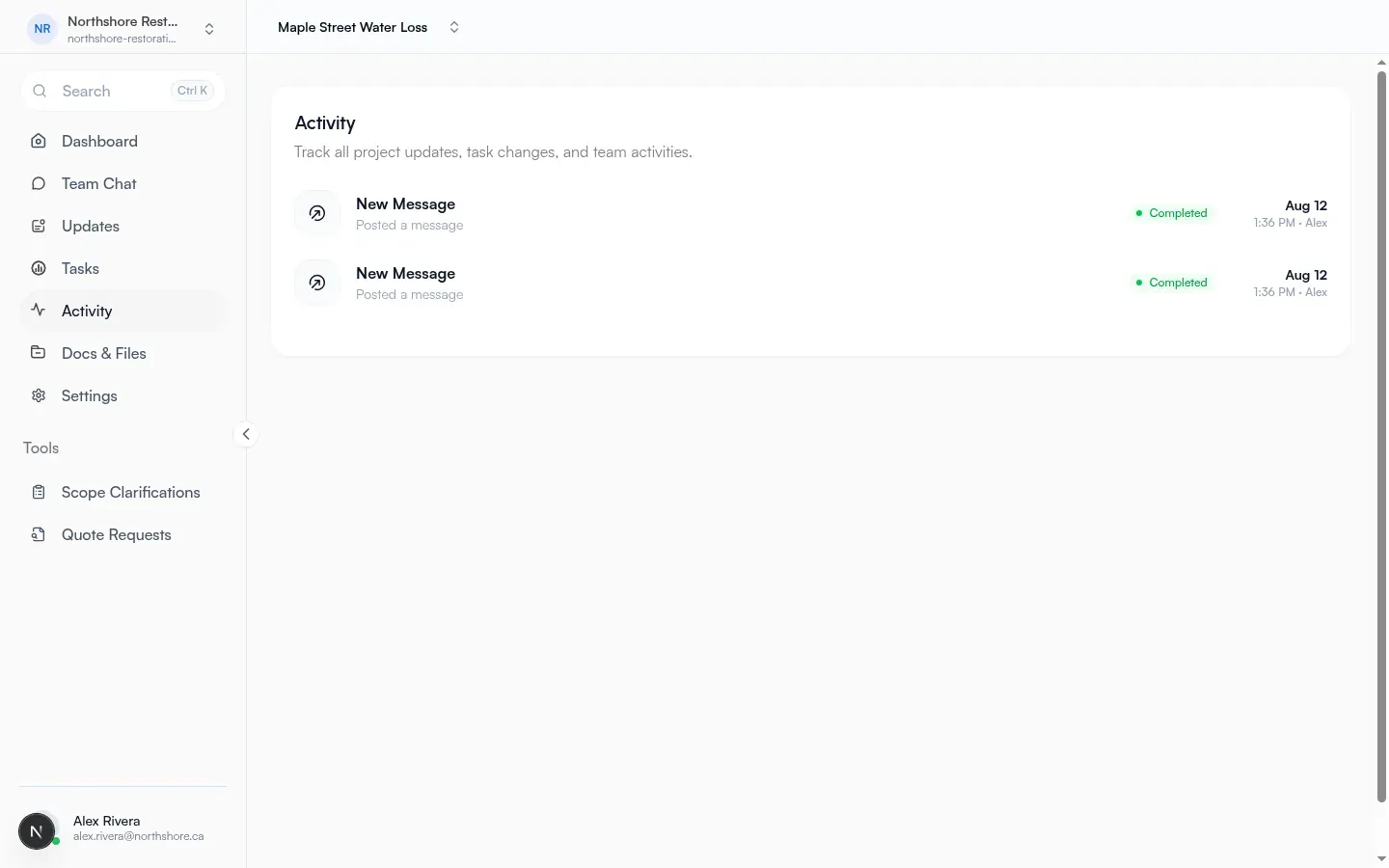
Section titled “Activity”Card title: Activity. Description: Track all project updates, task changes, and team activities.
- Empty: No activity yet. Start creating and updating tasks to see activity.
- Status badges on rows: Completed, Pending
- Infinite scroll footer: Loading older activity…
- No project selected: Select a project to view activity.
Company-wide feed under Activity: title Activity and description Track all updates, task changes, and team activities across your company.
How to keep the team aligned
Section titled “How to keep the team aligned”- Open the project (create one first if needed from Projects / Create Project).
- Invite people under Settings → People (Invite), then add them to the project under project Settings → Members (Add).
- Put files in Docs & Files (Upload Files); use Manage access when a file should not follow default sharing.
- Track work on Tasks (Add Task; use Chart or List).
- Use Team Chat for direct/group conversations; use Updates for project-wide posts and optional sharing with outside collaborators.
- Watch Activity for a feed of project (or company) changes.
A Flow mobile app exists for field use.