
Projects and clarifications
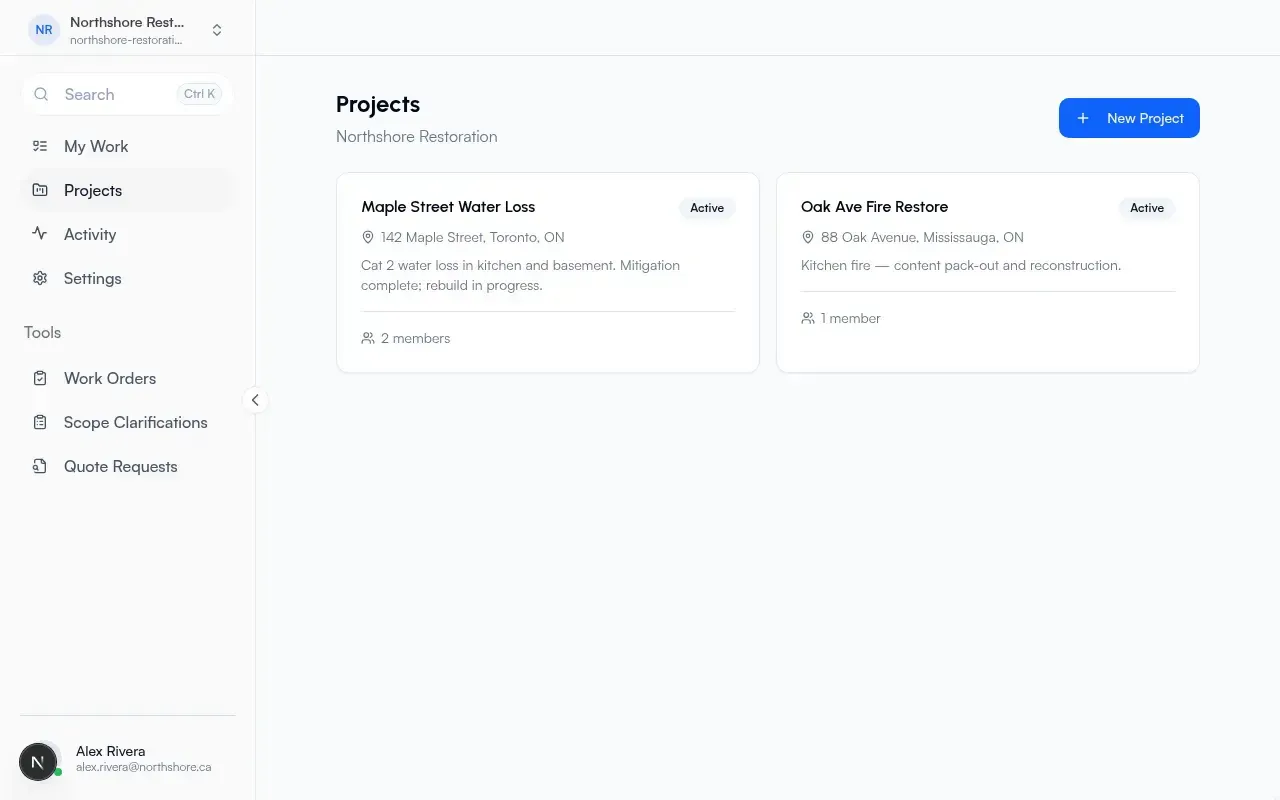
In Flow, work is organized as projects inside a company. My Work shows work orders and tasks assigned to you. Browse and create projects under Projects; collect missing details under Scope Clarifications.
Projects
Section titled “Projects”Page title: Projects.
- Open Projects for your organization.
- Choose New Project (hidden for external team members).
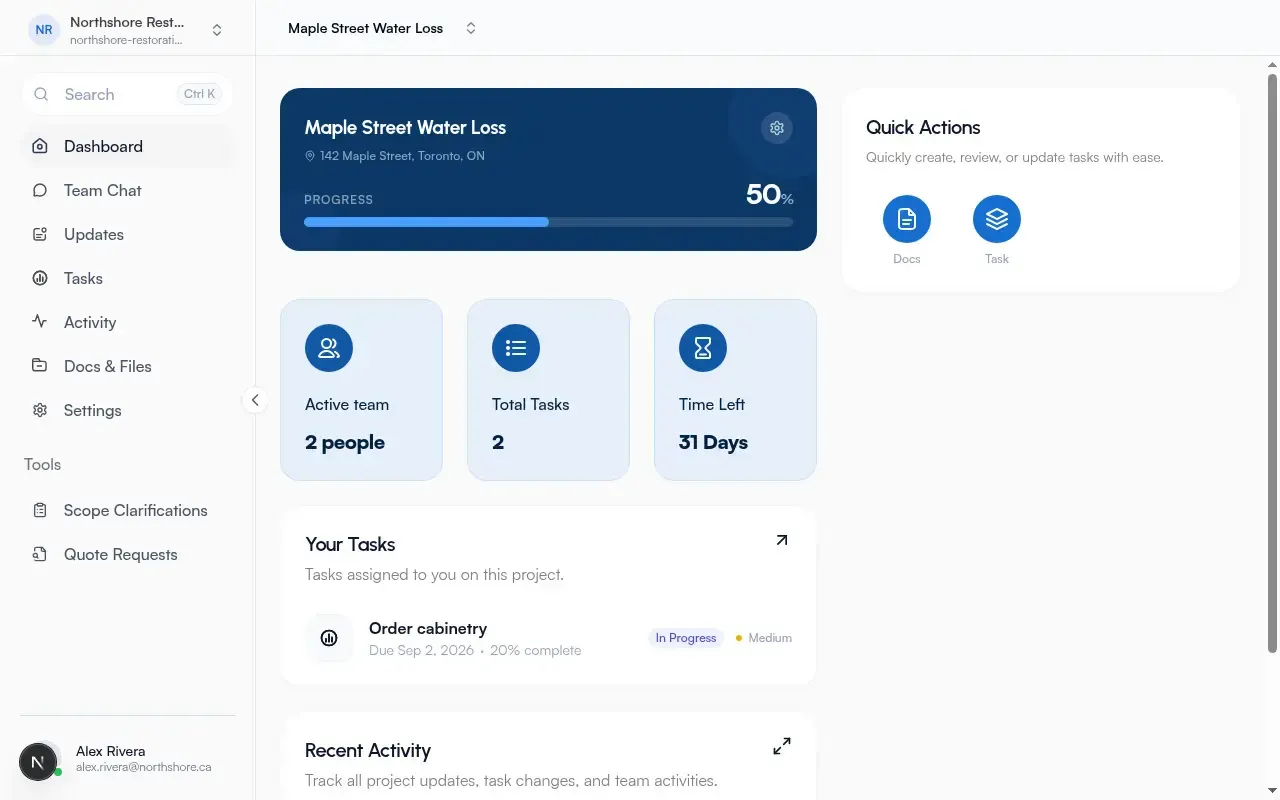
- Or open an existing project card (shows name, optional address, status, member count) to enter that project.
Empty state: No projects yet. Non-external users also see a tip: collect scope with a clarification form first, then create a project from it. Link label: Create scope clarification form.
Create a project
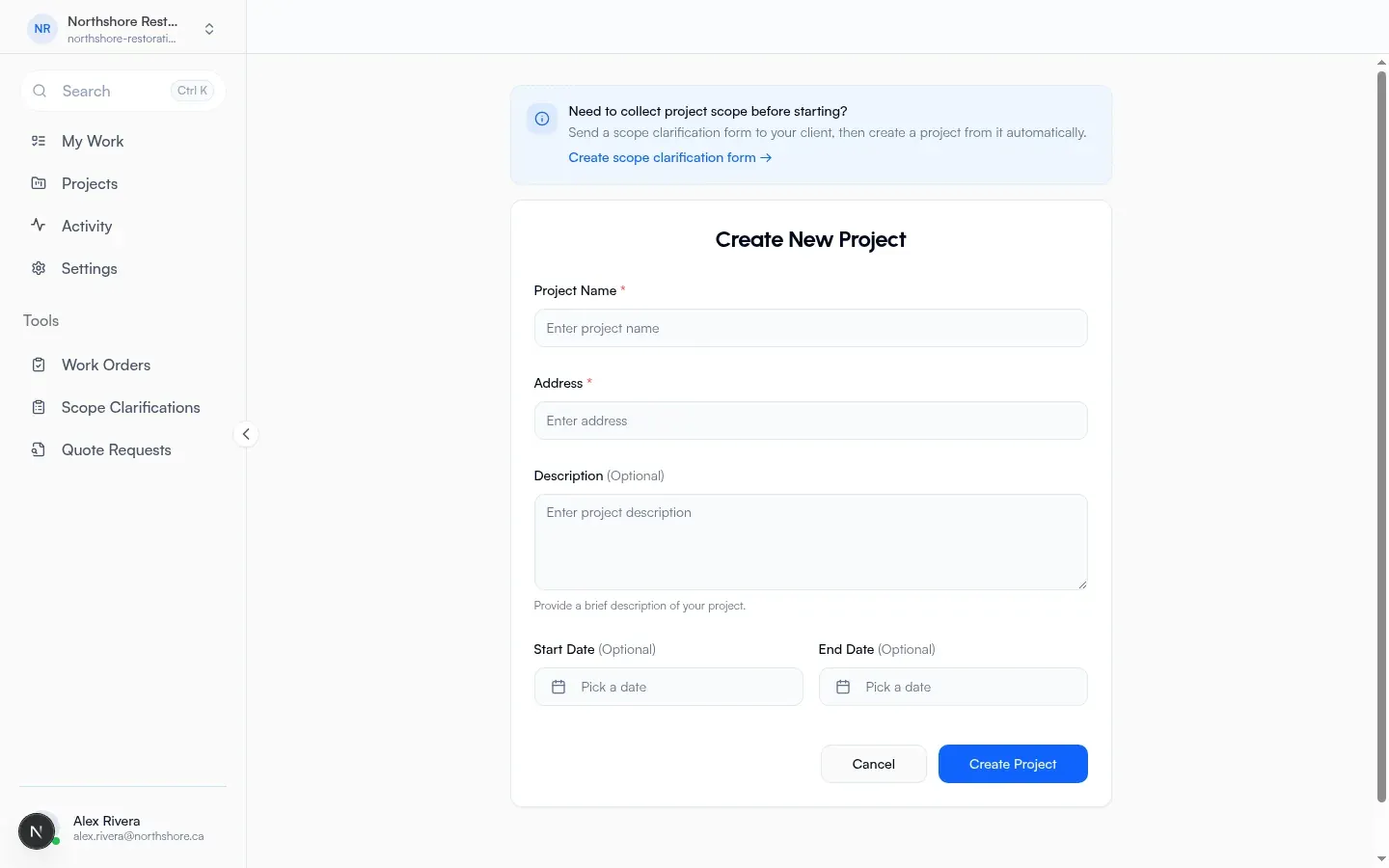
Section titled “Create a project”Title: Create New Project.
Required:
- Project Name
- Address
Optional:
- Description
- Start Date / End Date (date pickers)
Actions: Cancel (back to projects) or Create Project. On success you land on the new project home.
The same tip as on the projects list points to a new scope clarification if you want details before creating a project.
Scope clarifications
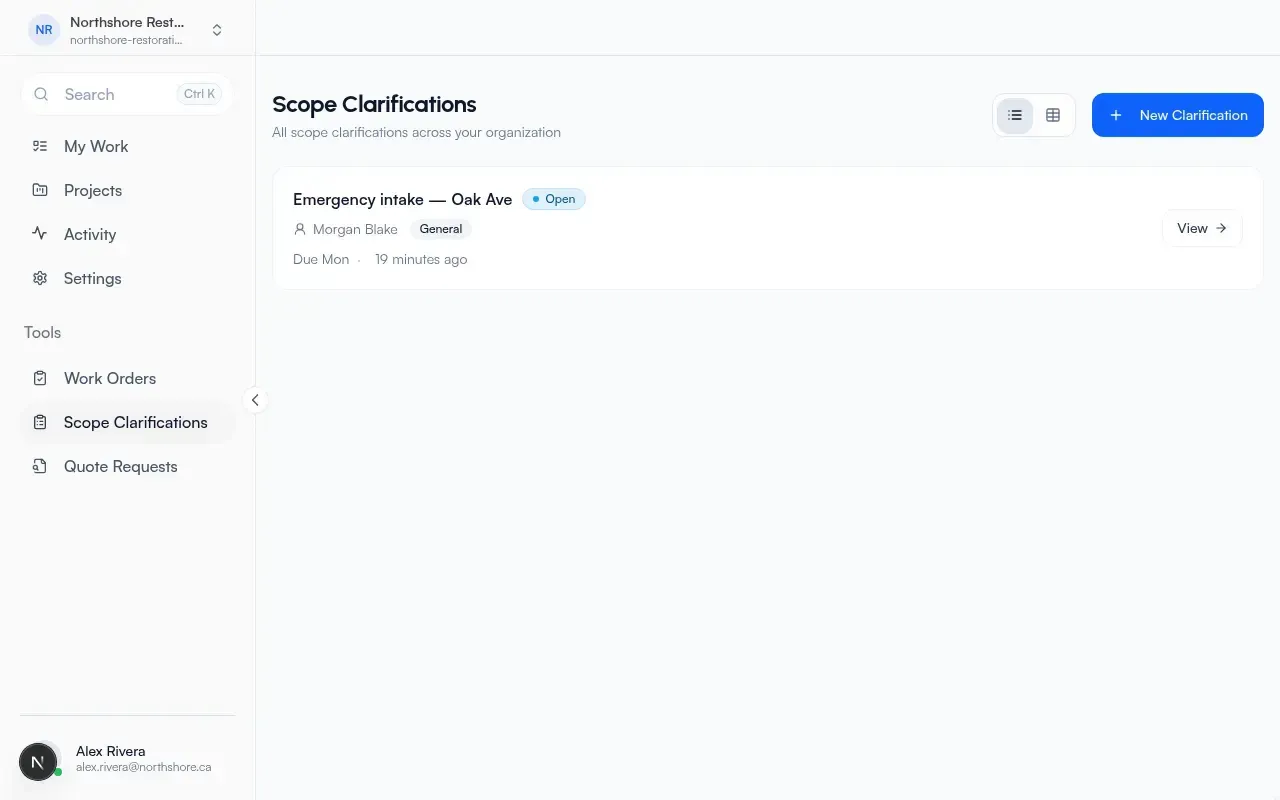
Section titled “Scope clarifications”List page: Scope Clarifications.
- Subtitle: all scope clarifications across your company
- Create: New Clarification
- Empty: No scope clarifications yet
You can also open clarifications from inside a project.
New clarification wizard
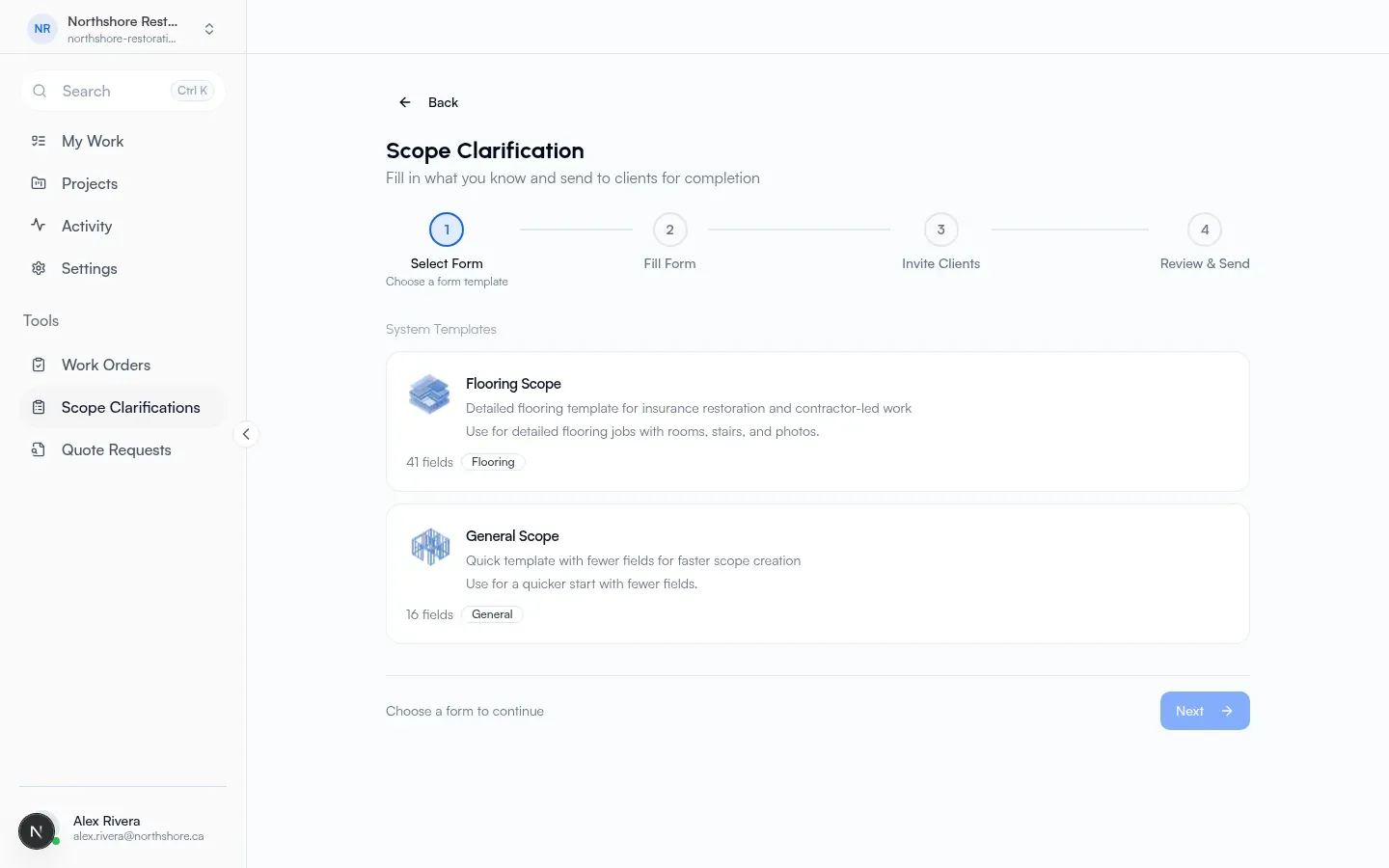
Section titled “New clarification wizard”Wizard steps:
- Select Form (choose a form template)
- Fill Form (fill in what you know)
- Invite Clients (who should complete the details)
- Review & Send
On Fill Form, Property Address is required (example: 123 Main St, Toronto). Optional Required by date: when you need the details back. Template fields appear under Project Details.
After send, Flow opens the clarification detail page.
From a completed clarification you can open Create Project from Scope (project name, address, description, dates) and Create Project.
Free tool path (no account)
Section titled “Free tool path (no account)”Public Scope Clarification under free tools (if you are signed in, Flow may open your company’s scope clarifications or the Which company? picker instead).
Free-tool steps:
- Select Form
- Your details (who you are and where the job is)
- Fill Form
- Invite Clients
- Review & Send
Recipients share one form. The creator marks the request complete to lock it. You can later add items from before you signed up to a company (see Getting started).
My Work hub
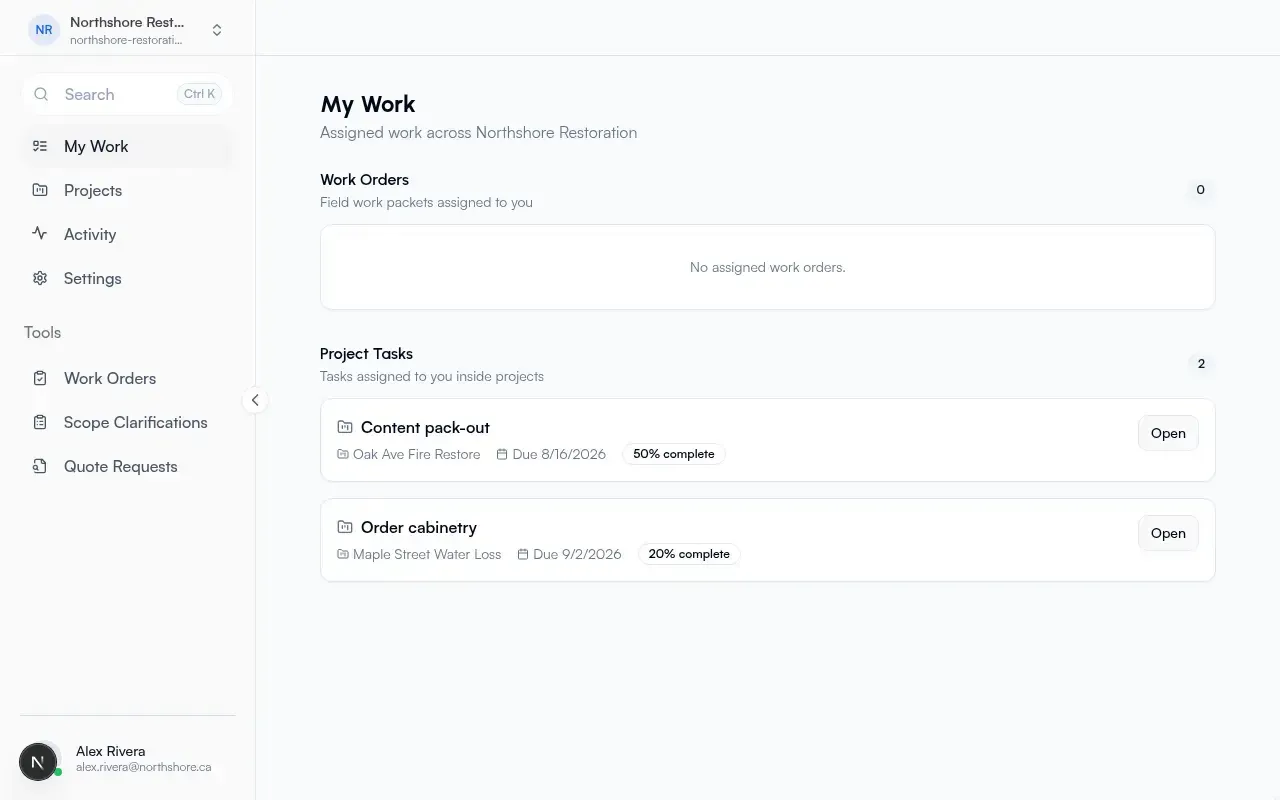
Section titled “My Work hub”My Work shows work orders and open tasks assigned to you. It is not the full project list. Use Projects to browse or create projects.
Related
Section titled “Related”- Scopes
- Quotes (use Request Quote when you need pricing, not shared details)
- Scope Clarification free tool
- Getting started