
Scopes
In Flow, a scope is the shared working description of what needs to be done. Scope Clarification collects missing details on one form. Request Quote is separate (pricing). See the comparison below, then Quotes for the quote path.
Scope Clarification vs Request Quote
Section titled “Scope Clarification vs Request Quote”| Scope Clarification | Request Quote | |
|---|---|---|
| Purpose | Collect missing details via one shared form | Send a defined scope; collect pricing |
| Recipients | One link; all contribute to the same scope | Individual link per vendor |
| Complete | Creator Finalise form → whole form locks / completes | One vendor submit/decline → that recipient is done |
| Open it | Scope Clarifications (or free tools → Scope Clarification) | Quotes (or free tools → Request Quote) |
Clarification is not a quote. Recipients fill scope details, not pricing.
List and create
Section titled “List and create”List page: Scope Clarifications.
- Create: New Clarification
- Empty: No scope clarifications yet
You can also open clarifications from inside a project.
List row status badges: Draft, Open, Locked, Completed. Detail page uses related labels such as Finalised and Form Locked (see below).
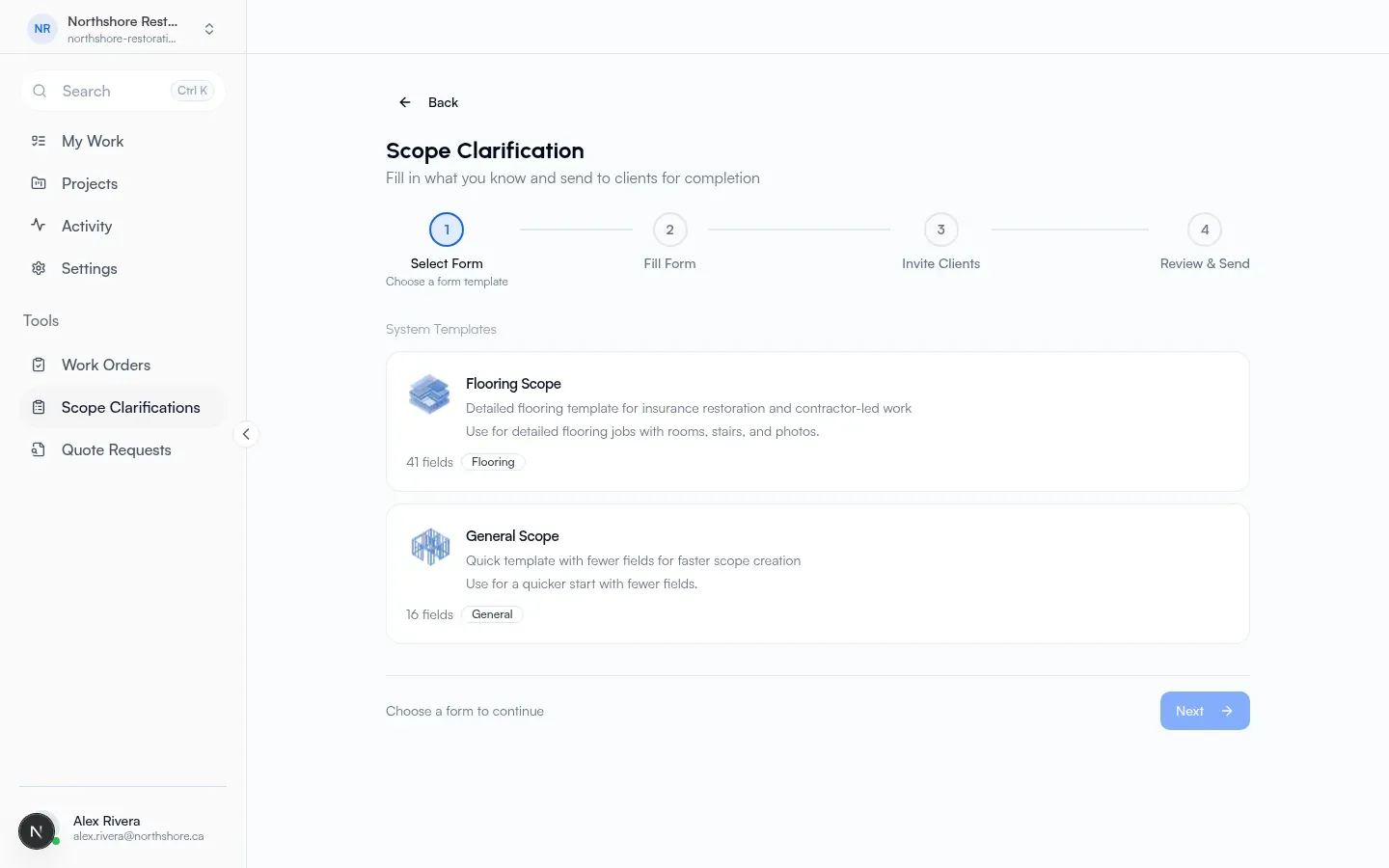
Wizard and free-tool create steps are covered in Projects and clarifications. This page covers the detail, shared form, lock, and finalise behavior after send.
Clarification detail
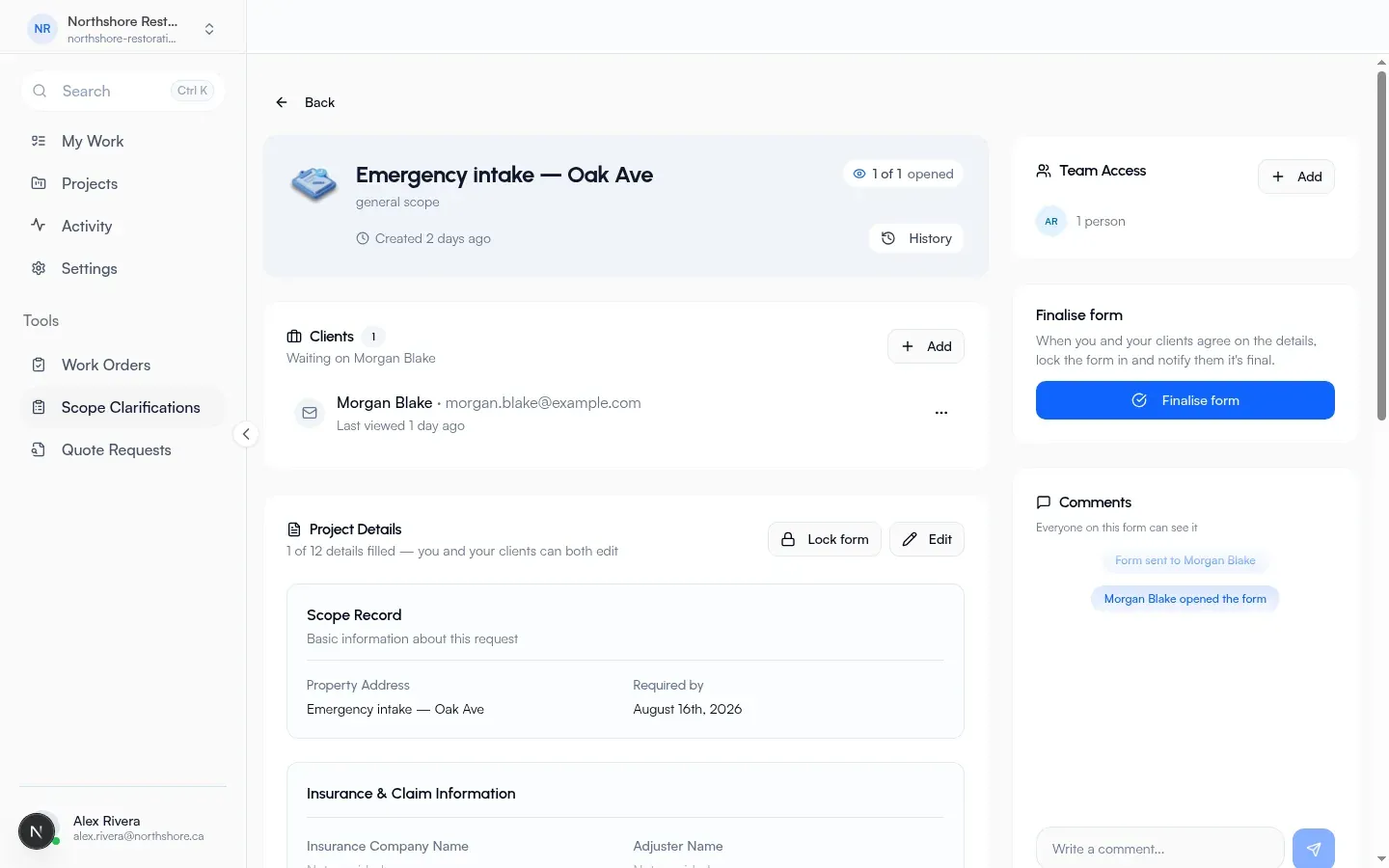
Section titled “Clarification detail”Header title is Scope Clarification when title/customer name are empty. Shows scope type as a short type label, Created relative time, optional N of M opened, and:
- Finalised when status is completed
- Form Locked when the form is locked but not yet finalised
History opens revision history (actions include Created, Updated, Locked, Unlocked, Finalised, Sent, File added).
Clients
Section titled “Clients”Card title: Clients.
- Empty help: Nobody has this form yet. Tip: add a client by email; they open a link with no sign-up.
- Description when empty: Add clients to start collecting the details
- When everyone has submitted: All clients have submitted
- Otherwise waiting copy names who is still pending when known
Resend, remove, and add-client actions are available on the detail page for collaborators.
Shared form (Project Details)
Section titled “Shared form (Project Details)”Card title: Project Details.
Description when not editing:
- With fillable fields: filled count of total details filled; you and your clients can both edit
- With no fillable fields: shared form; both you and the client can edit
While editing: save when you are done. Actions: Edit, then Cancel / Save.
A job details block can show basic request info (title / due date style fields) above template answers.
Collaborators (not finalised) also get:
- Lock form → dialog Lock form
- Message: locking prevents further edits; add a short note so the team knows why
- Field: Reason for locking (required, max 1000; example
e.g. Work has started on site) - Actions: Cancel / Lock form
- After lock (and not finalised): amber banner Form has been locked. No further edits can be made. plus Reason: when provided
- Unlock form while locked and not finalised
Finalise form (complete)
Section titled “Finalise form (complete)”When there are clients and the clarification is not complete, primary button: Finalise form.
Dialog title: Finalise this form?
- Only do this when you and your clients agree on the details
- Bullets: the form locks so nothing can change; clients get notified that it is final; you can start a project right after
- Actions: Not yet / Finalise form
After finalise:
- Banner title Form Finalised: This form has been finalised and agreed to be worked on.
- Sidebar/mobile shows Finalised
- Next button: Create Project (or View Project if already linked)
Create Project opens Create Project from Scope (project name required; address, description, dates as on the dialog). Confirm with Create Project.
Save or cancel in-progress form edits before finalising (detail shows Save or cancel your edits first. when editing).
Free tool path (shared form facts)
Section titled “Free tool path (shared form facts)”Public create: free tools → Scope Clarification (see Scope Clarification free tool).
After send, your tracking link and recipient links reuse the same shared-form idea:
- Track review card title: Project details (description for intake: What clients will fill in and confirm)
- Track header badges: Started or Sent, Finalised, Form locked, N of M opened
- Locked (not finalised): same amber Form has been locked. No further edits can be made. banner (with optional reason)
- Finalised card: Form finalised / This form has been finalised and agreed to be worked on.
Recipient public links also show lock/finalised states. Locked copy there notes no further edits, with comments still allowed. Status chips include Details Needed, Submitted, Finalised as applicable.
The in-app detail page owns the Finalise form / Lock form dialogs above. Free-tool create still collects one shared form for all invited clients.
How to clarify scope (end to end)
Section titled “How to clarify scope (end to end)”- Create a clarification (in-app wizard or free tools → Scope Clarification).
- Fill what you know on the shared form; invite clients by email.
- Clients open the link (no account) and edit the same form.
- Optionally Lock form with a reason if you need to freeze edits before everyone is done.
- When you agree on the details, Finalise form (locks/completes and notifies clients).
- Create Project from the finalised clarification when you are ready to track the work.