
Exporting quantities
This page covers Export CSV from the Takeoff Quantities panel. Measure first on Measuring plans. For product context, see Takeoff overview.
Takeoff downloads one CSV spreadsheet of your measurements from Export CSV.
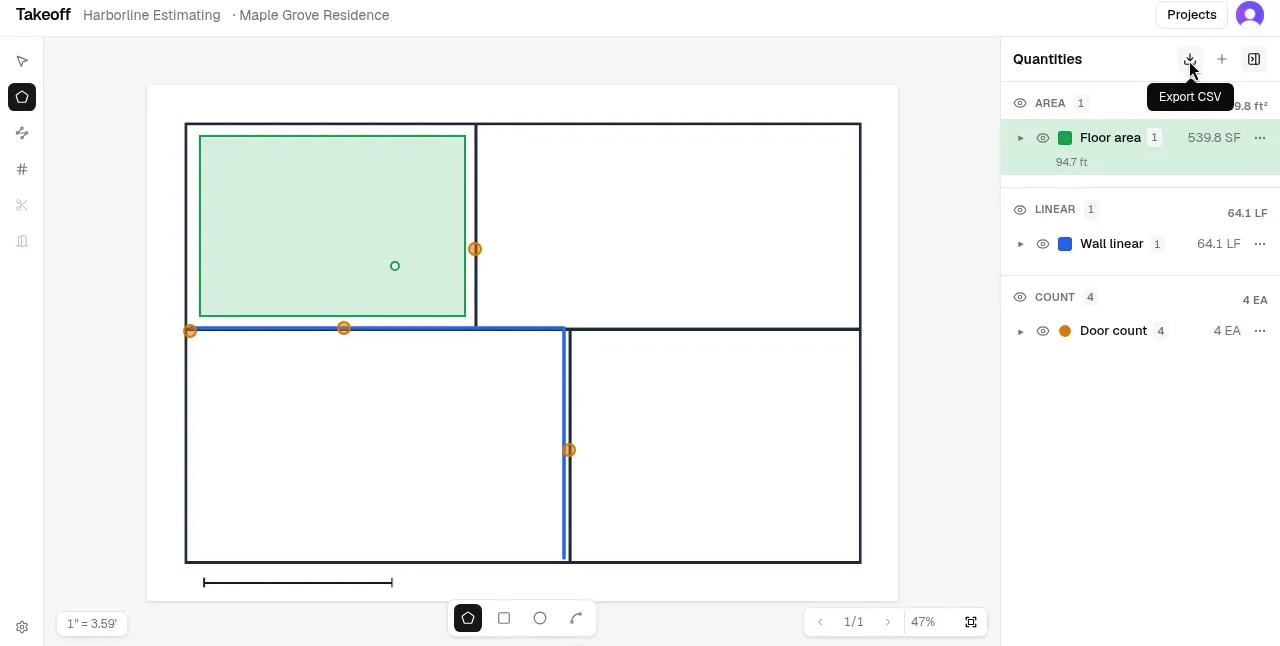
Right panel: Quantities.
- Finish measurements for the classifications you need. Every page you want in the file needs a set scale and at least one measurement item (see Measuring plans).
- Open the Quantities panel on the right. If it is collapsed, use Show quantities.
- When export is available, click Export CSV in the panel header (download icon; tooltip Export CSV). The control appears only when at least one sheet has both a calibrated scale and items.
- Save or open the downloaded
.csvin your estimating process, or use it for handoff into Flow scopes where your team manages scope.
When Export CSV appears
Section titled “When Export CSV appears”The Export CSV control is shown only when the project can export:
- A project is open.
- At least one sheet has a calibrated scale and one or more items.
Sheets without scale, or sheets with scale but no items, are skipped. If nothing qualifies, the button is hidden (not a disabled tooltip).
Download file
Section titled “Download file”| Detail | Behavior |
|---|---|
| Format | CSV |
| Encoding | UTF-8 (opens cleanly in most spreadsheet apps) |
| Filename | Project name plus -takeoff.csv (special characters become hyphens; empty name falls back to takeoff.csv) |
| Rows | One row per measurement item on included pages |
| Order | Page number ascending, then classification list order (same order as Quantities), then item order on the sheet |
Items whose classification is missing from the project are skipped. Numeric fields that do not apply are left blank (not zero).
What’s in the file
Section titled “What’s in the file”Header row (column names):
project, page, classification, kind, label, qty, qty_unit, perimeter, perimeter_unit, volume, volume_unit, wall_area, wall_area_unit, gross_wall_area, gross_wall_area_unit, opening_area, opening_area_unit, opening_count, tile_count, height_ft
| Column | Meaning |
|---|---|
project |
Project name |
page |
Sheet page number |
classification |
Classification name |
kind |
area, linear, or count |
label |
Item label |
qty / qty_unit |
Primary quantity and unit. Area: area short unit (for example SF, SY, m²). Linear: length (LF or m). Count: count with EA |
perimeter / perimeter_unit |
Area items when perimeter is computed (ft, in, m, mm) |
volume / volume_unit |
Area items with volume (CF, CY, m³) |
wall_area / wall_area_unit |
Linear walls with height (net wall area) |
gross_wall_area / gross_wall_area_unit |
Linear walls with height before openings |
opening_area / opening_area_unit |
Opening area on linear walls |
opening_count |
Opening count on linear walls (when wall area exists or count is greater than zero) |
tile_count |
Area items with tile count configured |
height_ft |
Height used for volume or wall calculations (column name is always height_ft) |
Units follow the project measurement system and classification options set while measuring.