Post opportunities
In Match, contractors (and Both accounts) use Post a Job, My Jobs, job detail (accept or reject bids), and Hirings. This page walks through that path. If you only bid on jobs as a trade agent, browse and bid on Find contractors (Find Jobs). Product overview: Match overview.
Hiring stays in Match. For restoration job ops after hire, see Flow overview.
End-to-end path
Section titled “End-to-end path”- Sign in to Match and finish onboarding if needed as a contractor or Both account.
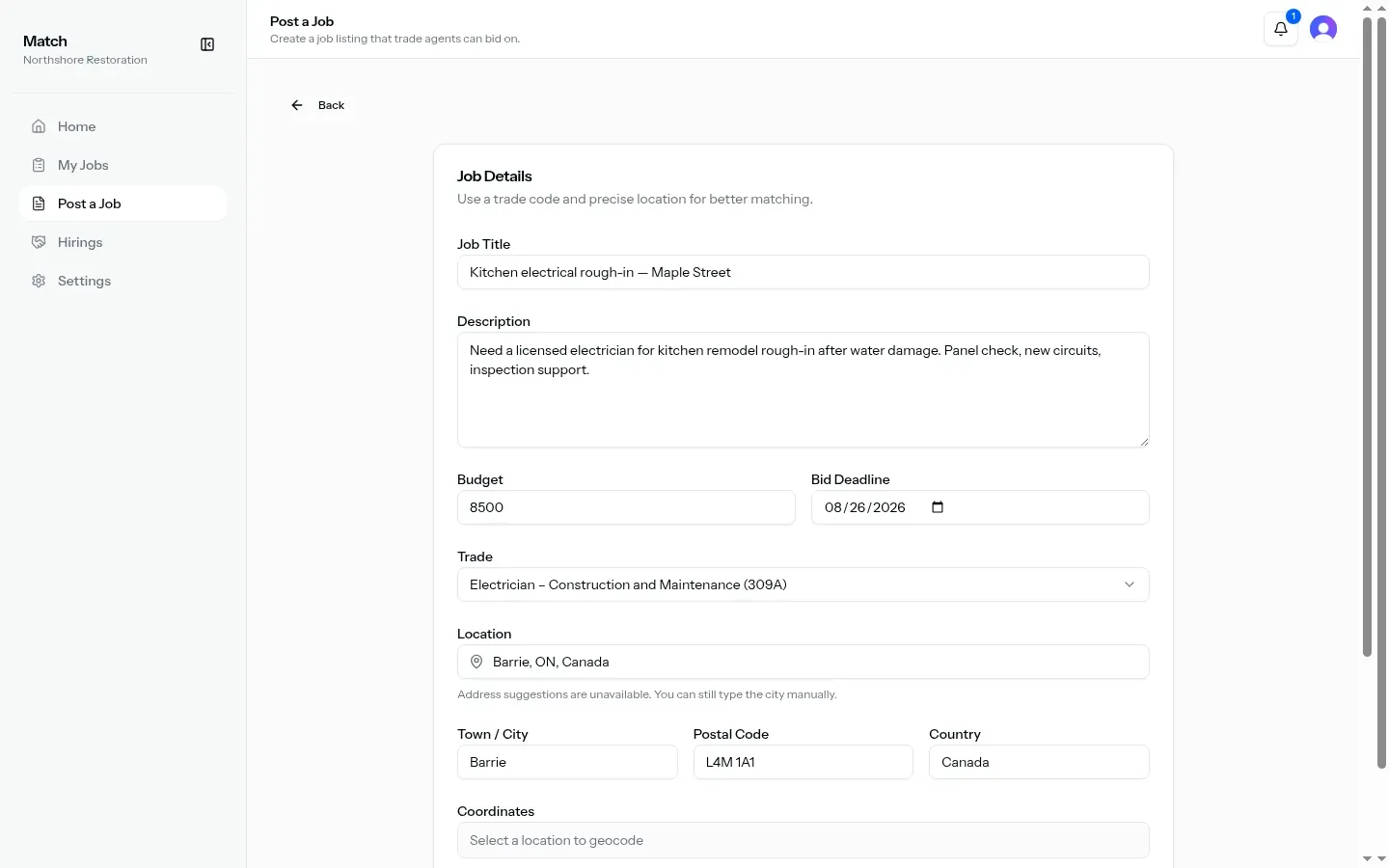
- Open Post a Job in the sidebar. Dashboard title: Post a Job.
- Fill Job Details (title, description, budget, bid deadline, trade, location, optional attachments) and submit Post Job.
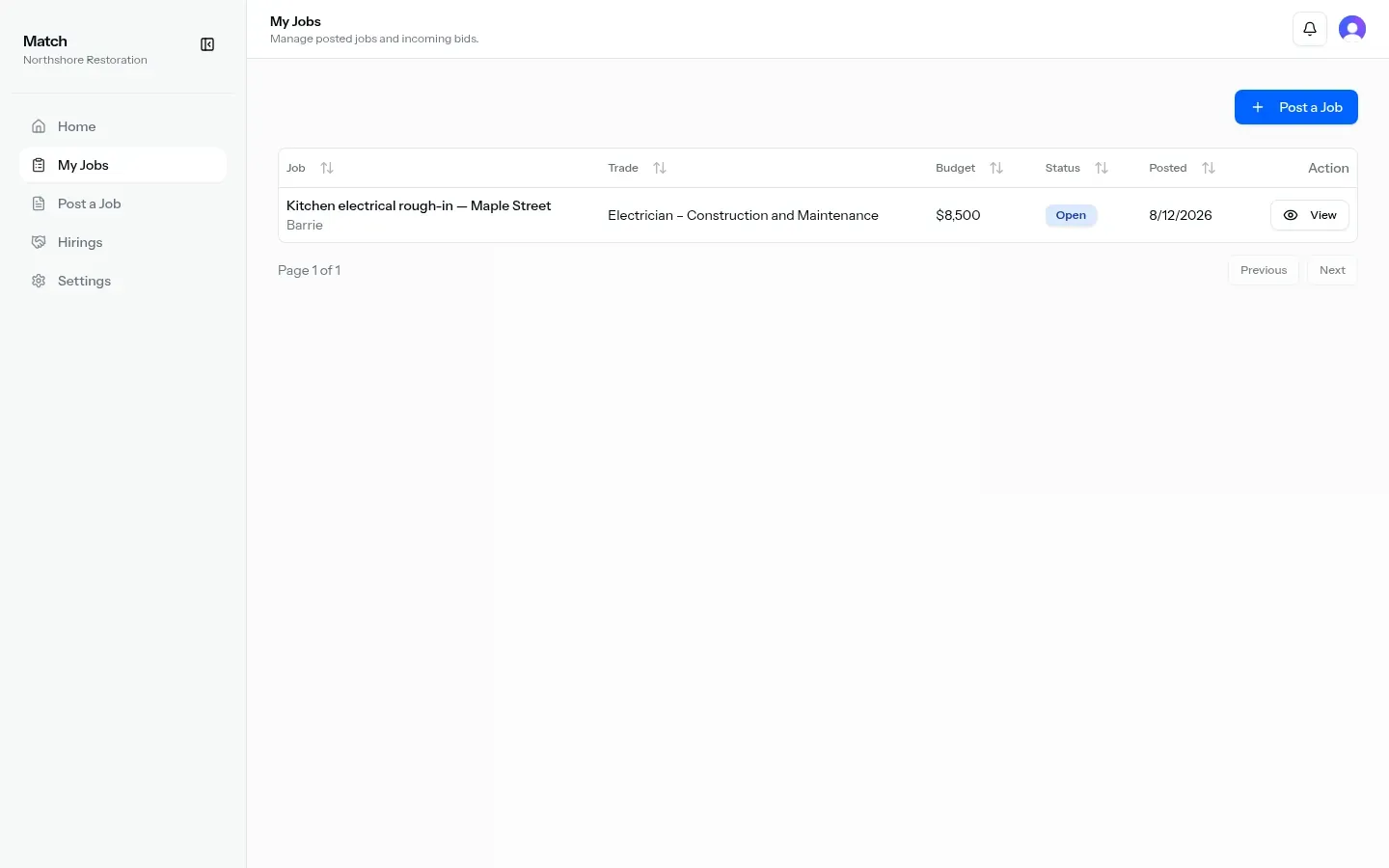
- Track listings under My Jobs. Open a row with View.
- On job detail, review bids, Accept or Reject pending bids (your actions as job owner), optionally Edit Job, then use Mark Hired / Mark Completed when status allows.
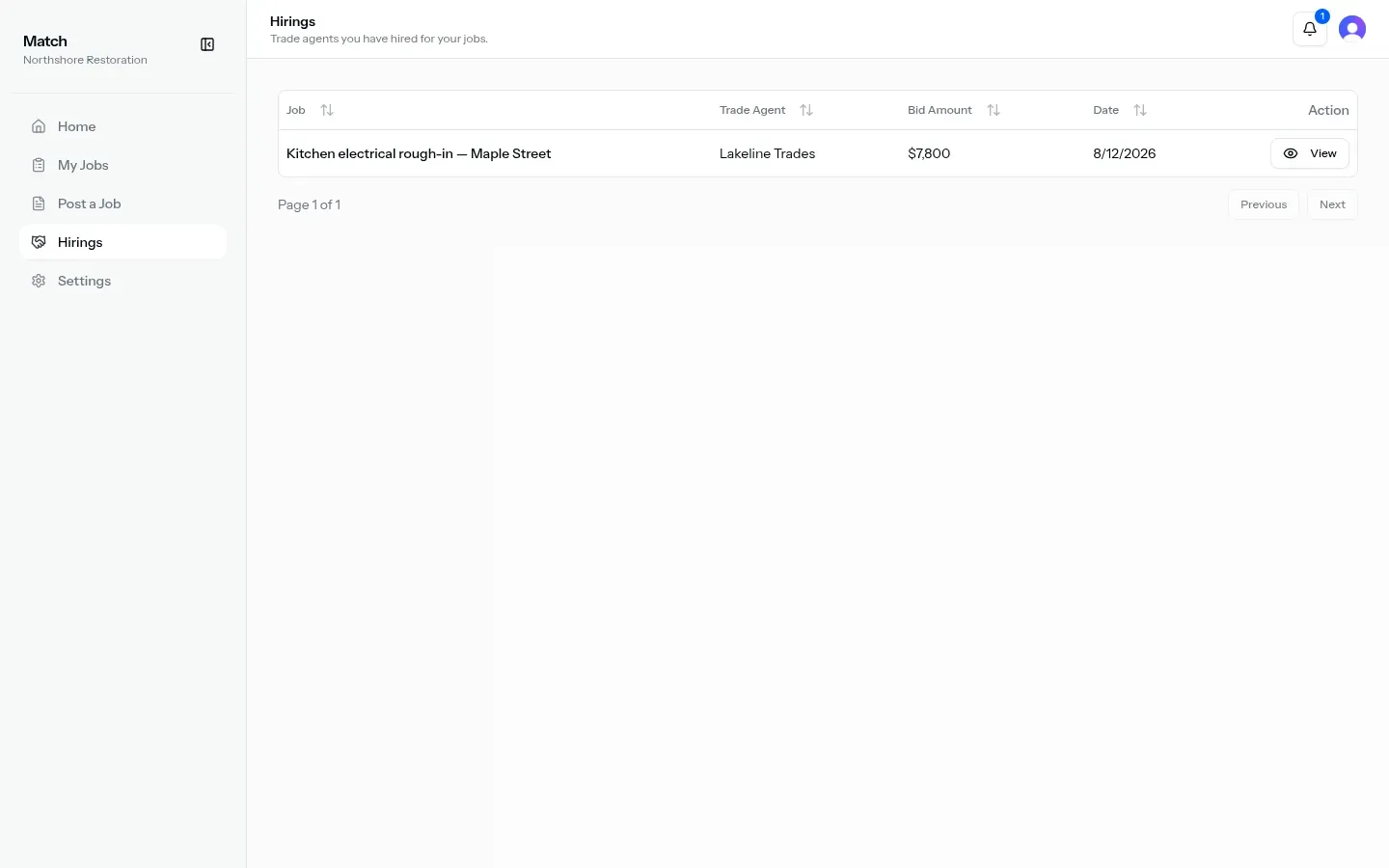
- After accept, continue under Hirings.
Post a Job
Section titled “Post a Job”Nav label and dashboard title: Post a Job. Subtitle: create a job listing that trade agents can bid on. Form card title: Job Details. Card description in product: use a trade code and precise location for better matching.
On success you land on My Jobs. Failure shows Could not create job. Bid deadline must be in the future or the form shows Bid deadline must be in the future.
| Field | Required | Notes |
|---|---|---|
| Job Title | Yes | At least 5 characters |
| Description | Yes | At least 20 characters |
| Budget | Yes | Dollar amount |
| Bid Deadline | Yes | Date; must be in the future |
| Trade | Yes | Dropdown; default text Select a trade |
| Location | Yes | Location search; hint City or address in Canada |
| Town / City | Yes | Filled from place select; editable |
| Postal Code | Yes | Text input |
| Country | Yes | Defaults to Canada |
| Coordinates | Set automatically | Map pin after you pick a location, or Select a location to geocode |
| Attachments | No | Optional files |
Actions: Post Job, Cancel, and Back.
My Jobs
Section titled “My Jobs”Nav label and dashboard title: My Jobs. Subtitle: manage posted jobs and incoming bids.
Header action: Post a Job.
Table columns when jobs exist:
| Column | Content |
|---|---|
| Job | Title; town under title, or Location TBD when town missing |
| Trade | Trade display name |
| Budget | Formatted currency |
| Status | Open / Bid Accepted / Hired / Completed |
| Posted | Date posted |
| Action | View |
Empty state: You haven’t posted any jobs yet. with Post Your First Job.
Job detail for contractors
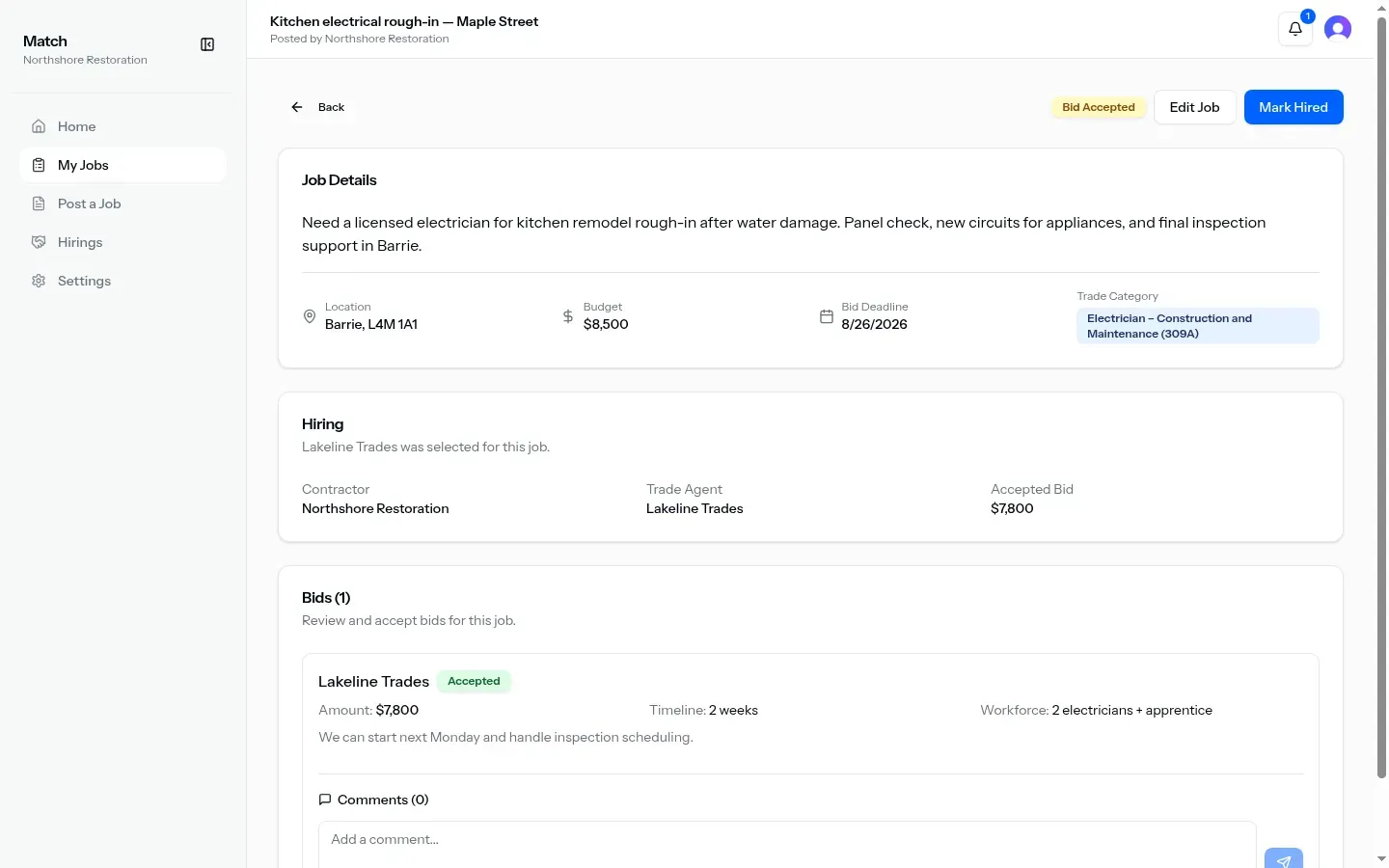
Section titled “Job detail for contractors”Dashboard title overrides to the job title when loaded; fallback title Job Details. Subtitle when loaded: Posted by organization name.
Your actions vs trade agent actions
Section titled “Your actions vs trade agent actions”- If you posted the job: you see Edit Job, bid Accept / Reject when allowed, and status buttons.
- If you’re bidding as a trade agent: Submit Bid shows when the job status is Open (see Find contractors).
Job Details card
Section titled “Job Details card”- Description
- Location (town, postal code)
- Budget
- Bid Deadline
- Trade Category (display name)
- Attachments when present
When bids exist, card title Bids (N) with description Review and accept bids for this job. Each bid shows organization name, status badge, Amount, Timeline, Workforce, optional message, attachments, and a Comments thread (comment field hint Add a comment…).
Accept / Reject appear only when all of: you are the job owner, bid status is Pending, and job status is Open.
Empty bids: No bids have been submitted yet.
Bid statuses: Pending, Accepted, Rejected. Job statuses: Open, Bid Accepted, Hired, Completed.
Owner status actions
Section titled “Owner status actions”On the detail header (job owner only):
| Current status | Action |
|---|---|
| Bid Accepted | Mark Hired |
| Hired | Mark Completed |
Hiring card on the job
Section titled “Hiring card on the job”When a hire is confirmed: card title Hiring; description that the trade agent was selected; fields Contractor, Trade Agent, Accepted Bid (formatted amount).
Edit Job
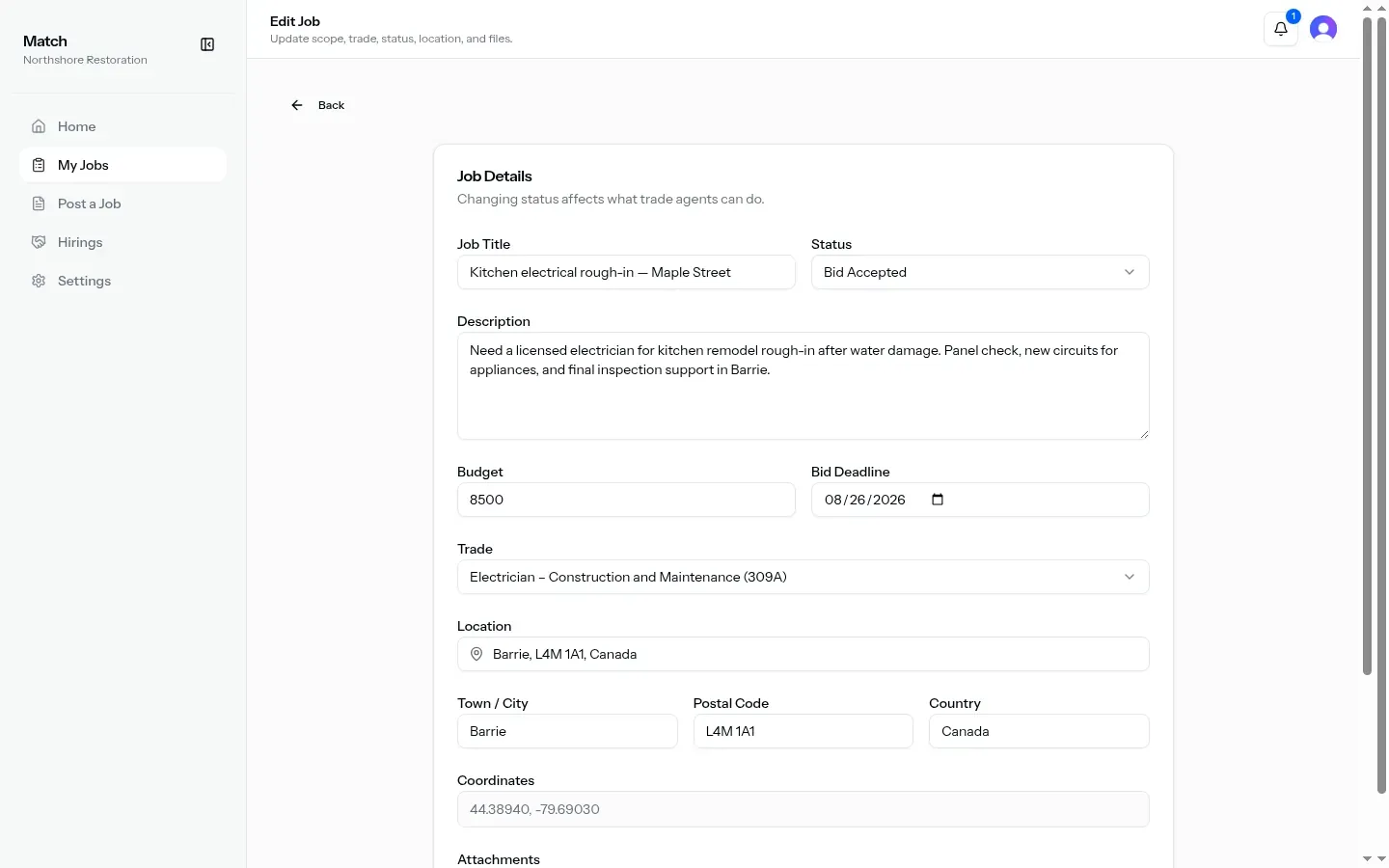
Section titled “Edit Job”Dashboard title: Edit Job. Subtitle: update scope, trade, status, location, and files. Form card title: Job Details. Card description: changing status affects what trade agents can do.
Reached from Edit Job on the detail page. Success returns to the job; failure Could not update job. Invalid deadline: Bid deadline is required.
| Field | Notes |
|---|---|
| Job Title | Required |
| Status | Select: Open, Bid Accepted, Hired, Completed |
| Description | Required |
| Budget | Dollar amount |
| Bid Deadline | Date input |
| Trade | Dropdown; default text Select a trade |
| Location | Location search; hint City or address in Canada |
| Town / City, Postal Code, Country | Editable location fields |
| Coordinates | Map pin (set automatically) |
| Attachments | Optional files |
Actions: Save Job, Cancel, Delete. Delete confirms with Delete this job? This also removes its bids. then returns to My Jobs.
Hirings
Section titled “Hirings”Nav label and dashboard title: Hirings. Subtitle for contractors: trade agents you have hired for your jobs. (Trade-agent subtitle: jobs you have been hired for.)
Table columns when hirings exist:
| Column | Content |
|---|---|
| Job | Job title |
| Trade Agent | Counterparty column when you are a contractor (otherwise column header is Contractor) |
| Bid Amount | Formatted currency from accepted bid |
| Date | Date hired |
| Action | View |
Empty state: No hirings yet.
For restoration job ops after hire, see Flow overview.