Find contractors
In Match, trade agents (and Both accounts) use Find Jobs to browse open work and submit bids. This page walks through that path. If you only post jobs as a contractor, see Post opportunities instead. Product overview: Match overview.
End-to-end path
Section titled “End-to-end path”- Sign in to Match and finish onboarding if needed.
- Open Find Jobs in the sidebar. Page title: Browse Jobs.
- Filter open jobs (search text, trades, location or Nearby, radius), then open a job from the list.
- Review scope, budget, deadline, and trade on the job detail panel or full job page.
- Choose Submit Bid. Fill amount, timeline, workforce, optional message and attachments.
- Track outcomes under My Bids. After accept, continue under Hirings.
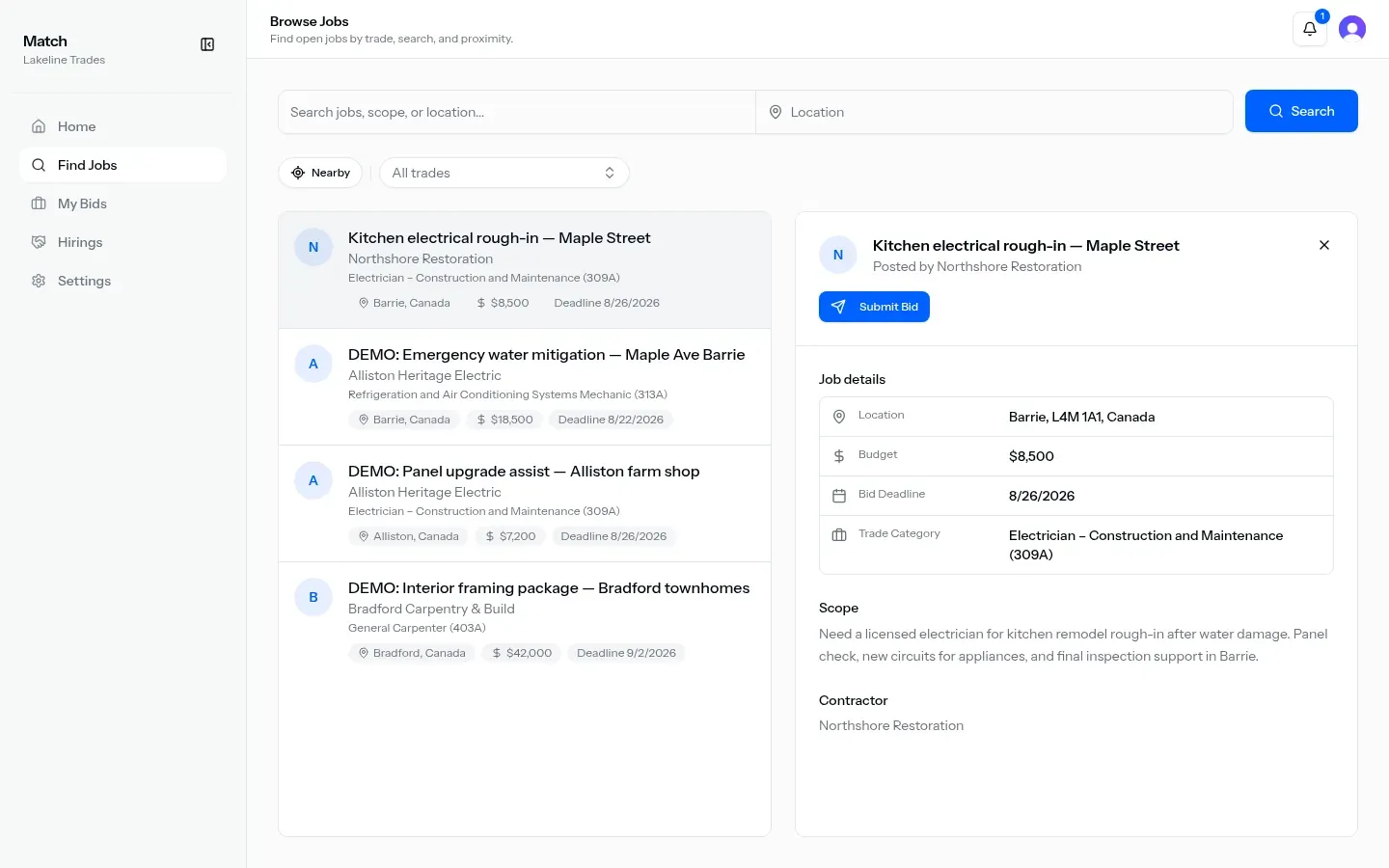
Find Jobs / browse
Section titled “Find Jobs / browse”Nav label: Find Jobs. Dashboard title: Browse Jobs, with subtitle about trade, search, and proximity.
Filters
Section titled “Filters”| Control | What you’ll see |
|---|---|
| Free-text search | Hint Search jobs, scope, or location…; submit with Search |
| Location | Location search with hint Location; sets the map pin from the place you pick |
| Nearby | Nearby uses your browser location; near label becomes My location (tap again to clear). Errors if location is unsupported or permission fails |
| Trades | Trade multi-select with default All trades |
| Radius | Shown only when a location filter is active. Options: 10 / 25 / 50 / 100 / 200 km. Default 50 km |
| Clear | Clear (or empty-state Clear filters) resets search, trades, location, radius to default, and locate errors |
Active filters mean any of: non-empty search, selected trades, or a location pin set.
Results list
Section titled “Results list”Each row shows:
- Job title
- Posting organization name (when present)
- Trade display name and category
- Location chip: town and country when present
- Budget (formatted currency; missing budget shows Budget not set)
- Deadline plus formatted bid deadline
When the list is empty:
- With filters: No jobs match your search / adjust trade, location, radius, or keywords
- Without filters: No open jobs right now / open jobs appear as contractors post
Job detail panel
Section titled “Job detail panel”Selecting a list row opens a detail panel (side panel on desktop; slides up from the bottom on phone). Panel sections:
- Title and Posted by organization name
- Primary action Submit Bid
- Job details: Location (town, postal code, country), Budget, Bid Deadline, Trade Category
- Scope (job description) when present
- Contractor organization name
- Attachments when present
Job detail for trade agents
Section titled “Job detail for trade agents”The full job page loads job, bids, and hiring state.
For trade agent (and Both) accounts when status is Open, the page shows Submit Bid. If you posted the job as a contractor, you see edit / accept / reject / status actions instead (see Post opportunities).
Trade-facing fields on the job card:
- Description
- Location (town, postal code)
- Budget
- Bid Deadline
- Trade Category
- Attachments
If bids exist, the page lists them (amount, timeline, workforce, message, attachments, status) and bid comments. Trade agents see Bids submitted for this job. (accept/reject controls are for the job owner only). Bid statuses: Pending, Accepted, Rejected. Job statuses: Open, Bid Accepted, Hired, Completed.
When a hire is confirmed, a Hiring card shows contractor name, trade agent name, and accepted bid amount.
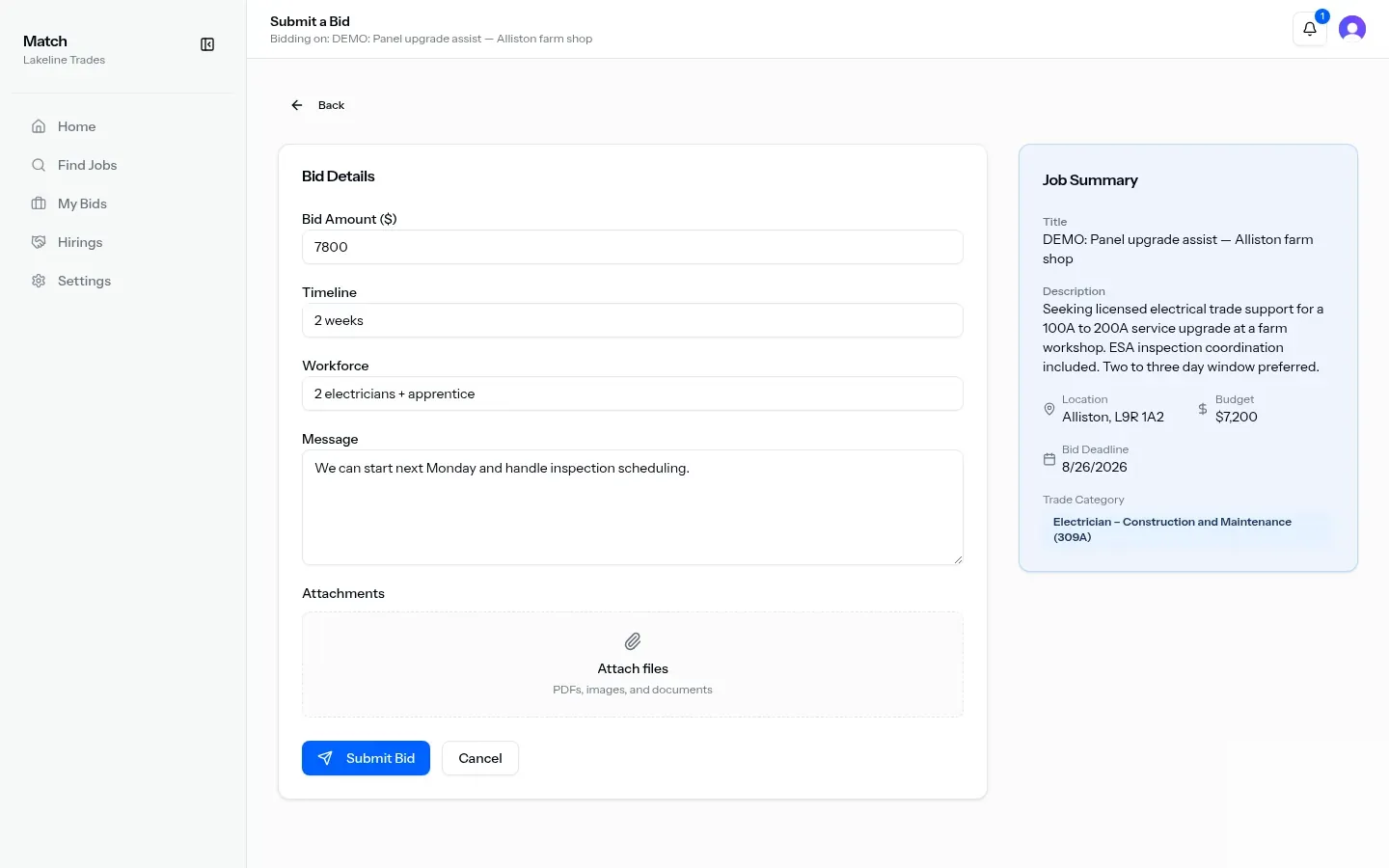
Submit a bid
Section titled “Submit a bid”Dashboard title: Submit a Bid. Form card title: Bid Details. Sidebar: Job Summary (title, description, location, budget, bid deadline, trade category).
| Field | Required | Notes |
|---|---|---|
| Bid Amount ($) | Yes | Dollar amount |
| Timeline | Yes | Free text (for example 2 weeks or 30 days) |
| Workforce | Yes | Free text (for example crew size) |
| Message | No | Longer note for your approach or experience |
| Attachments | No | Optional files |
Actions: Submit Bid and Cancel. On success you return to the job. Failure shows Could not submit bid.
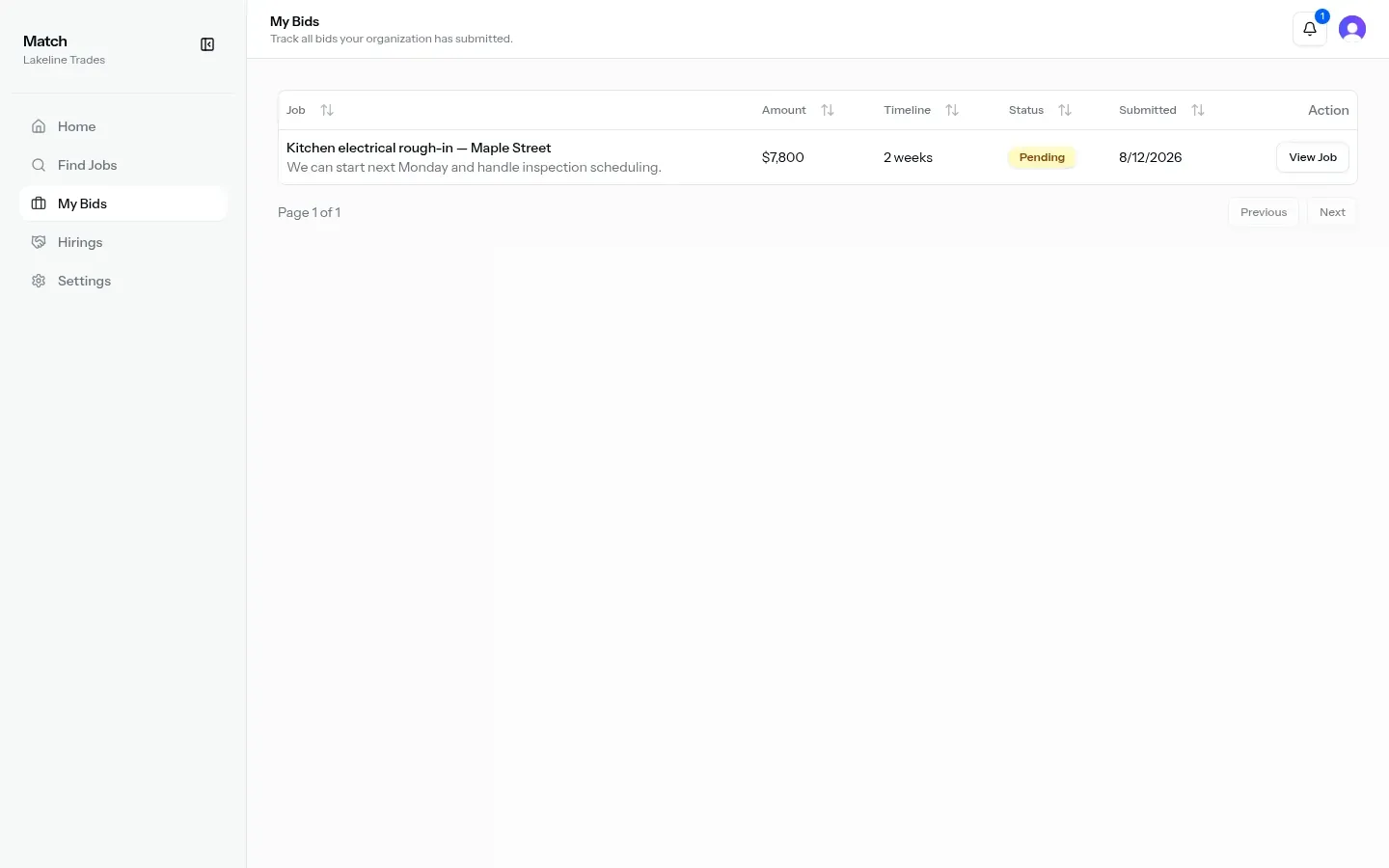
My Bids
Section titled “My Bids”Nav label and page title: My Bids. Subtitle: track bids your organization submitted.
Table columns when bids exist:
| Column | Content |
|---|---|
| Job | Job title (link to the job); message preview when present |
| Amount | Formatted currency |
| Timeline | Text, or Not specified |
| Status | Pending / Accepted / Rejected |
| Submitted | Date submitted |
| Action | View Job |
Empty state: You haven’t submitted any bids yet. with Browse Jobs linking back to Find Jobs.
After a bid is accepted, use Hirings for the hiring relationship. For restoration job ops after hire, see Flow overview.