
Work orders
Work orders are field work packets: instructions, checklist, files, and completion sign-off. Create them under your organization, or start from free tools → Work Order. Assignees can open a public access link; homeowners sign on a public sign-off link.
Assigned work also shows on My Work (section Work Orders: field work packets assigned to you). Work orders live at the organization level. Unlike quotes and scope clarifications, there is no separate project-level work-orders list.
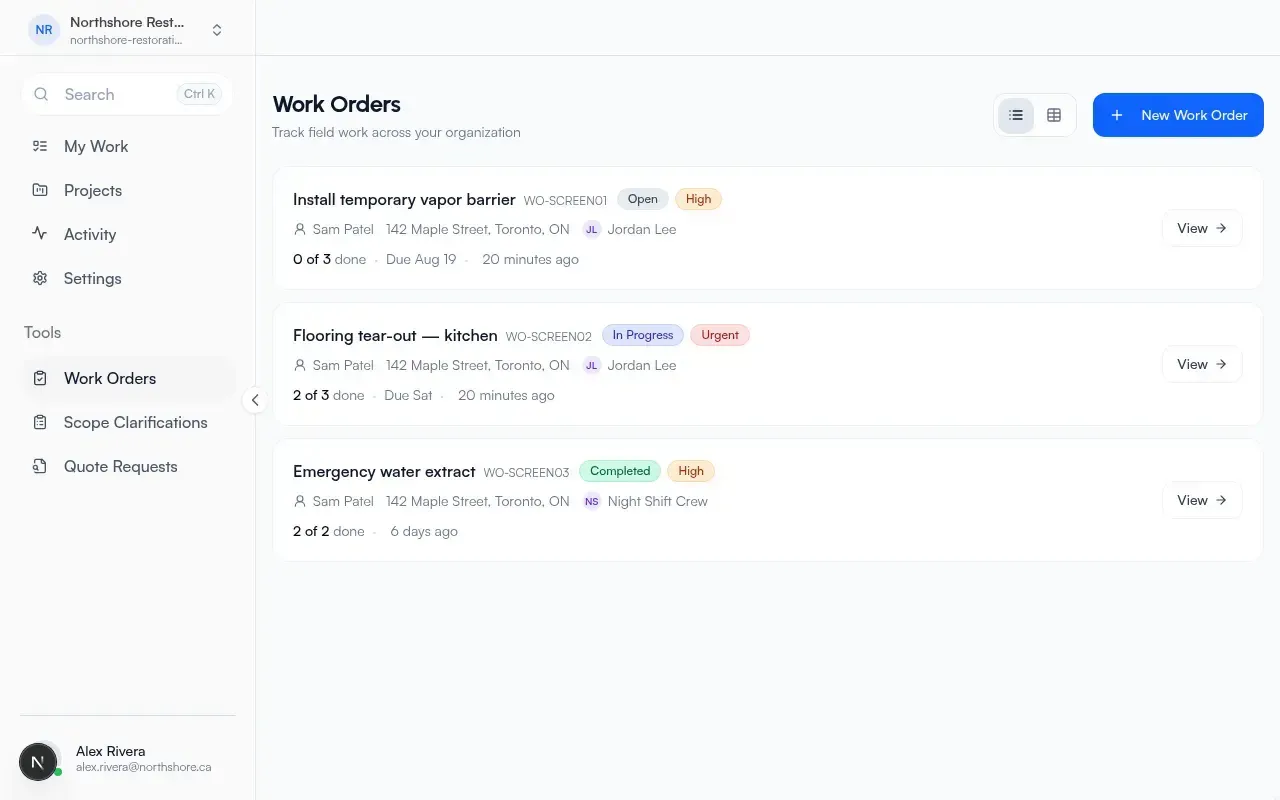
List page: Work Orders.
- Description: Track field work across your organization
- Create: New Work Order
- Empty (when you can create): No work orders yet / Create your first one to assign and track field work.
- Empty (view-only): work orders your team assigns will show up here
Cards show status and priority badges, optional customer and service address, assignee or Unassigned, checklist progress (N of M done when the checklist has items), due date, and relative updated time.
Status labels: Open, Scheduled, In Progress, Blocked, Completed, Signed off, Cancelled.
Priority labels: Low, Medium, High, Urgent.
New and edit form
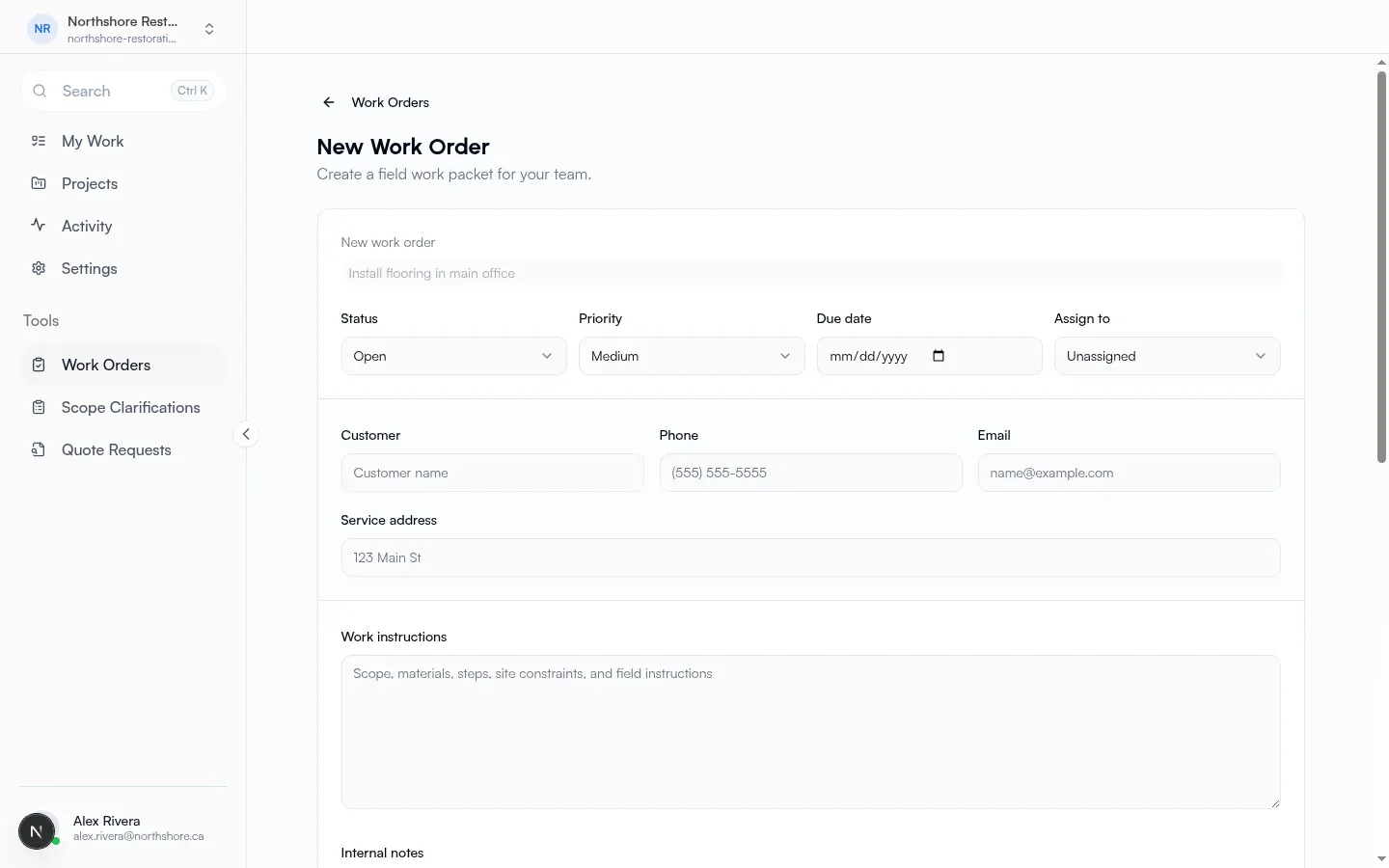
Section titled “New and edit form”- Page title: New Work Order
- Subtitle: Create a field work packet for your team.
- Submit: Create Work Order
- External team members see View-only access (can view assigned work orders, cannot create new ones)
Submit label: Save Work Order.
Fields
Section titled “Fields”- Number line: New work order until a number exists
- Title (required); example
Install flooring in main office - Status, Priority, Due date
- Assign to: Unassigned / Team member / Assign by email
- Team member picker when assigning internally
- External assignee: Recipient name and Email
- Guest free-tool style: Assignee name and Assignee email
- Customer, Phone, Email, Service address
- Work instructions, Internal notes, Completion summary
- Checklist (progress like N/M complete; empty: No checklist items.)
- Internal files and photos and Sign-off files and photos, with Move to sign-off / Move to internal
Detail
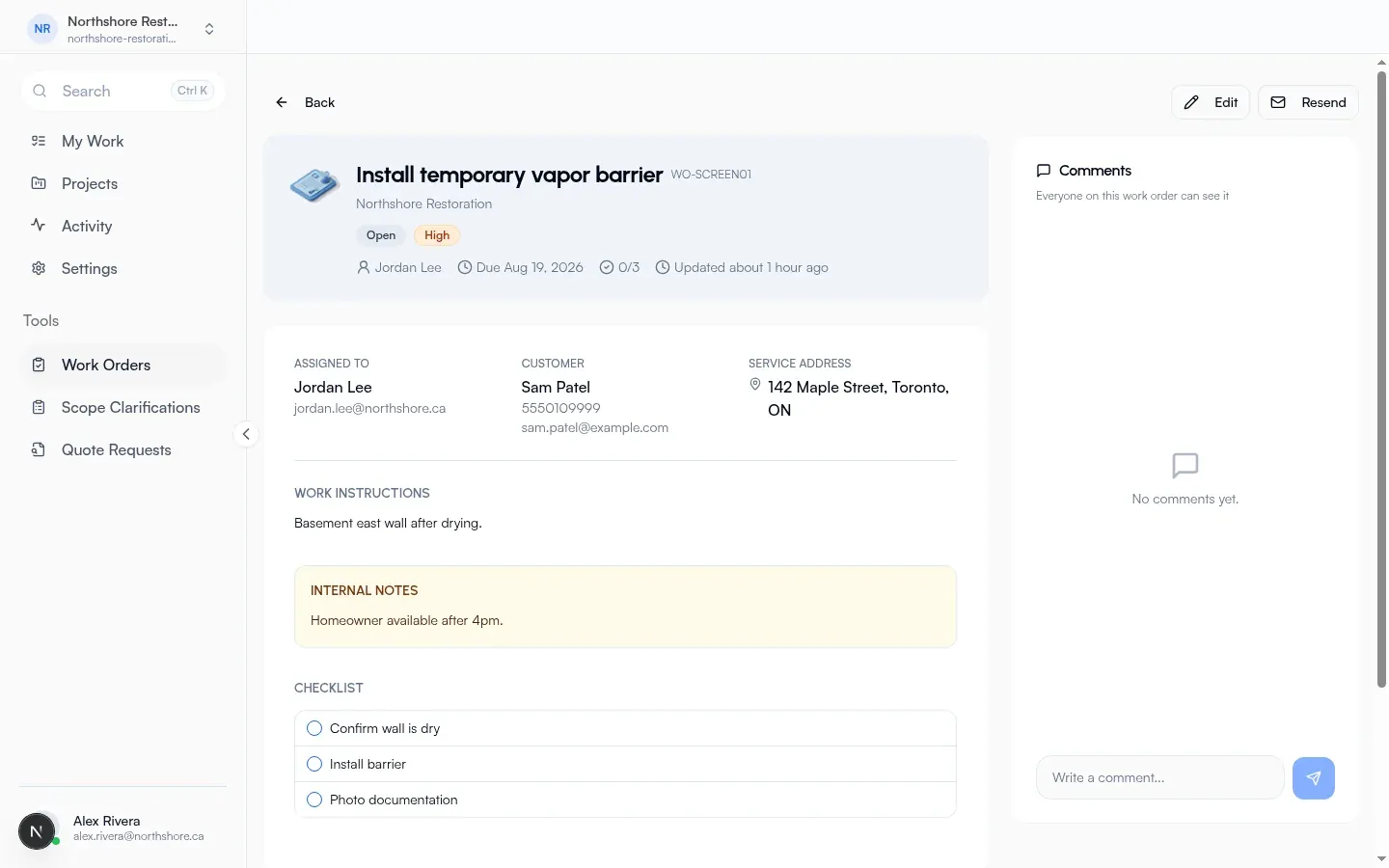
Section titled “Detail”- Label: Work Order
- Actions: Edit, History (panel title History; tracks edits, checklist activity, and file changes)
- Homeowner sign-off card:
- Badge Awaiting signature when not signed
- Send for sign-off (confirmation: Sign-off email sent)
- Copy sign-off link
- After sign-off: Download signed PDF when available
Signing from inside Flow returns you to the work order detail. Homeowner signing uses the public sign-off link (below), not a separate in-app sign-off screen.
Public assignee access
Section titled “Public assignee access”Assignees (no account required) open the packet from their access link, work the checklist, then:
- Mark complete (blocked until the checklist is done: Complete all checklist items first.)
- Dialog Mark work complete with Completion summary; actions Mark complete / Cancel
- After complete: Send for sign-off (and related homeowner sign-off controls, including Awaiting signature)
Public homeowner sign-off
Section titled “Public homeowner sign-off”Homeowners open the public sign-off link:
- Your signature
- Full name
- Sign and approve
- After success: Signed off; Download signed PDF
- Invalid or unavailable link: Sign-off unavailable
Free tool path
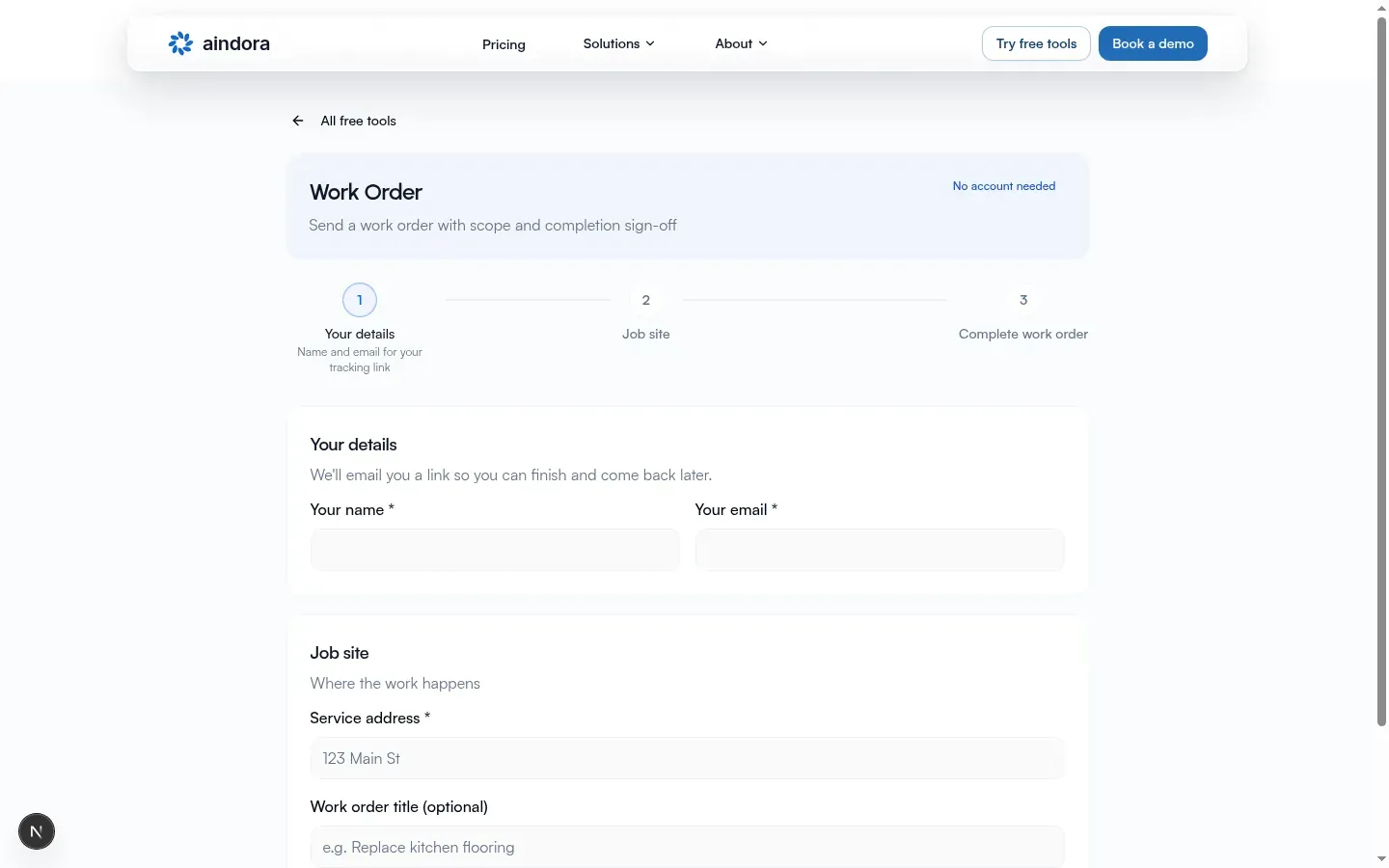
Section titled “Free tool path”Public create: free tools → Work Order.
- Title: Work Order
- Subtitle: Send a work order with scope and completion sign-off
Steps:
- Your details (name and email for your tracking link)
- Job site (where the work happens)
- Complete work order (add scope, assignee, and send)
Create form fields:
- Your name *, Your email *
- Service address *
- Work order title (optional)
- Submit: Create work order
- Success continue: Open your tracking link
Creator track (after create):
- Save draft before send; Save Work Order after send
- Send to assignee
- Download signed PDF when signed
- New work order to start over
How to run a work order
Section titled “How to run a work order”- Open Work Orders, or start from free tools → Work Order.
- Create the packet: title, instructions, checklist, customer, and assignee.
- Assignee works the checklist on the access link (or on the work order detail when assigned internally).
- Mark complete with a Completion summary (all checklist items must be done).
- Send for sign-off or share the sign-off link; homeowner uses Sign and approve.
- Download the signed PDF from detail, track, or the public sign-off page.