
Accounts and sign-in
Flow asks you to sign in before you open your company workspace. After sign-in or sign-up, Flow walks you through a short setup, then opens your company or job list.
Free tools do not need an account. Shareable links for scope clarification, quotes, and work orders stay open without sign-in.
Sign-in screens
Section titled “Sign-in screens”| Screen | When you use it |
|---|---|
| Sign in | Log in with email and password |
| Create account | Start a new Flow account |
| Forgot password | Request a reset code by email |
| Set new password | Enter the code and choose a new password |
| Google sign-in | Finish signing in with Google, then enter Flow |
If you are already signed in and open sign-in or create account, Flow sends you into the app. If you open a Flow page while signed out, you’ll sign in first and return to that page when you’re done.
Sign in
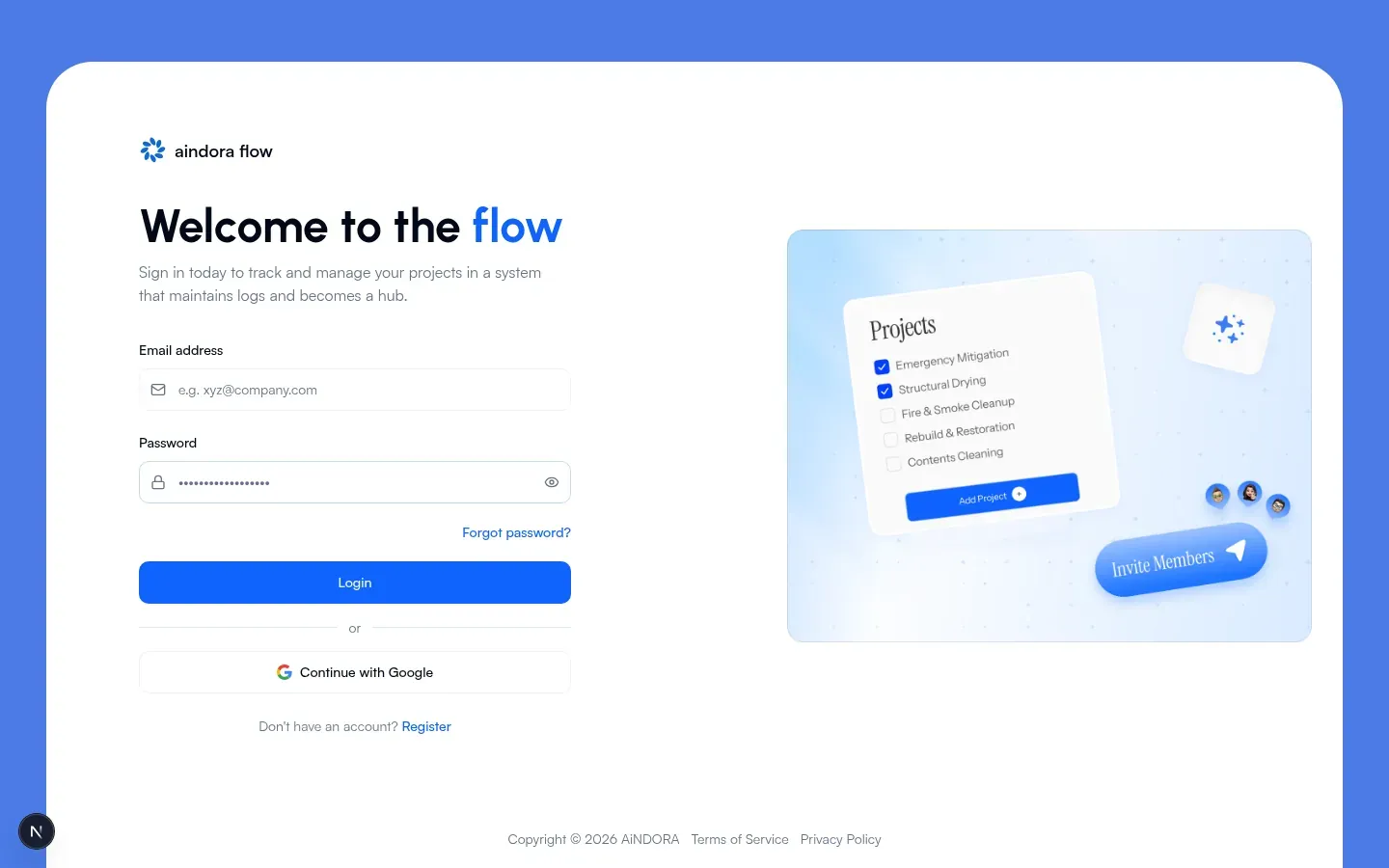
Section titled “Sign in”Screen title: Welcome to the flow. You’ll also see aindora flow on the form.
- Open the Sign in page.
- Enter Email address and Password, then Login.
- Or choose Continue with Google if you see that button.
- Need an account? Tap Register on the same screen.
- Forgot your password? Tap Forgot password?
If you opened a link to a specific page in Flow, you’ll land there after sign-in.
Create an account
Section titled “Create an account”Screen title: Create your account.
- Open Create account (or tap Register from sign-in).
- Enter Email address, Password, and Confirm password.
- Tap Register, or Continue with Google if you see that button.
- For email and password: Flow emails a verification code. On Verify your email, enter the code and tap Verify Email.
- Wrong email on the verify step? Tap Go back to return to the form.
- After verification (or Google), Flow continues into the app.
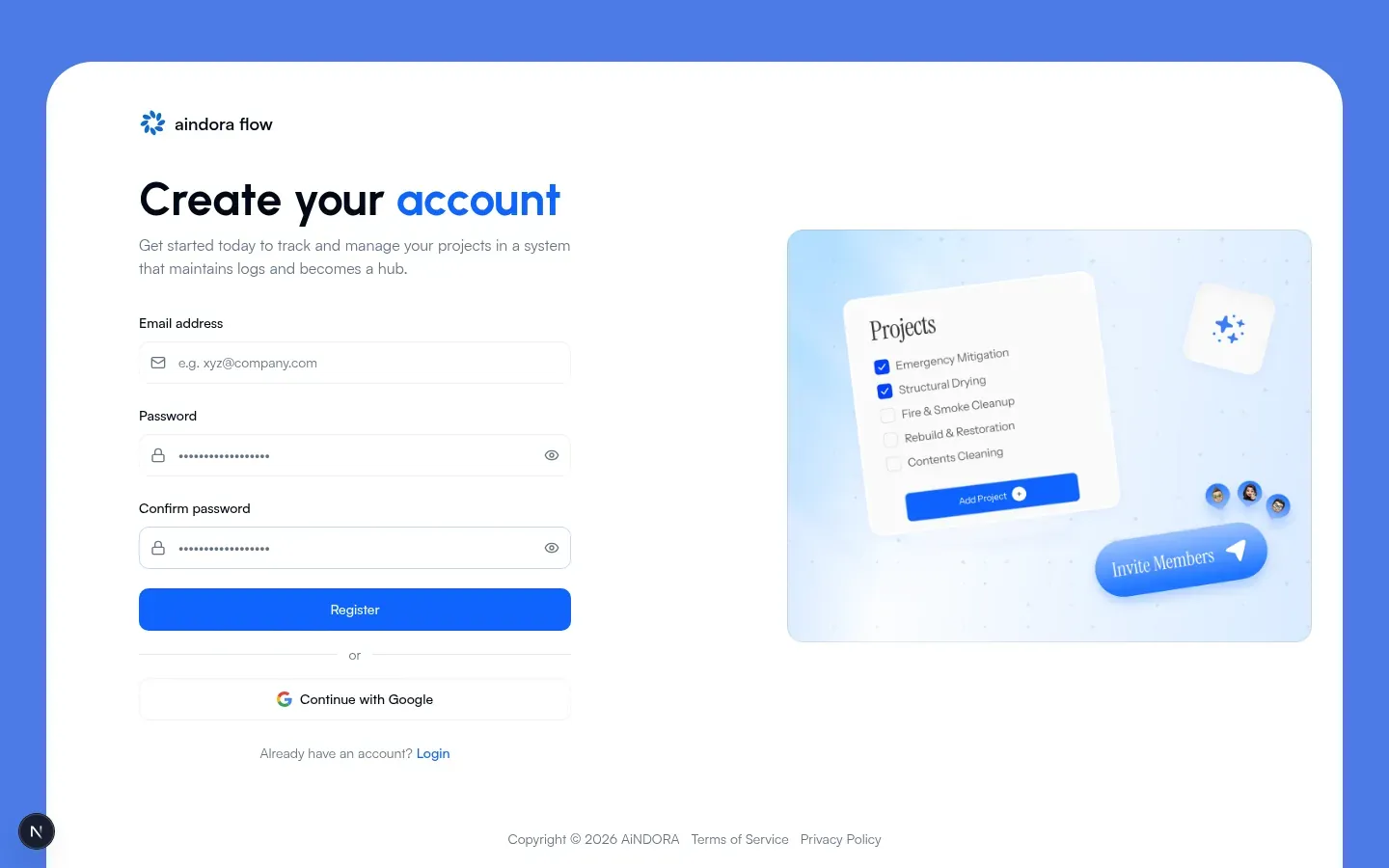
Password and Confirm password must match. Passwords must be at least 8 characters.
Reset your password
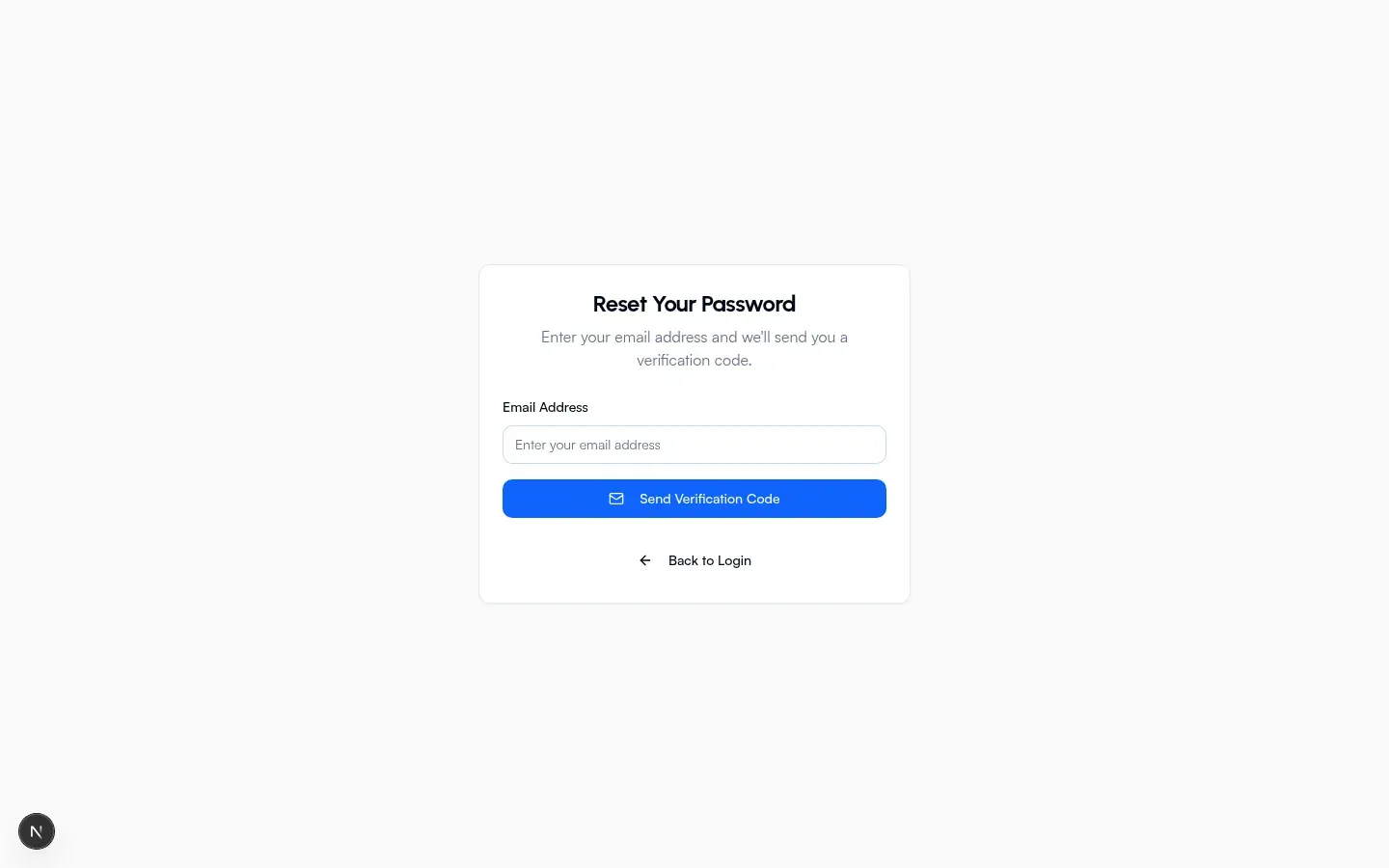
Section titled “Reset your password”- From sign-in, tap Forgot password? The screen title is Reset Your Password.
- Enter your email and tap Send Verification Code.
- On the next screen, enter the 6-digit code and tap Verify Code.
- On Set New Password, enter New Password and Confirm New Password (at least 8 characters), then tap Update Password.
- On success you are signed in and enter Flow. Tap Resend code if the email never arrived.
After sign-in
Section titled “After sign-in”Flow finishes setup, then sends you to the right first screen: finish your profile, pick or create a company, or open your job list.
Related
Section titled “Related”- Flow getting started for your first session after you sign in
- How to read these docs for how these guides are written