
For students
In Apprentice, signed-in students build a profile, set weekly availability, browse open listings, apply with an optional message, then track My applications and Placements. This page walks through that path. Product overview: Apprentice overview. Organization listing and review: For organizations.
Sidebar nav: Home, Browse listings, My applications, Placements, Settings. Availability is a real screen and also appears on Home; it is not a sidebar item today.
Browse may show Recommended for you. Apply messages are optional text you type yourself.
End-to-end path
Section titled “End-to-end path”- Sign in, choose I’m a student, then complete your student profile.
- Set weekly Availability on Home or on the Availability page.
- Open Browse listings. Search, filter by location / Nearby, radius, and Paid / Unpaid.
- Open a listing, choose Apply, optionally add Message to employer, then Submit application.
- Track status under My applications.
- After accept, use Placements to message the organization.
Student profile
Section titled “Student profile”Onboarding steps:
- What trade are you in? then Continue
- Upload your resume (PDF only, up to 10 MB), or No resume? Fill it in manually
- Review your profile then Save and continue
Review fields:
| Field | Notes |
|---|---|
| Trade | Chosen in step 1; you can’t change it on the review step |
| School | Required; hint College or training provider |
| Certification level | None / pre-apprentice, First year, Second year, Third year, Fourth year, Journeyperson |
| Bio | Required; hint A short introduction for employers |
| Experience | Optional rows: role/title, organization, start/end dates, I currently work here, optional summary |
| Certifications & safety tickets | Optional: name, issuer, issued/expires dates |
| Skills | Optional chips; Add a skill and press Enter |
| Languages | Optional: name plus proficiency Native / Fluent / Conversational / Basic |
| Resume | PDF when uploaded; Start over returns to trade step |
| Location | Canada location search; hint City or address in Canada |
Uploading a resume can prefill empty profile fields. Edit the same form later from Home (edit sheet). Incomplete Home state links you to finish the profile with Complete profile.
Availability
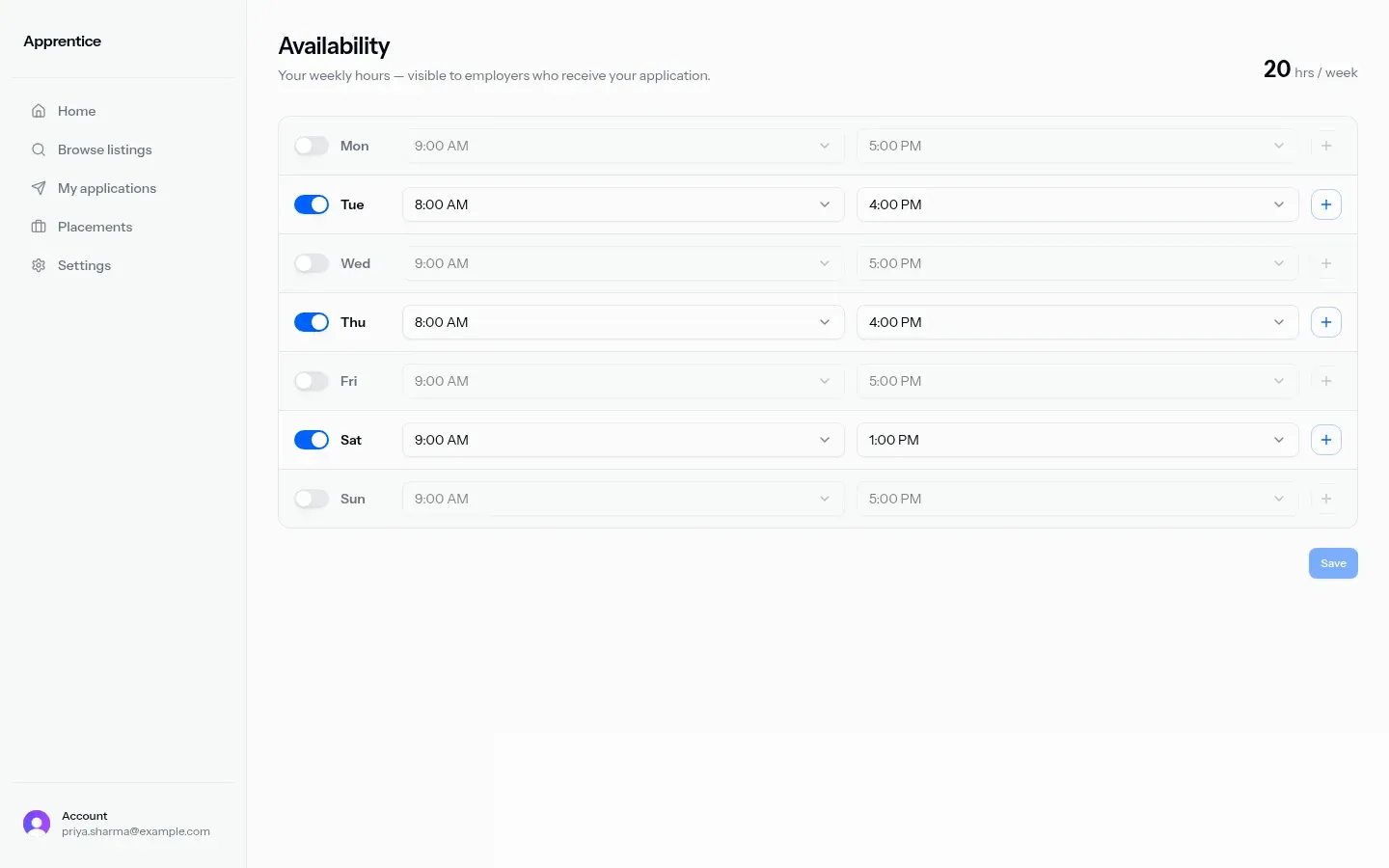
Section titled “Availability”Full page title: Availability. Subtitle: weekly hours visible to employers who receive your application. Home shows the same editor in a compact view under an Availability heading.
Controls:
- Days Mon through Sun, each with an enable switch
- Per day: one or more time-range slots (start and end selects)
- Times in 30-minute steps (12:00 AM through 11:30 PM)
- Default new slot 9:00 AM to 5:00 PM
- Add slot (+) / remove extra slots; Save when dirty
- Full page shows total hrs / week when hours are set
End time must be after start time per day. Availability is not in the student sidebar; reach it from Home.
Browse listings
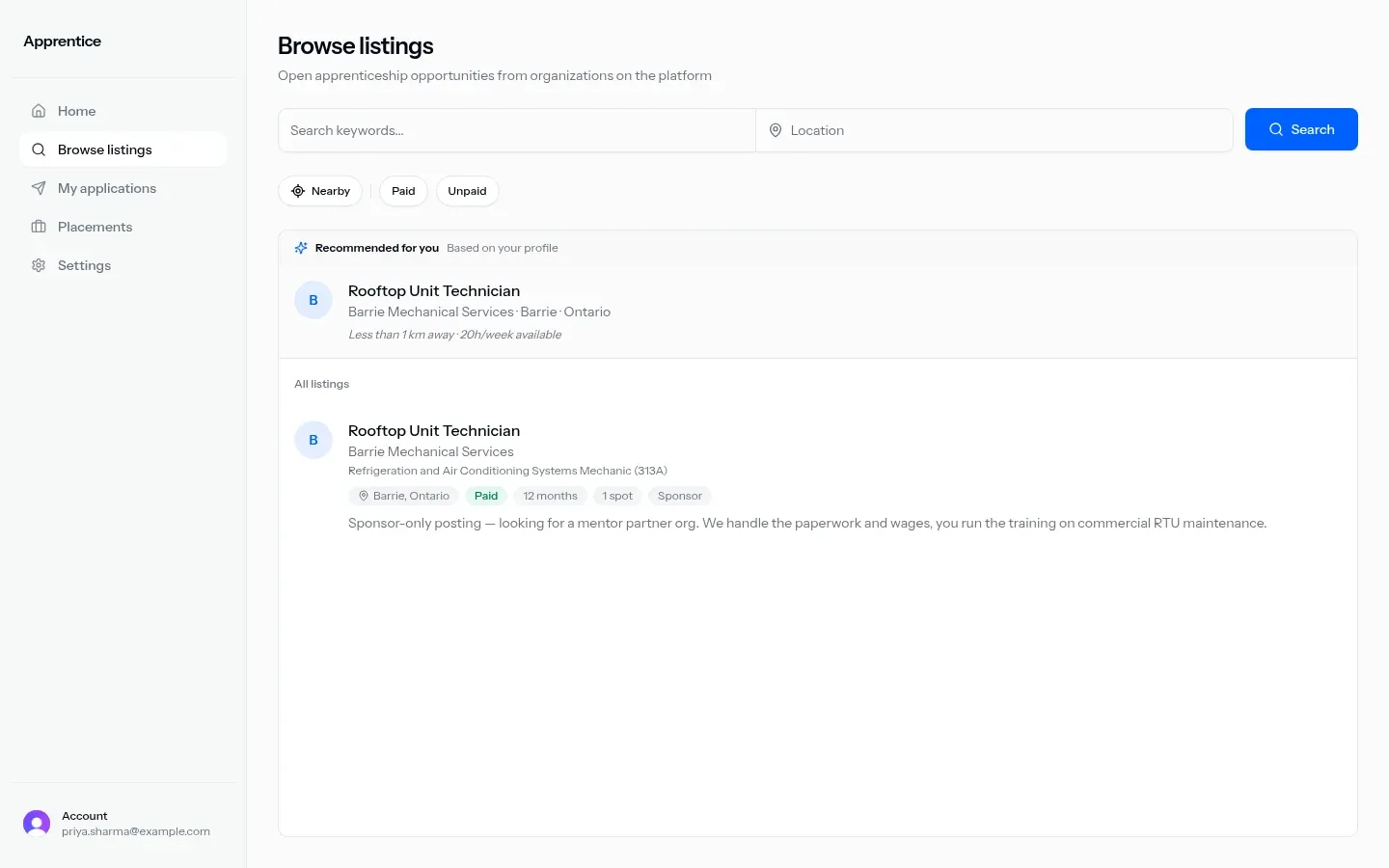
Section titled “Browse listings”Nav and page title: Browse listings. Subtitle: open apprenticeship opportunities from organizations on the platform.
Filters
Section titled “Filters”| Control | What you’ll see |
|---|---|
| Free-text search | Hint Search keywords…; submit with Search |
| Location | Location search with hint Location |
| Nearby | Nearby uses browser location; near label becomes My location (toggle again to clear) |
| Paid / Unpaid | Chip filters; toggle off to clear |
| Radius | Shown only when a location pin is set. 25 km, 50 km, 100 km, 250 km. Default 50 km |
| Clear | Clear resets query, location, radius default, and paid filter |
Recommended for you
Section titled “Recommended for you”Browse may show a Recommended for you header with subtitle Based on your profile, plus short italic justification text per row. Applied listings are hidden from the strip.
When both recommendations and other listings remain, a section label All listings appears above the main list.
Listing list and detail
Section titled “Listing list and detail”Each unapplied listing row can show:
- Title, organization name, trade display name
- Location chip (city, province)
- Paid or Unpaid
- Duration, spots count, your role on the listing (Mentor / Sponsor / Mentor & sponsor)
- Short description preview
Selecting a row opens a detail panel (side panel on desktop; slides up from the bottom on phone) with Apply, tags for trade/location/paid status, and full Description.
When the list is empty you’ll see: No open apprenticeships right now, No listings match your search, or You’ve applied to everything here (with Clear filters when filters are active).
Apply sheet
Section titled “Apply sheet”From listing detail Apply, a right sheet opens. Title is the listing title. Meta line can show organization, trade, city/province, and Paid/Unpaid.
| Control | Notes |
|---|---|
| Message to employer | Optional note. Hint invites a short note about fit |
| Cancel | Closes the sheet |
| Submit application | Sends your application with the optional message |
If you already applied, the sheet shows an already-applied error. Success marks the listing applied and closes the sheet.
My applications
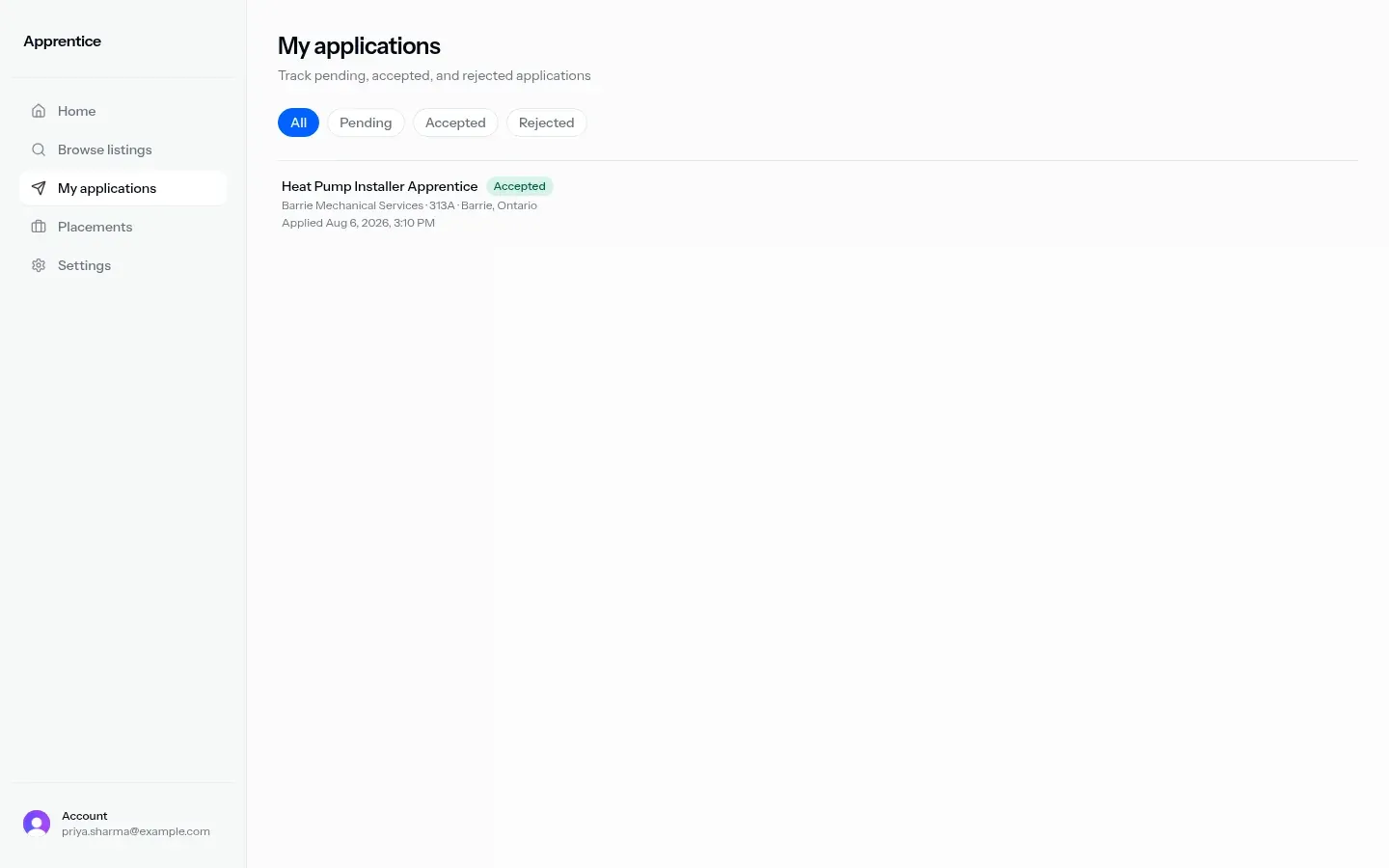
Section titled “My applications”Nav and page title: My applications. Subtitle: track pending, accepted, and rejected applications.
Status filter chips: All, Pending, Accepted, Rejected.
List rows open application detail and show listing title, status badge, organization / trade / location, and applied time.
Empty (no applications): You haven’t applied yet with Browse listings. Empty for a filtered status: copy such as No pending applications.
Application detail
Section titled “Application detail”Student detail shows:
- Back link to My applications
- Listing title, organization / trade / location, status badge
- Your application message when you sent one
- Applied time
- View my résumé
- Conversation thread with Add a message / Send
Students do not see accept/reject controls or the schedule comparison (those are for organization accounts only).
Placements
Section titled “Placements”Nav and page title: Placements. Student subtitle: active and past apprenticeship placements; message organizations from here.
Cards show organization name and a subtitle built from listing title, organization, student name when present, and location. Open opens a sheet titled Placement with Conversation and Message the organization / Send. Refresh reloads the list.
Empty: No active placements yet (placements appear when an organization accepts your application) with Browse listings.
Settings
Section titled “Settings”Sidebar Settings. Account name / email / role, and optional delete apprenticeship profile, are summarized on Apprentice overview.