
Work Order (free tool)
Work Order sends field work with scope and gets sign-off when it is done. You’ll see No account needed. Subtitle: Send a work order with scope and completion sign-off.
See Free tools overview for how all three free tools compare.
This tool uses a separate three-step strip from Scope Clarification and Request Quote. There is no Select Form / Fill Form / Invite Clients / Add Recipients / Review & Send path here.
Work Order vs Scope Clarification and Request Quote
Section titled “Work Order vs Scope Clarification and Request Quote”| Work Order | Scope Clarification / Request Quote | |
|---|---|---|
| Open it | Work Order | Scope Clarification / Request Quote |
| Steps | Your details → Job site → Complete work order | Select Form → Your details → Fill Form → invite → Review & Send |
| Template pick | None on create | System templates |
| Tracking link | Your tracking link | Your tracking link |
| Who receives work | One assignee (contractor) via email | Clients or vendors on scope/quote links |
| Outcome | Checklist progress, Mark complete, homeowner sign-off | Shared details lock, or per-vendor pricing |
List/create and import: Work orders and Free tools in Flow.
End-to-end path
Section titled “End-to-end path”Create starts from the hub Start card (or Work Order). Your details and the job site are collected on that page. After create, the success screen gives you a tracking link. Complete work order (scope, photos, assignee, send) continues on that page.
- Open Work Order from hub Start, or back with All free tools to All free tools.
- Your details and Job site on the create form (name, email, service address; optional title). Create work order.
- Success: You’re set (or Check your email), then Open your tracking link.
- On your tracking link: finish the packet (title, assignee, instructions, checklist, files), Save draft, then Send to assignee.
- Assignee opens their access link (no account), works the checklist, Mark complete with a Completion summary.
- Send for sign-off (needs homeowner email on the work order). Homeowner signs on the sign-off link with Sign and approve.
- Creator (or assignee) can Download signed PDF when signed off.
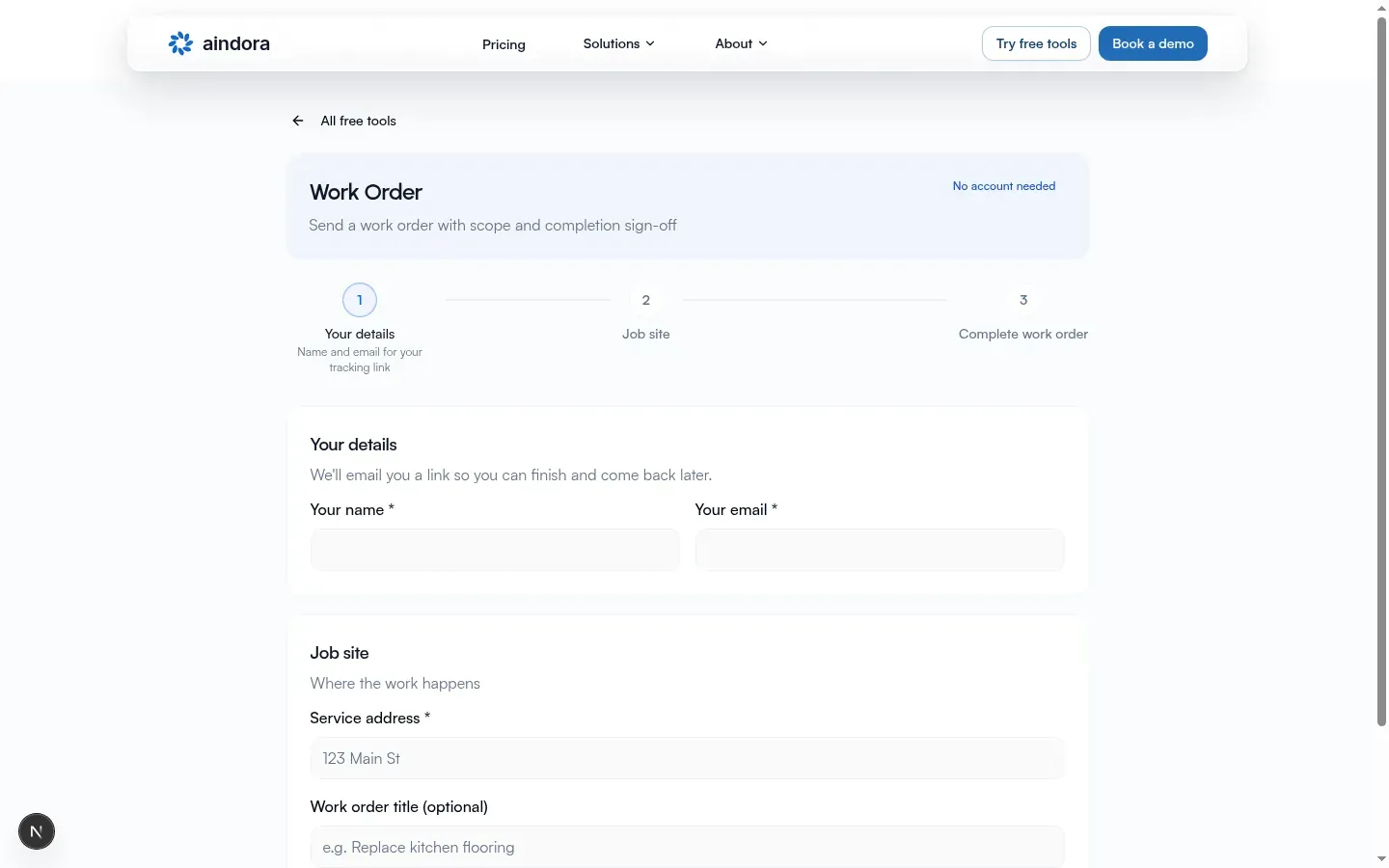
Wizard labels
Section titled “Wizard labels”| Element | Label |
|---|---|
| Title | Work Order |
| Subtitle | Send a work order with scope and completion sign-off |
| Badge | No account needed (shown on create; cleared on the tracking page) |
| Steps | Your details → Job site → Complete work order |
| Step descriptions | Name and email for your tracking link; Where the work happens; Add scope, assignee, and send |
| Back (form) | All free tools → All free tools |
| Back (success) | Start over (resets wizard) |
Mobile strip shows Step N of 3 with the active step title and description. The create page shows the Your details and Job site cards together before submit; the strip still lists all three labels. Complete work order is finished on the track link, not on the free-tool create page alone.
Your details and Job site (create)
Section titled “Your details and Job site (create)”Card: Your details
Section titled “Card: Your details”You’ll see: We’ll email you a link so you can finish and come back later.
| Field | Required |
|---|---|
| Your name | Yes |
| Your email | Yes |
Card: Job site
Section titled “Card: Job site”You’ll see: Where the work happens
| Field | Required | Notes |
|---|---|---|
| Service address | Yes | Example: 123 Main St |
| Work order title (optional) | No | Example: e.g. Replace kitchen flooring; if empty, title defaults to the service address |
Primary: Create work order (loading: Creating…). Action-bar note: Next you’ll add scope, photos, and your contractor, plus link Create free account to keep jobs in one place.
Generic create failure: Something went wrong. Please try again. Missing tracking link after success: Submission succeeded but no tracking token was returned. This form does not show a free-limit screen like Scope Clarification or Request Quote.
Success screen
Section titled “Success screen”| Element | Copy |
|---|---|
| Title (tracking link ready) | You’re set |
| Title (no continue link) | Check your email |
| Description (tracking link ready) | Next: add the scope, photos, and contractor, then send it. |
| Description (no tracking link) | We sent a link to finish your work order. Check your email to continue. |
| Primary button | Open your tracking link |
| Secondary | Copy tracking link / Link copied |
| Email line | Tracking link sent to your email when provided |
| Secondary action | Start over (resets wizard) |
Your tracking link
Section titled “Your tracking link”Loading spinner only (no separate loading sentence). Missing/expired: Work order not found / This tracking link may be invalid or expired. Other load failure: Something went wrong / Could not load this work order. Try again in a moment.
Pre-send (Complete work order)
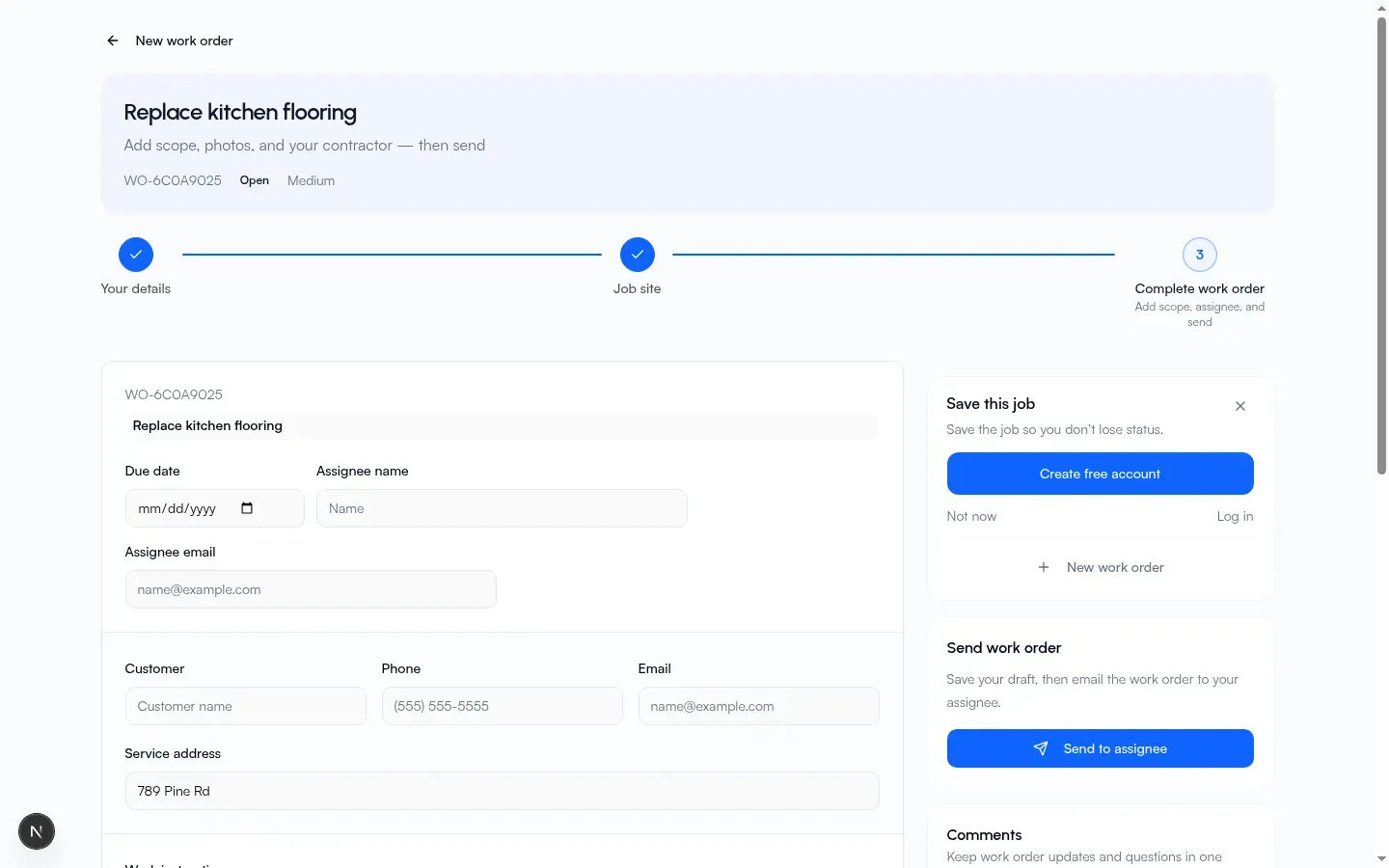
Section titled “Pre-send (Complete work order)”Wizard mode still shows the three-step strip with current step Complete work order. The badge is cleared on this page. Back: New work order → Work Order.
- Title uses the work order title, or Work order when empty.
- Subtitle meaning (pre-send): add scope, photos, and contractor, then send.
- Header line can show work order number, status badge, priority label, and assignee activity when present.
No-account form behavior:
| Area | What you see |
|---|---|
| Number line | Work order number, or New work order until numbered |
| Title | Required; example Install flooring in main office; message Title is required if empty on save/send |
| Status / Priority editors | Hidden (badges still appear in the header) |
| Due date | Optional date |
| Assignee name / Assignee email | Example text Name, name@example.com |
| Customer, Phone, Email, Service address | Same example text as on the create form |
| Work instructions | Hint about scope, materials, steps, site constraints |
| Internal notes / Completion summary | Hidden (completion summary is entered when the assignee marks complete) |
| Checklist | Add Item; empty No checklist items.; progress N/M complete |
| Internal files and photos | Upload internal; empty No internal files yet.; Move to sign-off |
| Sign-off files and photos | Upload sign-off; empty No sign-off files yet.; Move to internal |
Footer before send: Save draft / Cancel. Guard copy when title empty: Add a title to save this work order. Save confirmation: Saved / Work order updated. Upload confirmations: Uploaded / File attached.; Removed / File removed. Upload failure: Upload failed.
Send work order panel: Save your draft, then email the work order to your assignee. Button: Send to assignee. Success: Sent / Your assignee received the work order. Failure can say to add an assignee email and work order details before sending, or Could not send the work order. Try again.
Comments: Keep work order updates and questions in one thread. Empty: No comments yet. A prompt to save your work can sit beside the form; title Know if the crew opened it when the assignee opens; primary Create free account / Save to an organization when you have an account; secondary New work order. Full account and import path: Free tools in Flow.
Post-send
Section titled “Post-send”After send, the step strip is hidden. Header shows title (or number), status and priority badges, assignee (or Unassigned), optional Due date, checklist N/M checklist done, and assignee activity.
Actions when editable: Edit, Resend (confirmation: Resent / Assignment email sent again). After sign-off: Download signed PDF.
When you can no longer edit:
| Status | Copy |
|---|---|
| Signed off | This work order is signed off. Details can’t be changed. |
| Cancelled | This work order was cancelled. |
| Completed (not signed off) | Your contractor marked this work complete. Details can’t be changed. |
While editing after send, submit label becomes Save Work Order.
Creator-track status labels: Open, Scheduled, In Progress, Blocked, Completed, Signed off, Cancelled. Priority labels: Low, Medium, High, Urgent. On the assignee access page, in-progress status shows as In progress.
When the assignee opens the packet, the prompt can say Name opened it (name uses email or Assignee when empty).
Assignee access
Section titled “Assignee access”Public packet for the assignee (no account). Unavailable: Work order unavailable / This link may have expired or the work order is no longer shared.
Shows organization name, title, number, status and priority badges, Due date, Customer, Service address, Work instructions, checklist, Internal files and photos, Sign-off files and photos, and Comments.
Execution:
- Edit checklist items (Item), Save checklist (guard: Save checklist changes before marking work complete.)
- Mark complete blocked until checklist done: Complete all checklist items first.
- Dialog Mark work complete: description about completion summary for the homeowner sign-off package; field Completion summary; actions Mark complete / Cancel.
After complete, Homeowner sign-off card:
- Badge Awaiting signature when not signed
- Send for sign-off when ready and customer email exists (confirmation: Sign-off email sent)
- Without customer email: A homeowner email is required to send the sign-off link. / Add a homeowner email on the work order to send the sign-off.
- When signed: Download signed PDF; shows signer name and signed time
- Not ready: Sign-off will be available once the completion package is ready.
Mobile sticky bar can show Mark complete, or after complete a Create sign-off package link for Create sign-off package (that link returns to the access page; homeowner signing uses the sign-off link below).
Homeowner sign-off
Section titled “Homeowner sign-off”Public sign-off link (no account). Unavailable: Sign-off unavailable / This link may have expired or the work order is not ready for sign-off yet.
When the homeowner can sign:
| Element | Copy |
|---|---|
| Section | Your signature |
| Help | Review the completion details above, then sign to confirm the work is satisfactory. |
| Full name | Placeholder Your full name |
| Consent | I agree to sign this document electronically. I understand this electronic signature is legally binding. |
| Primary | Sign and approve |
Messages: Name required, Consent required, success Signed off / Thank you. Your signature has been recorded. After signed: banner Signed off, Download signed PDF.
Already logged in
Section titled “Already logged in”If you open the free-tool link while signed in to Flow, you may be sent to your company’s Work Orders create screen, see Which company?, or stay on the no-account wizard (Continue without an account). Work orders you created before signing up can later be added to a company you own.
That path, picker, import (Import from free tools?), and save-your-work prompts are on Free tools in Flow.
List, detail, history, and company create: Work orders.