
Request Quote (free tool)
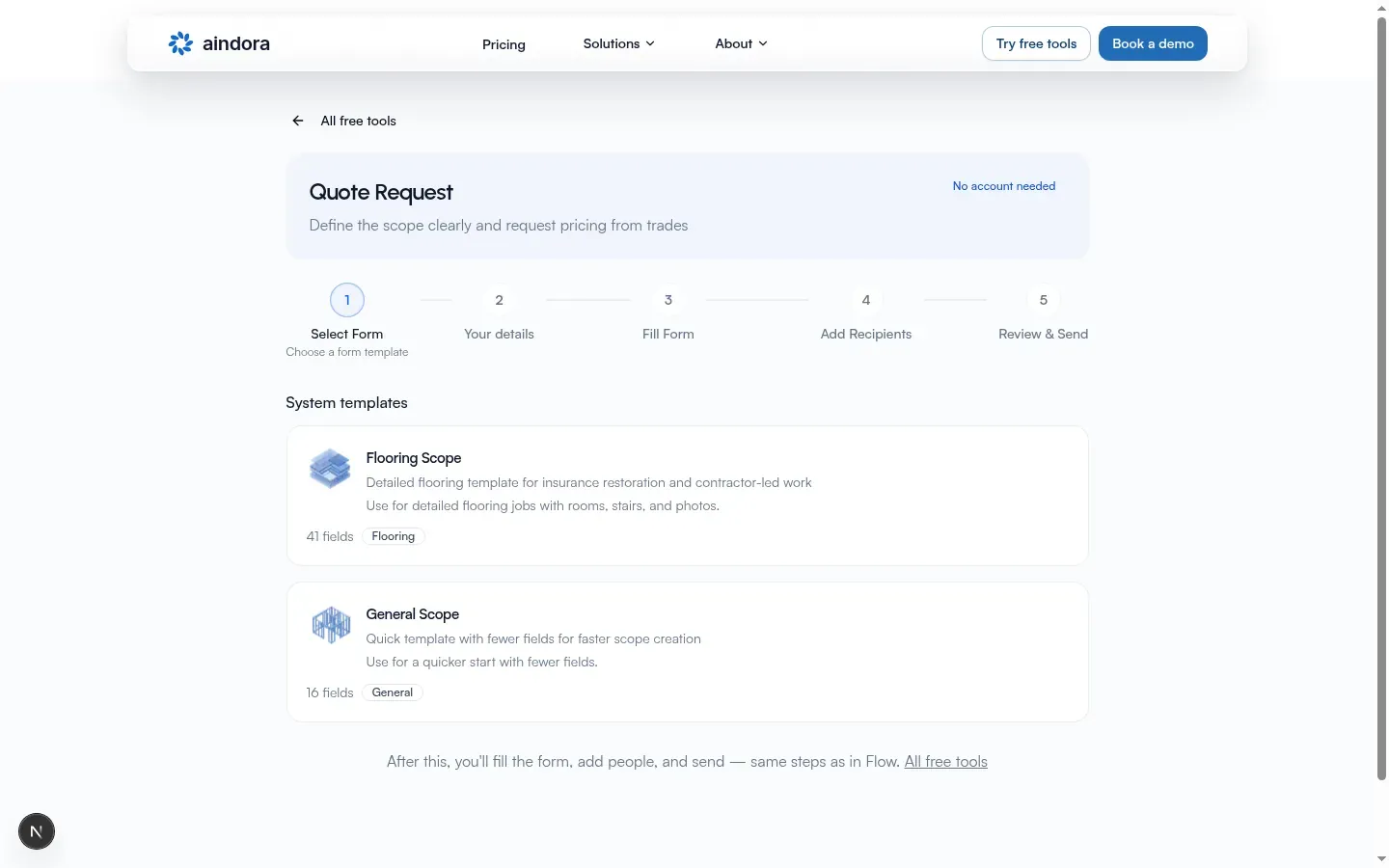
Request Quote sends a defined scope and collects pricing from trades. Wizard title: Quote Request. Badge: No account needed. Subtitle: Define the scope clearly and request pricing from trades.
Each vendor gets an individual link. It is not a shared details form. For missing details use Scope Clarification. See also Free tools overview.
Request Quote vs Scope Clarification
Section titled “Request Quote vs Scope Clarification”| Request Quote | Scope Clarification | |
|---|---|---|
| Open it | Request Quote | Scope Clarification |
| Goal | Per-vendor pricing | Shared details form |
| Invite step | Add Recipients | Invite Clients |
| Track clients/vendors card | Vendors | Clients |
| Send button | Send quote requests | Send to clients |
| Complete | Each vendor submits or declines independently | Creator marks complete; whole shared form locks |
Vendors do not edit one shared answer set. Each prices (or declines) on their own link. One vendor finishing does not close the request for others.
End-to-end path
Section titled “End-to-end path”Create starts from the hub Start card (or Request Quote). After Your details, the success screen gives you a tracking link. Fill Form, Add Recipients, and Review & Send continue on that page (same step labels as the wizard).
- Open Request Quote from hub Start, or back with All free tools to All free tools.
- Select Form. Pick a System templates card.
- Your details. Name, email, property address; optional required-by date. Continue creates the quote request.
- Success: You’re set (or Check your email), then Open your tracking link.
- On your tracking link: Fill Form with the defined scope trades will price.
- Add Recipients (vendors) by email (no account for them).
- Review & Send → Send quote requests. Each vendor opens their own shareable link.
- Vendors Submit Quote or Decline to Quote independently. See Recipient link below.
Wizard labels
Section titled “Wizard labels”| Element | Label |
|---|---|
| Title | Quote Request (hub card title is Request Quote) |
| Subtitle | Define the scope clearly and request pricing from trades |
| Badge | No account needed |
| Steps | Select Form → Your details → Fill Form → Add Recipients → Review & Send |
| Back (template step) | All free tools → All free tools |
| Back (details step) | Back (returns to template select) |
Mobile strip shows Step N of 5 with the active step title and description. Step descriptions: Choose a form template; Who you are and where the job is; Enter project details; Who should receive this?; Review and send.
Select Form
Section titled “Select Form”Heading: System templates. When empty: No templates available.
Known system names: Flooring Scope and General Scope.
| Template | Summary |
|---|---|
| Flooring Scope | Use for detailed flooring jobs with rooms, stairs, and photos. |
| General Scope | Use for a quicker start with fewer fields. |
Each card shows a live N fields count from the template.
Footer under the list: After this, you’ll fill the form, add people, and send (same steps as in Flow), plus link All free tools.
Your details (create)
Section titled “Your details (create)”After you pick a template, the header badge shows the selected template name.
Card: Your details
Section titled “Card: Your details”You’ll see: We’ll email you a link so you can finish and come back later.
| Field | Required |
|---|---|
| Your name | Yes |
| Your email | Yes |
Card: Project details
Section titled “Card: Project details”You’ll see: Where you need pricing.
| Field | Required | Notes |
|---|---|---|
| Property address | Yes | Example: 123 Main St |
| Required by | No | Date; help: When you need a response back |
Primary: Continue (loading: Starting…). Action-bar note links Create free account for unlimited requests.
Free limit
Section titled “Free limit”If you hit the free limit: title Free limit reached; copy that you’ve used your 5 free quote requests; buttons Create free account / Already have an account? Log in.
Success screen
Section titled “Success screen”| Element | Copy |
|---|---|
| Title (tracking link ready) | You’re set |
| Title (no continue link) | Check your email |
| Quotes description (tracking link ready) | Next: fill in the scope, add trades, and send it. |
| Primary button | Open your tracking link |
| Secondary | Copy tracking link / Link copied |
| Email line | Tracking link sent to your email when provided |
| Secondary action | Start over (resets wizard) |
Your tracking link
Section titled “Your tracking link”Open your tracking link. Steps continue as Fill Form → Add Recipients → Review & Send. After send, the step strip is hidden. Back label: New quote request → Request Quote.
Loading: Loading your submission…. Missing/expired: Submission not found / This tracking link may be invalid or expired.
Fill Form
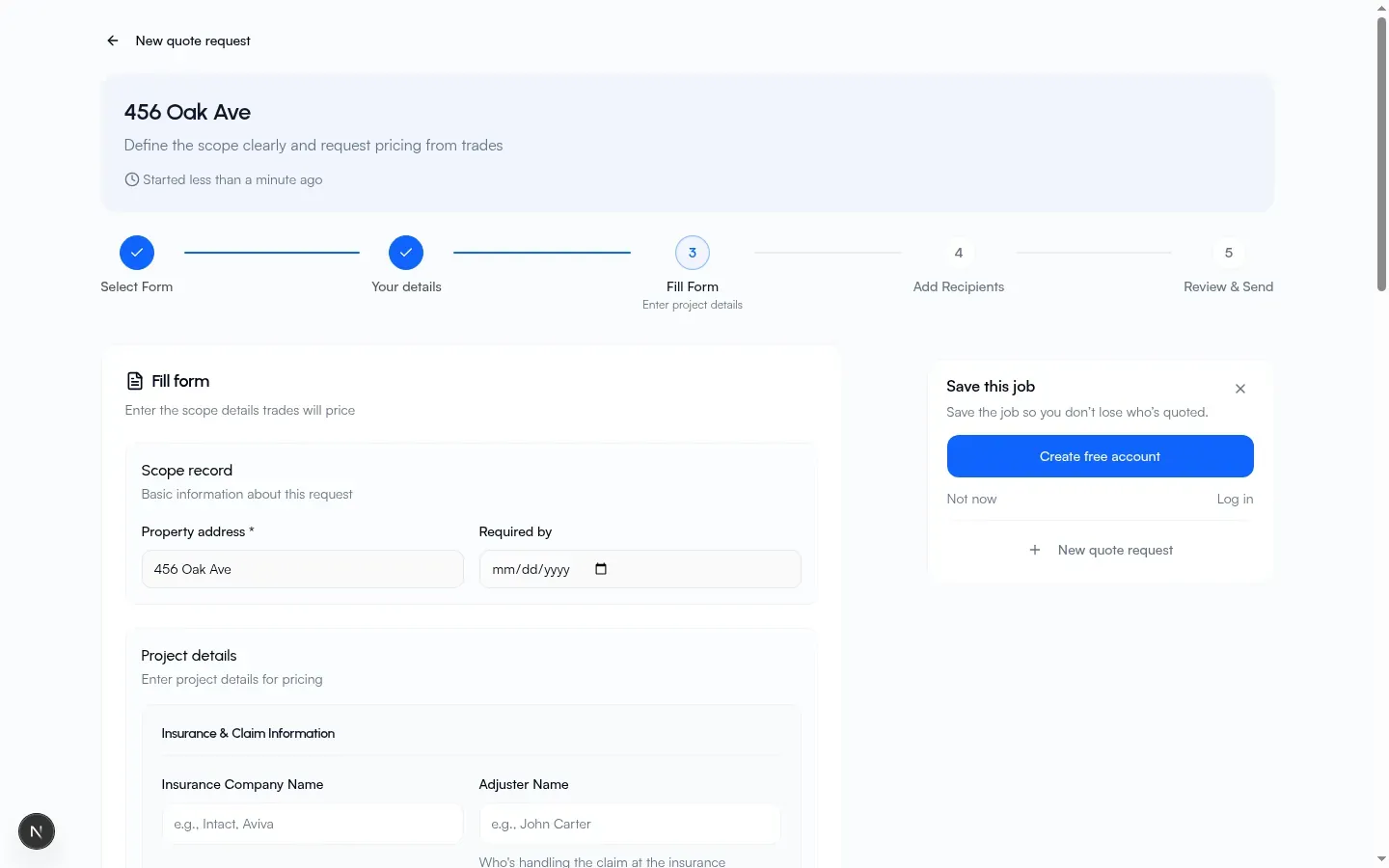
Section titled “Fill Form”Card title: Fill form. Quotes description: Enter the scope details trades will price.
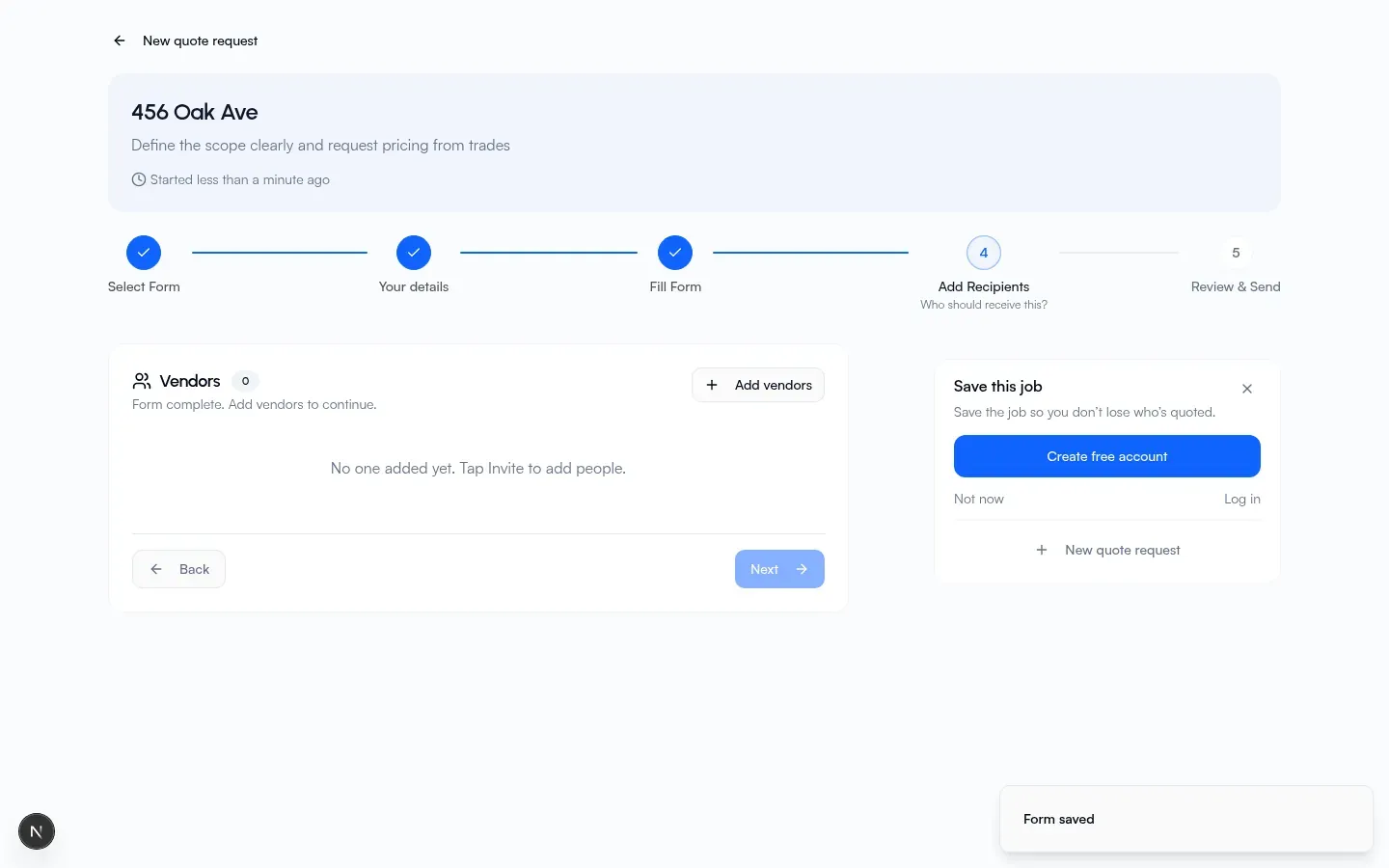
- Editable when not locked and not complete: fill the template fields; Next saves and continues (confirmation: Form saved).
- Help under Next: Next saves your form and continues.
- When locked and you can’t edit: shows Property address / Required by and Project details (or No project details); gray note Form is locked.
Required template fields must be filled before recipients unlock (messages: Incomplete form / Complete the form first).
Add Recipients
Section titled “Add Recipients”Step label: Add Recipients. Card title on the recipients step: Vendors. Dialog title / submit: Add recipients. Empty-step action: Add vendors (or Add more when some exist). Pending status label: Ready to send.
Empty (unlocked): No one added yet. Tap Invite to add people. If form incomplete: Finish the form first, then add people. Amber guard: Go back and finish required form fields before adding people.
Quotes also show recipient summary buckets (including quoted) when recipients exist.
On the post-send Vendors card (review):
- Empty: Nobody has this quote request yet / Add a trade by email (they open a link, no sign-up).
- Actions: Add recipients / Cancel; confirmations: Vendors added / Recipient removed.
- Inline add helper: Send this request by name or email (no account needed for them); submit Add recipient; example email
vendor@example.com. - Description lines shift with state (for example Form complete. Add vendors to continue.;
N of M quoted so far; Every vendor has quoted; Form has been finalised).
Review & Send
Section titled “Review & Send”- Status badges: Started or Sent, Finalised, Form locked; opened count N of M opened when recipients exist; quoted chip N of M quoted when any have quoted.
- Vendors card (above).
- Project details card; quotes description What trades will price. Edit mode: Editing (save when you’re done); actions Edit / Cancel / Save.
- When present: Property address, Required by. Empty template answers: No project details.
- Quotes card (when any submitted): Submitted prices from trades (per-vendor responses, sorted by amount). Response dialog title: Quote Response.
- Send: Send quote requests (confirmation: Sent successfully / Sent to all pending recipients.). Or All invitations sent / Add recipients to send. When complete: All done.
Comments and prompts to save your work sit beside the tracking page. Those buttons (Create free account, Log in, Save to an organization, Not now) are documented on the Flow free-tools page.
Per-vendor pricing (core idea)
Section titled “Per-vendor pricing (core idea)”Creator defines the scope once. Each invited vendor gets a separate shareable link to price that scope (or decline). This is pricing collection, not shared clarification.
- One vendor Submit Quote or Decline to Quote does not close the request for others.
- Submitted amounts appear on your tracking link under Quotes / Submitted prices from trades.
- There is no Finalise form path that locks everyone the way Scope Clarification does. Quotes stay open per vendor.
Quote list/detail and lock copy: Quotes.
Recipient link
Section titled “Recipient link”Open the shareable recipient link. Vendors open the link with no account. They submit a quote when allowed. They do not edit a shared form the way Scope Clarification clients do.
Status chips (quotes): Awaiting Response, Submitted, Declined as applicable.
Project Details card (vendors can’t edit): Review the project information below. When present: Property Address, Required by. Empty template answers: No additional details provided.
Your Quote
Section titled “Your Quote”When the vendor can still respond:
| Field | Required | Notes |
|---|---|---|
| Quote Amount | Yes | Number; checkbox Tax included in this price |
| Valid Until | No | Date |
| Notes | No | Textarea |
| Attachments | No | Supporting documents, breakdowns, or photos |
Actions: Submit Quote (loading Submitting…); Decline to Quote (confirm Decline to Quote? then Decline; loading Declining…). Decline copy: Are you sure you want to decline this scope? You won’t be able to submit a quote after declining.
After submit: Quote Submitted (your quote of $N has been submitted; optional valid-until). After decline: Quote Declined / You have declined to provide a quote for this request. Comments may still be available after respond.
Already logged in
Section titled “Already logged in”If you open the free-tool link while signed in to Flow, you may be sent to your company’s Quotes create screen, see Which company?, or stay on the no-account wizard (Continue without an account). Items you created before signing up can later be added to a company you own.
That path, picker, import (Import from free tools?), and save-your-work prompts are on Free tools in Flow and Quotes.