
Quotes
Request Quote sends a defined scope and collects pricing from trades. Each vendor gets their own link. One vendor submitting or declining does not close the request for others.
This is not Scope Clarification. Clarification uses one shared details form and finishes with Finalise form. Quotes collect per-vendor prices. Need missing details first? Use Scopes.
Scope Clarification vs Request Quote
Section titled “Scope Clarification vs Request Quote”| Scope Clarification | Request Quote | |
|---|---|---|
| Purpose | Collect missing details via one shared form | Send a defined scope; collect pricing |
| Recipients | Clients on one shared link | Individual link per vendor |
| Done when | Creator Finalise form (whole form) | Each vendor Submit Quote or Decline to Quote |
| Open it | Scope Clarifications (or free tools → Scope Clarification) | Quote Requests (or free tools → Request Quote) |
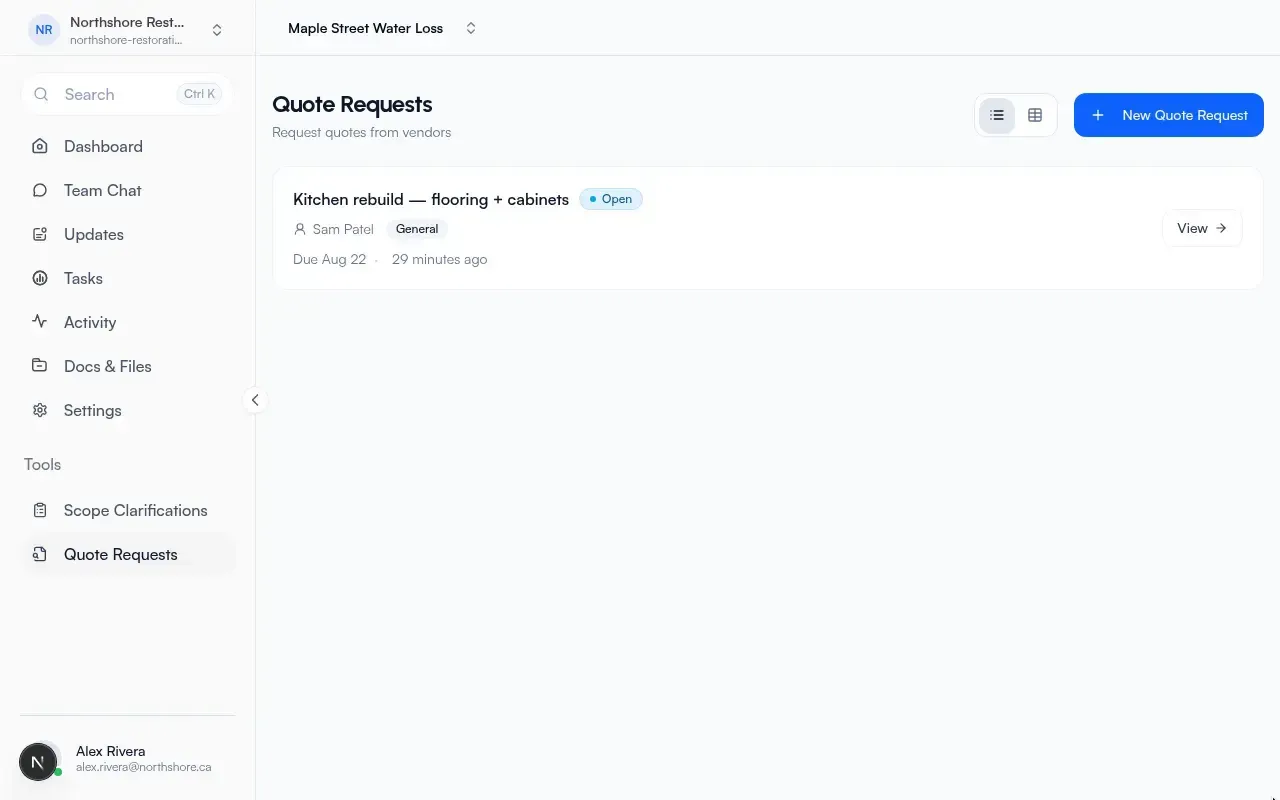
Org list page: Quote Requests.
- Description: All quote requests across your organization
- Create: New Quote Request
- Empty: No quote requests yet / Create your first one to request quotes from vendors.
Project list: same title and create label.
- Description: Request quotes from vendors
- Detail links stay under the project
Org and project detail pages use the same layout.
Project Quote Requests lists requests for that job. The organization Quote Requests page lists organization requests only (not every project request).
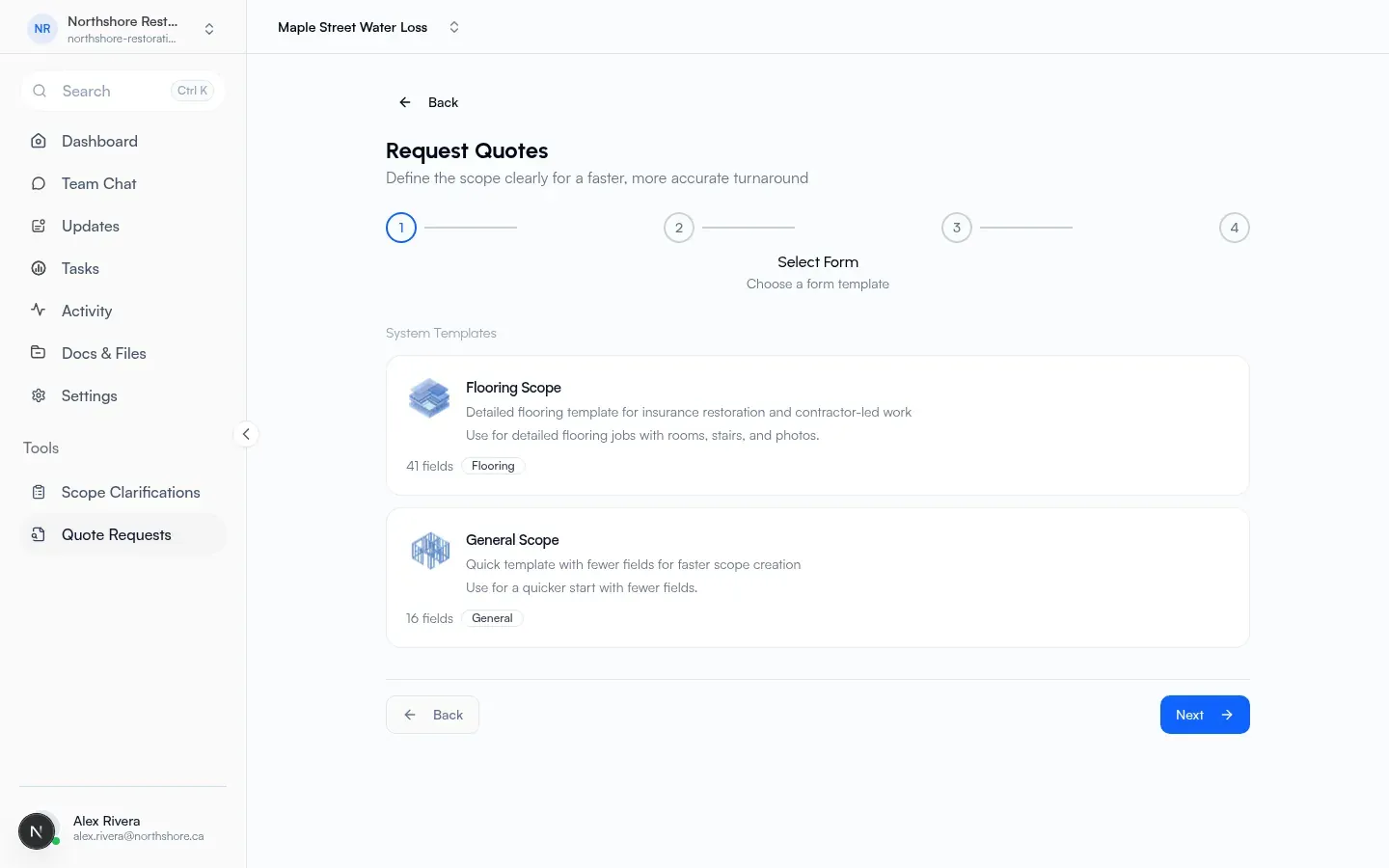
New quote wizard
Section titled “New quote wizard”Page title: Request Quotes. Subtitle: define the scope clearly for a faster, more accurate turnaround.
Steps:
- Select Form (choose a form template)
- Fill Form (enter project details)
- Add Recipients (who should receive this?)
- Review & Send
Unlike Scope Clarification, there is no separate Your details / Invite Clients step here. Recipients are vendors, not shared-form clients.
After send, Flow opens the quote detail.
Quote detail
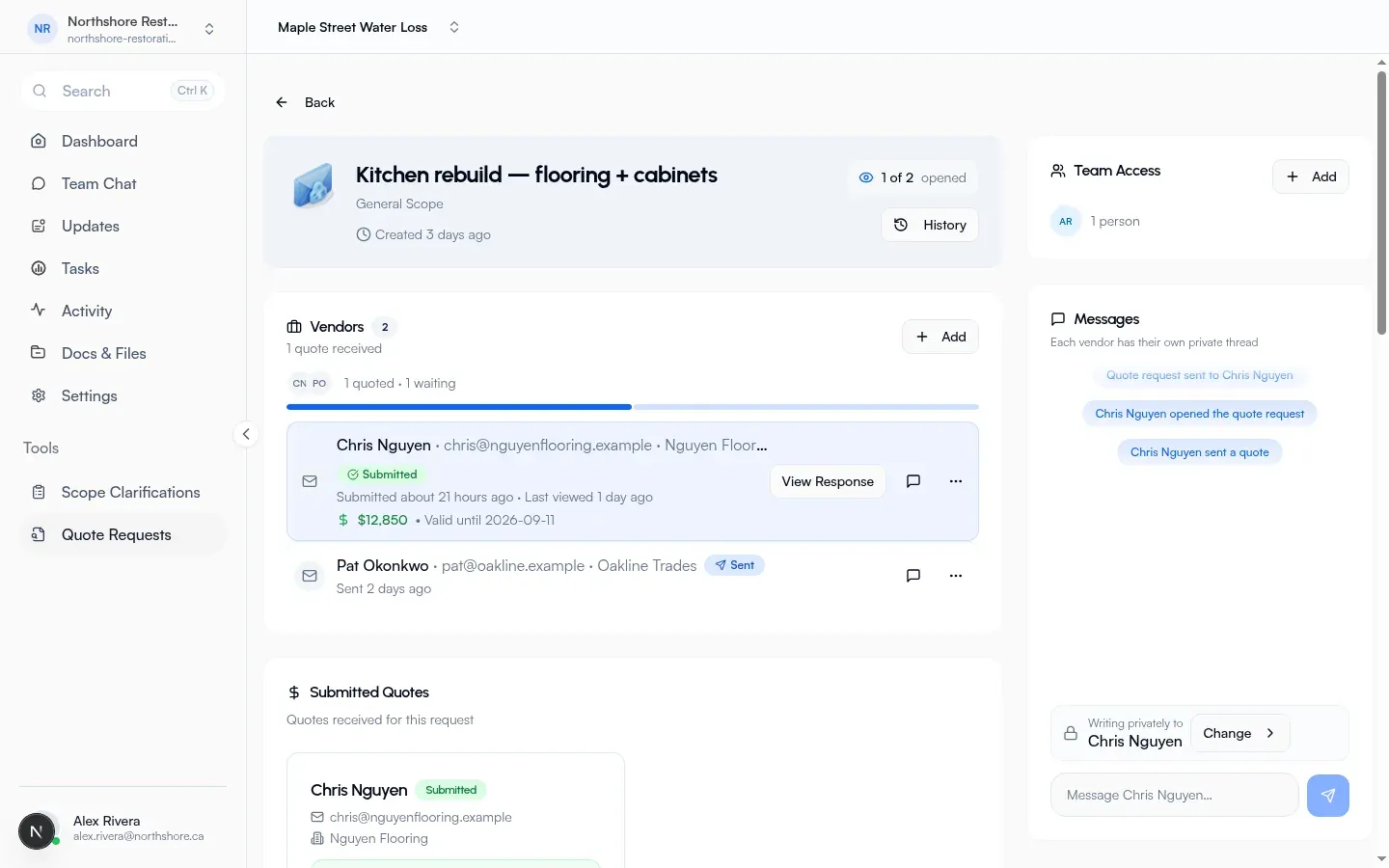
Section titled “Quote detail”Header title is Quote Request when empty. Shows the scope type (for example flooring scope), Created relative time, optional N of M opened, and Form Locked when locked. History opens revision history.
Mobile tab label for the main pane: Quote.
Vendors (not Clients)
Section titled “Vendors (not Clients)”Empty state: Nobody has this quote request yet / Add vendors to start collecting quotes. Action: Add Vendors.
With recipients, card title: Vendors.
- Description examples: count of quotes received, Waiting on named vendors, or Waiting for responses
- Actions: Send (pending recipients), Add, mobile Send to Pending
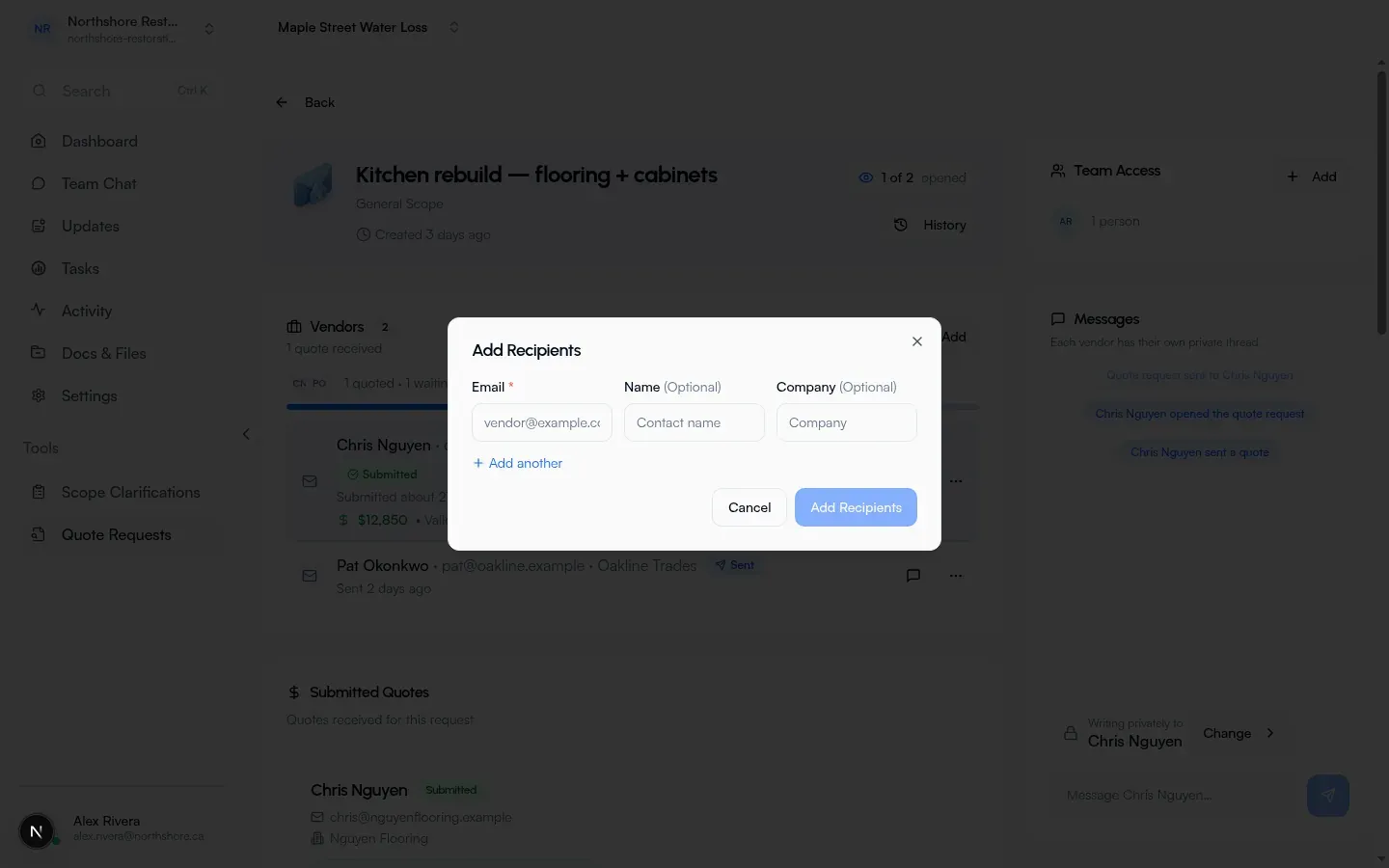
- Dialog to add: Add Recipients (confirm Add Recipients)
- Per-vendor list statuses include Pending, Sent, Submitted, Declined
- Conversation action label on this page: Open conversation
- View a response: dialog title Quote Response
Submitted Quotes
Section titled “Submitted Quotes”When any vendor has quoted: card Submitted Quotes / Quotes received for this request. Cards show amount and related response fields from that vendor only.
Project Details (defined scope, not shared editing with all vendors)
Section titled “Project Details (defined scope, not shared editing with all vendors)”Card title: Project Details.
- With recipients: Details shared with vendors
- Without: Details for this quote request
- Empty: No project details
- Collaborators can Edit / Save / Cancel, and Lock form / Unlock form (Reason for locking required, same as clarification). Locked banner: Form has been locked. No further edits can be made. (optional reason)
There is no Finalise form button on quote detail (that step is Scope Clarification only).
Free tool path
Section titled “Free tool path”Public create: free tools → Request Quote. Subtitle: define the scope clearly and request pricing from trades.
Steps:
- Select Form
- Your details (who you are and where the job is)
- Fill Form (enter project details)
- Add Recipients (who should receive this?)
- Review & Send
Post-send track (quotes):
- Project details description: What trades will price
- Send actions: Send quote requests, Add recipients to send, Add recipients
- Submitted prices card: Quotes / Submitted prices from trades
- Response dialog: Quote Response
Recipient public link for quotes:
- Status chips: Awaiting Response, Submitted, Declined as applicable
- Response card: Your Quote / Enter your quote details below
- Fields: Quote Amount (required), optional Tax included in this price, optional Valid Until, optional Notes, Attachments
- Actions: Submit Quote, Decline to Quote (confirm Decline to Quote? then Decline)
- After submit: Quote Submitted (amount; optional valid-until). After decline: Quote Declined
One vendor finishing does not close the request for others.
How to request quotes
Section titled “How to request quotes”- Open Quote Requests (company or project) or free tools → Request Quote.
- Create a request and fill the defined scope on the form.
- Add Recipients (vendors) and send. Each gets an individual link.
- Vendors Submit Quote or Decline to Quote on their own link.
- Review Submitted Quotes per vendor. Lock the form if you need to freeze the defined scope.